

Introduction
Extensions are small software programs that customize the browsing experience. There, a user can customize and manipulate the Chrome browser's functionality and open the web resources. An extension is built on web technologies, such as HTML, JavaScript, and CSS.
There are mainly 3 files that play an important role.
- Manifest.json
- Popup.js
- HTML
Manifest.json
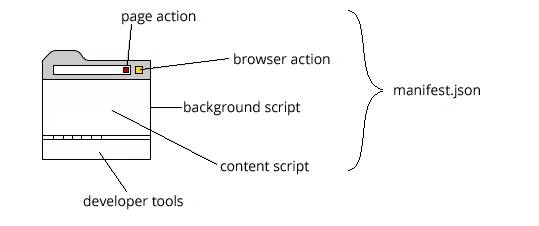
Manifest.json is a configuration file for Google Chrome browser to get the resources and references. Its parameters should be in proper sequence. All Chrome extension apps have their own manifest.json file.
Sample of Manifest.json file
- {
- "manifest_version": 2,
- "name": "Data Scraping Tool",
- "description": "This extension demonstrates a browser action with particular website.",
- "version": "1.0",
- "icons": {
- "128": "img/icon128.png",
- "16": "img/icon16.png",
- "48": "img/icon48.png"
- },
- "permissions": ["tabs", "https://www.visioneinfotech.com/*"],
- "browser_action": {
- "default_icon": "img/icon.png",
- "default_popup": "popup.html"
- },
- "content_scripts": [{
- "js": ["jquery-3.2.1.min.js", "content.js"],
- "matches": ["https://www.visioneinfotech.com/*"]
- }],
- "background": {
- "scripts": ["jquery-3.2.1.min.js", "background.js"],
- "persistent": true
- }
- }
Popup.js
A second important file is Popup.js which performs the action on DOM control (HTML of popup.html). Whenever we need to manipulate the current tab site through extension, we must have to inject contact.js where we can access DOM elements of the site and other resources.
When the extension is loaded, it will call “DOMContentLoaded” event first. This means that it loads the event of extension which will be called each time the extension executes or opens. Here, we need to transfer the user input/control to content.js through “Chrome.tabs.sendMessage”.
Popup.js code to send message
- document.addEventListener('DOMContentLoaded', function() {
- chrome.tabs.query({
- active: true,
- currentWindow: true
- }, function(tabs) {
- chrome.tabs.sendMessage(tabs[0].id, {
- action: "nameofaction",
- id: a
- });
- });
- });
Content.js code to handle the message request
- chrome.runtime.onMessage.addListener(function(request, sender, sendResponse) {
- if (request.action == "nameofaction") {
- //....code to do something
- }
- });
Popup.html
- <!doctype html>
- <html>
- <head>
- <script src="jquery-3.2.1.min.js"></script>
- <script src="popup.js"></script>
- </head>
- <body> <input type="text" id="txtname" /> <input type="submit" id="btnsave" title="save" value="save" /> </body>
- </html>
Chrome Extension project using Visual Studio 2015
Now, let's try to create a Chrome app using Visual Studio 2015. Let’s first install Google Chrome extension project template in Visual Studio. Refer to the download link. After installation of the Chrome extension project template, restart Visual Studio.
Now, create your first Chrome extension project from the "New Project" window.
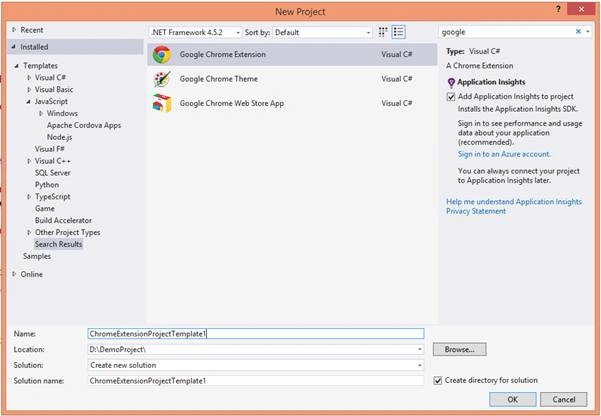
Inject Google Chrome Extension into Chrome browser
- Navigate to chrome://extensions in browser. You can also access this page by clicking on the Chrome menu on the top right side of the "customize and control" Google Chrome options, by hovering over "More Tools" and selecting "Extensions".
- Check the checkbox next to "Developer Mode".
- Click "Load Unpacked Extension" and select the “app” directory for your "Extensions Project" extension.
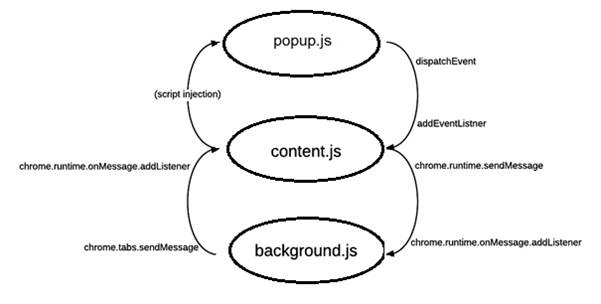
Let’s understand the Control flow of extension.
- A content script is injected into each page matching some criteria.
- Once injected, the content scripts send a message to the event page (non-persistent background page) and the event page attaches a page action to the tab.
- As soon as the page-action popup is loaded, it sends a message to the content script, asking for the info it needs.
- The content script processes the request, and responds so the page-action popup can display the info.
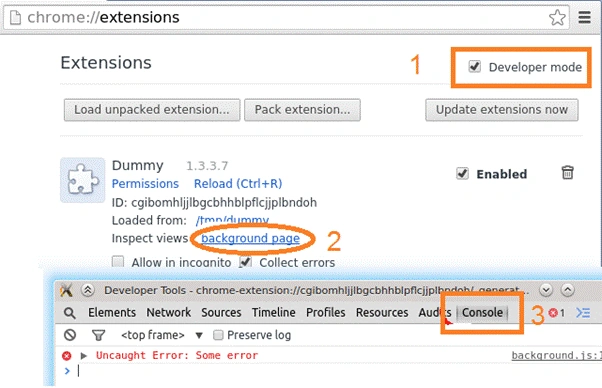
How to get debugger in background.js?
To debug the background functions and block of code, you must have to follow the following steps.
Visit chrome://extensions/.
- Make presistebt : false in manifest.json file.
- "background": {
- "scripts": ["jquery-3.2.1.min.js", "background.js"],
- "persistent": true
- }
- Enable developer mode.
- Click on the link of your background page (at "Inspect views").
- The developer console opens for this page.
Sam HobbsPosted Dec 11, 2018, 9:34 PM
Also background.persistent is no longer supported.
Sam HobbsPosted Dec 11, 2018, 8:58 PM
Apparently the Google Chrome Extension Project Template does not support VS 2017. That is okay for me since I know how to create extensions but I was curious about the template.
Sagar Pandurang KapPosted Feb 4, 2018, 10:57 PM
Now i know this..will try
Hiten PandyaPosted Feb 2, 2018, 9:45 AM
Thank you sir for sharing I really don't know that VS supports chrome extention development.
Mehul PrajapatiPosted Feb 2, 2018, 7:40 AM
Welcome, Anybody need help and suggestion. just text in comment.
Hemanth KumarPosted Feb 2, 2018, 12:43 AM
Thanks, i'm trying to develop one extension and dont know that i have a template in Visual studio itself. Thank you so much
Nigel FernandesPosted Feb 1, 2018, 7:37 PM
Wow didnt know there was a chrome project in VS, thanks , will definitely try this !