

Backup and Restore Database in SQL Server
Many times as a programmer we have to work with database backup and restore processes. Today we will learn how to attach your .MDF .LDF files and create a database .bak file in SQL Server.
I have EMP.mdf and EMP.ldf files on my Drive and now I want to attach these files and want to create my EMP database.
You can place them in the appropriate folder containing the other SQL databases on the server. In General setting this folder will be
c:\Program Files\Microsoft SQL Server\MSSQL11.MSSQLSERVER\MSSQL\DATA
but it depends on your SQL Server Setup time; data directory path may be in a different location.
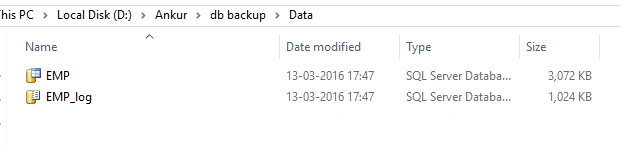
For that follow the steps.
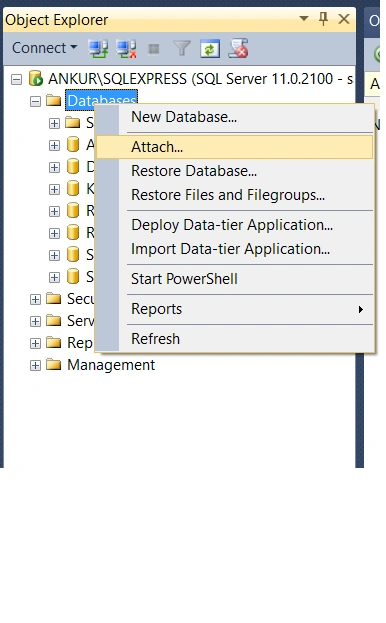
Step 1: Open your Microsoft SQL Server and right click on Database and Click on Attach, as shown in below screen.
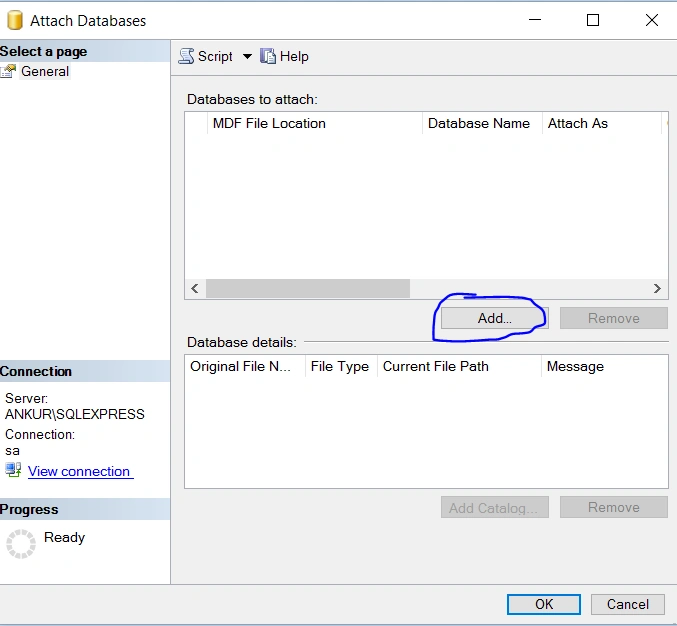
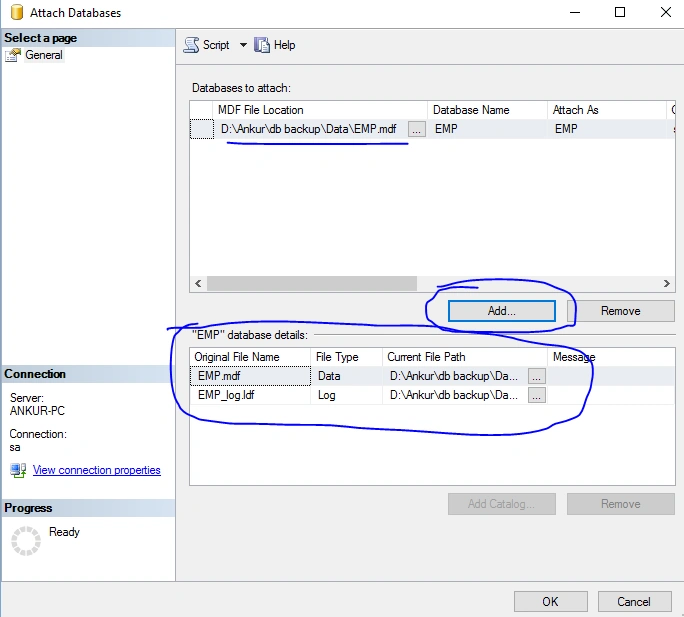
Step 2: It will open the below dialog, for adding a file click on 'Add' Button
Step 3:
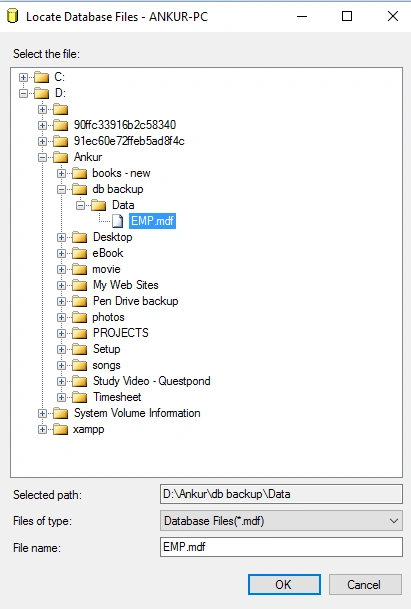
Locate your .MDF file from your Drive, here in my case D:\Ankur\db backup\Data\EMP.mdf. Select the file and click on Ok button.
Locate your .MDF file from your Drive, here in my case D:\Ankur\db backup\Data\EMP.mdf. Select the file and click on Ok button.
Remember the Default Path is c:\Program Files\Microsoft SQL Server\MSSQL11.MSSQLSERVER\MSSQL\DATA. But I am going to place the .mdf file in a different path and try to attach the file.
Step 4: It will display Data file (EMP.mdf) and Log file (EMP.ldf) shown as per below screen.
Click on Ok.
Step 5:
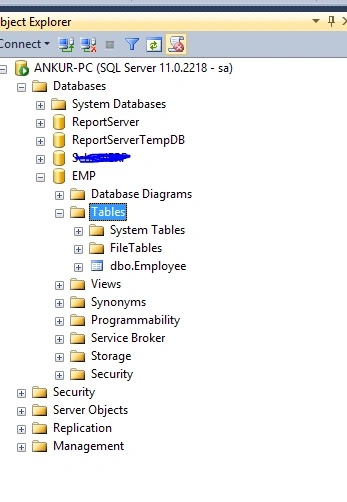
That's it; it will create an EMP database with data, you can check your MS SQL Object Explorer -> database and it will show the database attached, here it is EMP database.
That's it; it will create an EMP database with data, you can check your MS SQL Object Explorer -> database and it will show the database attached, here it is EMP database.
Hope you liked this article about how to attach your .MDF and .LDF file in MS SQL Server.
Read more articles on SQL Server:
Fay DaltasPosted Sep 11, 2019, 1:52 PM
Thanks, is there anything different or additional to do If I also am attaching an ndf file? Or will automatically be detected in step 4?
Naresh MittalPosted Sep 7, 2019, 7:41 AM
Most important part to remember is that you start the SSMS in Admin mode or else attachment will fail (Access denied exception is thrown)
SubashPosted Jul 28, 2016, 4:11 AM
Thank You sir
Humayun Kabir MamunPosted Mar 20, 2016, 12:07 AM
Nice...
Ankur MistryPosted Mar 15, 2016, 2:12 AM
Thank you
Amit Kumar SinghPosted Mar 15, 2016, 1:24 AM
Nice One
Ankur MistryPosted Mar 14, 2016, 7:54 PM
Thank you
Vignesh ManiPosted Mar 14, 2016, 5:42 PM
Good
Ankur MistryPosted Mar 14, 2016, 10:43 AM
thank you
Rushabh ParekhPosted Mar 14, 2016, 10:41 AM
Awesome Article and Great for Beginners .