

Introduction
Firebase is used to develop high-quality apps. It supports “Android”, “iOS”, “Web”, and “Unity”.
Firebase is an emerging technology in mobile application development. It is a more secure cloud-based platform and provides a lot of services for building mobile applications very efficiently and quickly.
Firebase services
- Cloud Messaging
- Authentication
- Realtime Database
- Cloud Storage
- Cloud Functions
- Hosting
- Test Lab
- Performance Monitoring
- Crash Reporting
Requirement
- Android Studio (Download Android Studio here)
- Little bit of XML and JAVA Knowledge
- Android Emulator (or) Android mobile
- Stable internet connection during execution
The following steps should be followed
Carefully follow the below steps to connect Firebase to Android applications using Android Studio.
Step 1
Go to the Firebase site and create a Firebase account using your Gmail id. Log into your account once created.
Link: https://firebase.google.com
 Step 2
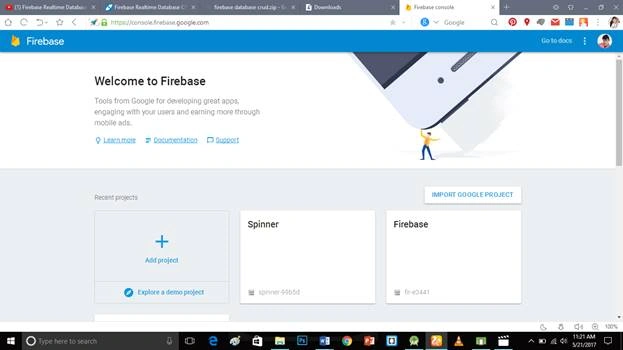
This is the Firebase Console of my account.
 Step 3
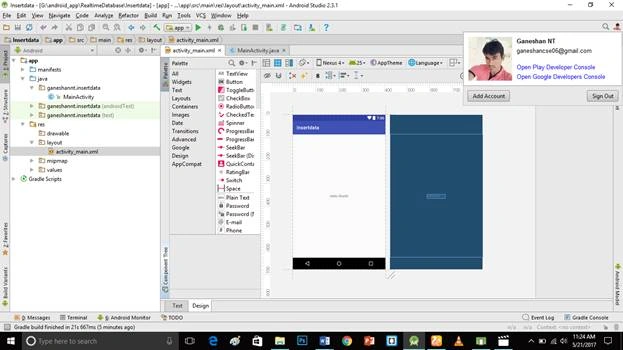
Log into the Firebase Gmail account from your Android Studio because this account synchronizes the data between Firebase and your application.
 Step 4
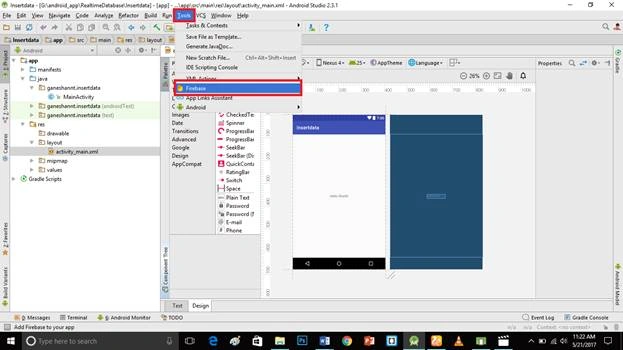
Open your project and click Tools ⇒ Firebase.
 Step 5
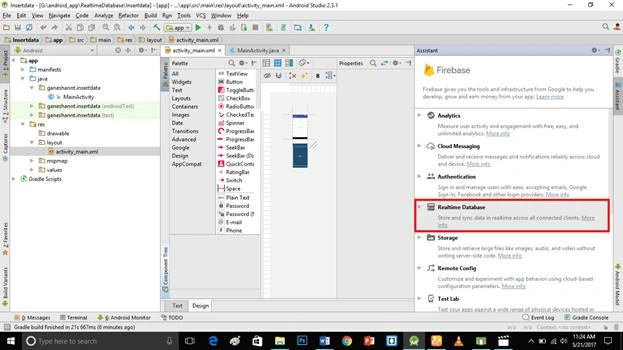
Now, open your Firebase Assistant and select Realtime Database.
 Step 7
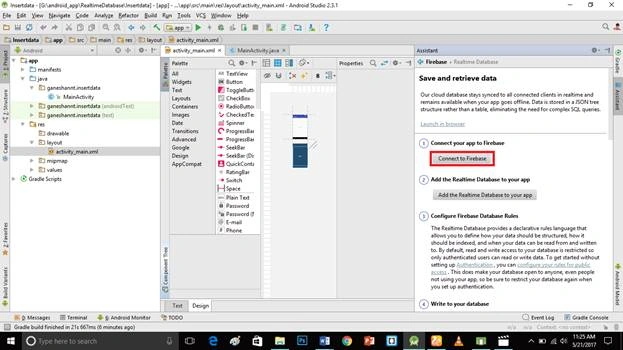
Click "Connect to Firebase", as shown below. It will connect the app to the Firebase account automatically.
 Step 8
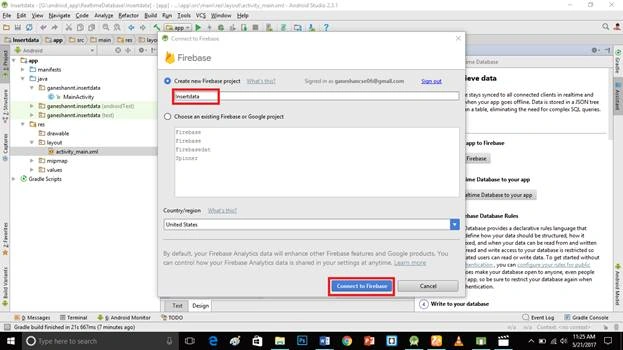
It shows your app name already. Just choose your country and region, followed by clicking on "Connect to Firebase".
 Output
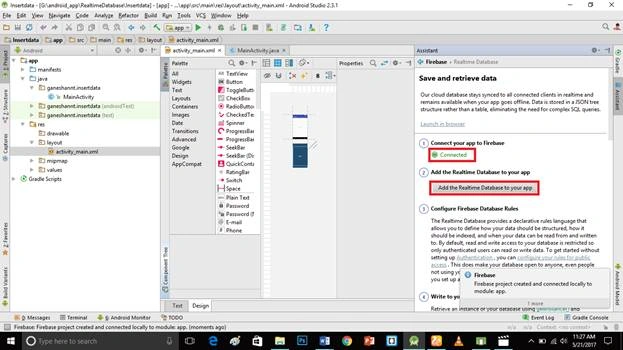
Now, your app is connected to Firebase.
 Don’t forget to like and follow my articles. If you have any doubts, just comment below.
Mohamed ElqassasPosted May 25, 2017, 1:46 PM
Great, Thanks for sharing!
Joe WilsonPosted May 24, 2017, 5:02 AM
Thank you for sharing it.
Alagappapandian MPosted May 24, 2017, 4:21 AM
Nice one..! What is the different between Normal/hybrid app development and firebase app development?