

Client-side rendering was introduced in SharePoint 2013. The primary purpose of CSR is to provide the conditional formatting of the data present within the List Views. Prior to SharePoint 2013, XSLT formatting was the way to implement the conditional formatting of List Views. XSLT formatting required in-depth knowledge of working with XSL and debugging was also cumbersome. However, with CSR, we can tap in to the rendering process and override some of the default properties of the List View, using JavaScript. Some of the properties that can be overridden are given below.
- OnPreRender
- OnPostRender
- View
- Body
- Item
- Fields
- Header
- Footer
OnPreRender allows us to write some logic even before the List View is rendered, while OnPostRender allows us to modify the List View once the view has been rendered. Similarly, each of the properties can be overridden during run time to accomplish different List View modifications and at different List View locations.
Accordion
As per wiki definition, Accordion in GUI can be expressed as -
“The graphical control element accordion is a vertically stacked list of items, such as labels or thumbnails. Each item can be "expanded" or "stretched" to reveal the content associated with that item. There can be zero expanded items, exactly one, or more than one item expanded at a time, depending on the configuration”.
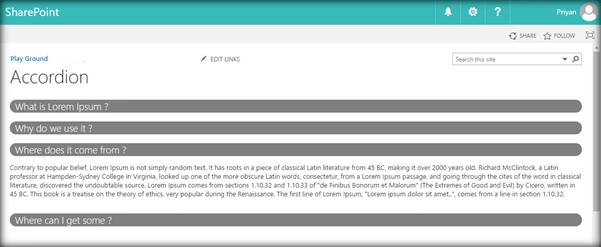
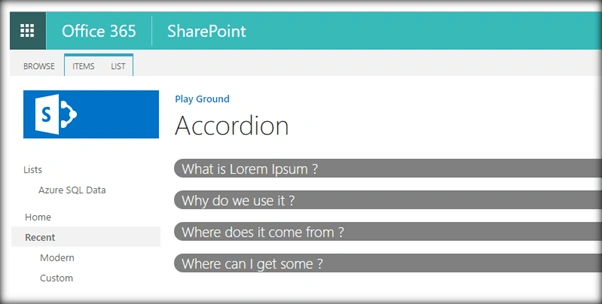
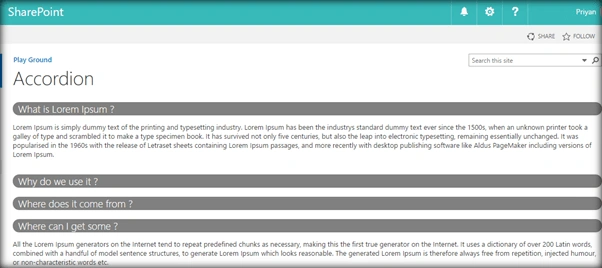
In this walk through, we will see how to convert a SharePoint List View into accordion using Client Side Rendering (CSR). This becomes handy if we want to use SharePoint List to create an FAQ web part or a Question/Answer web part.
Pre-requisites
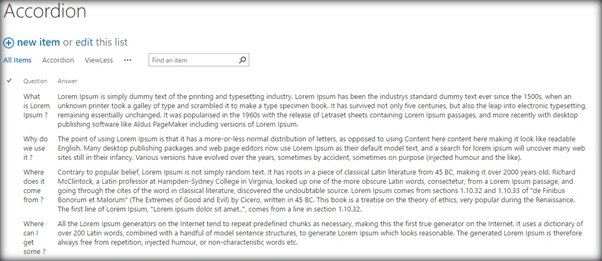
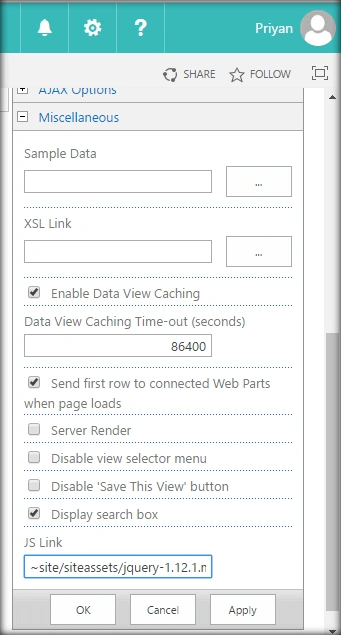
We will be using a SharePoint List that contains two multi line columns named “Question” and “Answer”. We will also create a new View named “Accordion” in the list where we will add the JS file used for Client Side Rendering in the JSLink section.
Implementation
Primarily we will be using Client Side Rendering to modify the list view during its run time. “overrideCurrentContext” is the main object that will hold the context information of ‘which property to override’ and ‘what logic to implement’ while over ridden. We will be over riding the Header and Footer section to encapsulate the view within a div class. This is done by overriding the Templates.Header and Templates.Footer properties of overrideCurrentContext
- var overrideCurrentContext = {};
- Templates = {};
- Templates.Header = "<div class='ListAccordion'>";
- Templates.Footer = "</div>";
We will then override the Item property so that each list item will be rendered in a specific Question Answer pattern. This is done by overriding ‘Templates.Item’ property and calling the function ‘ItemTemplate’ where we will return the html in the format Question Heading followed by the Answer. Finally ‘OnPostRender ‘ method will be used to implement the animation sliding and other styling of the Accordion, post rendering of the view.
- OnPostRender = OnPostRender;
- Templates.Item = ItemTemplate;
anurag sainiPosted Sep 12, 2019, 8:39 AM
I downloaded the file and done the same thing as mentioned but It wasn't working for me then I googled a lot and add following code line in function and it worked like charm (window.jQuery || document.write('<script src="//ajax.aspnetcdn.com/ajax/jquery/jquery-1.10.0.min.js"><\/script>')); well thanks for sharing this code.
Dorinda ReyesPosted Mar 26, 2019, 11:45 AM
I downloaded the file added it to my view ensured that i have correct jquery and nothing is happening on my list at all. Still displaying as a list with two columns even changed to plain text. Any help would be apprecaited
tony tonemanPosted Sep 7, 2018, 4:17 PM
I've got the same behavior as Michael Stach... My header column shows "undefined" and nothing is collapsed. When I click on the header, there is slight movement like it's trying to expand, but eventually doesn't show that it has done anything. And yes, I do see grey.
Piyush AgarwalPosted Feb 28, 2018, 1:00 AM
Nice Article. This really helps.
Van HornsbyPosted Aug 8, 2017, 10:54 AM
Mine bounces when opening and closes. Any idea what may be happening?
Michael StachPosted Jun 23, 2017, 9:46 AM
Any reason why mine might not be hiding properly? All items are fully expanded upon page load, and clicking on an item doesn't change anything.
Humayun Kabir MamunPosted Feb 13, 2017, 2:21 AM
Thanks bro for this nice article...