

Introduction
One Signal notification is one hundred percent free and gives unlimited access for mobile and web applications. One Signal offers cross-platform support and is a secure and reliable push notification delivery service.
In this article, I will show you how to deliver push notifications using One Signal in Android application. Android is the kernel-based operating system in which users can modify the GUI components and source code.
Requirements
- Android Studio
- A little knowledge of XML and Java.
- Android Emulator (or) Android mobile
- Stable internet connection during execution.
- Download link (Android Studio)
Steps to be followed
Carefully follow the below steps to enable push notification delivery using One Signal in your Android application. I have included the source code too for download.
Step 1
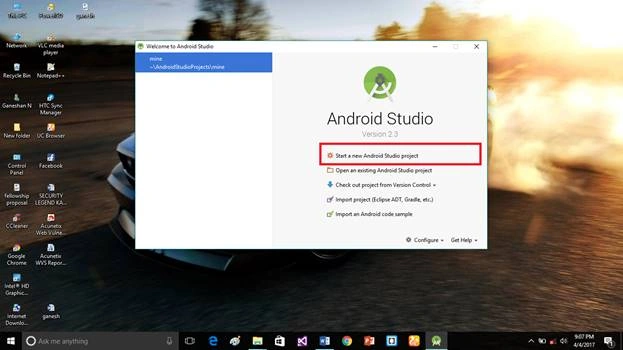
Open Android Studio and start a new project.
 Step 2
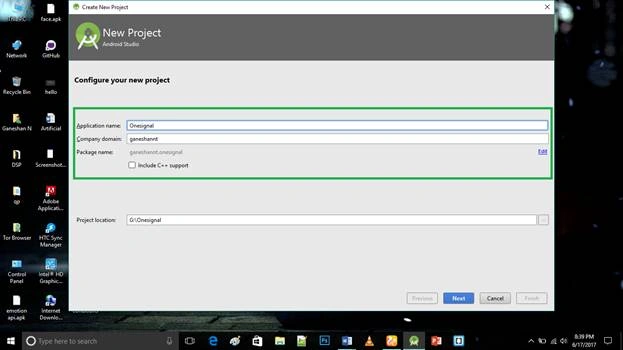
Put the application name and company domain. If you wish to use C++ for coding of the project, mark the "Include C++ Support" checkbox and click Next.
 Step 3
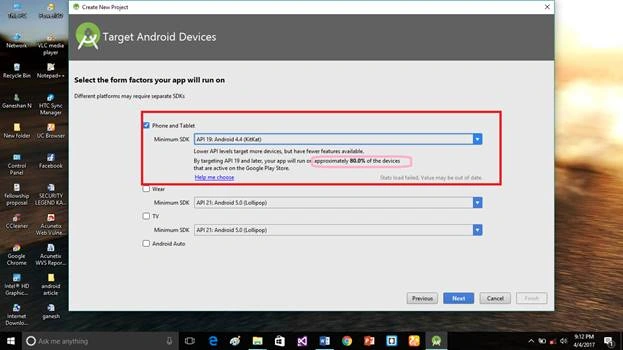
Select the Android minimum SDK. It will show you the approximate percentage of people using that SDK. Just click Next.
 Step 4
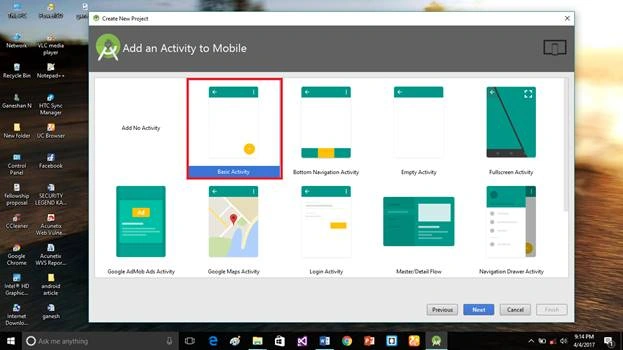
Choose "Basic Activity" and click Next.
 Step 5
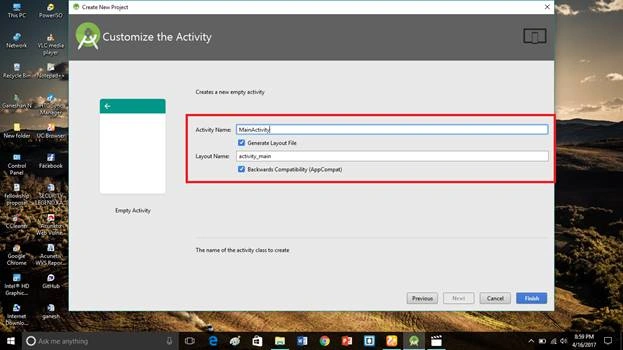
Put the activity name and layout name. Android Studio basically takes the java class name the same as what you provide as the activity name. Now, click Finish.
 Step 6
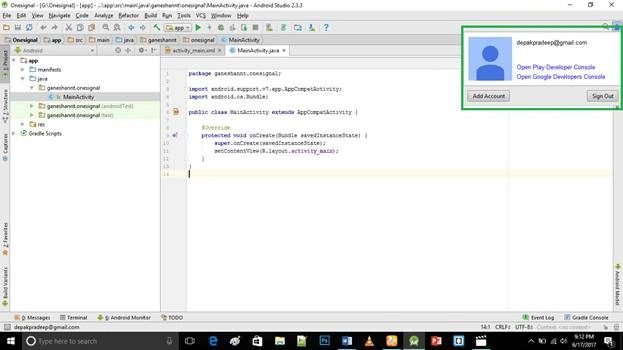
Log into your Firebase Gmail Id in your Android Studio to synchronize the data between Firebase and your Android Studio.
 Step 7
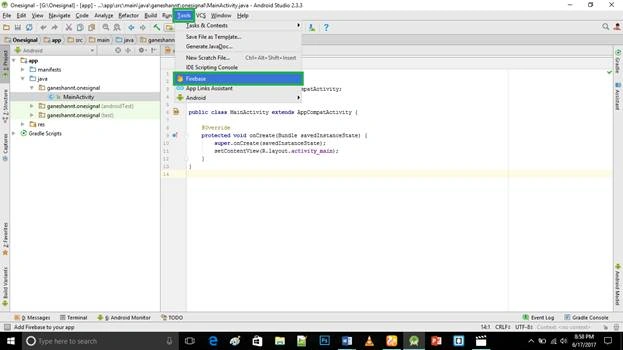
Go to Tools >> Firebase.
 Step 8
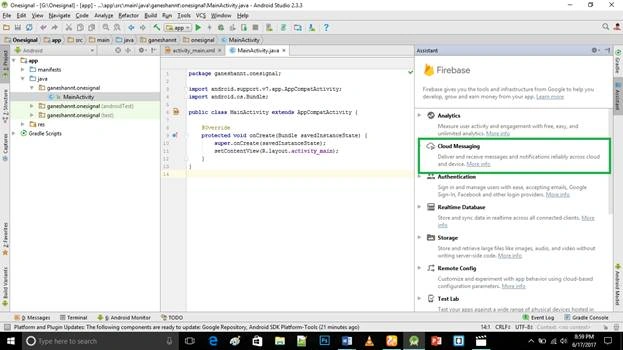
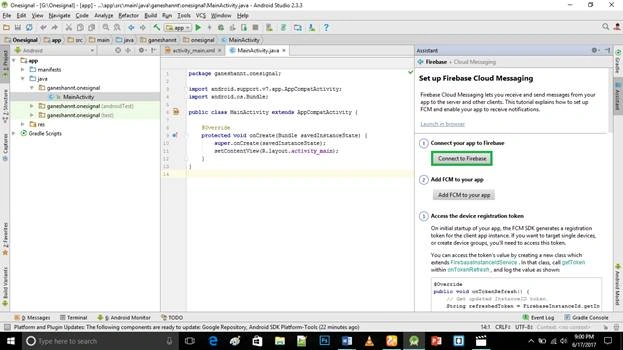
Click "Cloud Messaging" and connect your Android app to Firebase.
 Step 9
Click the "Connect to Firebase" option.
 Step 10
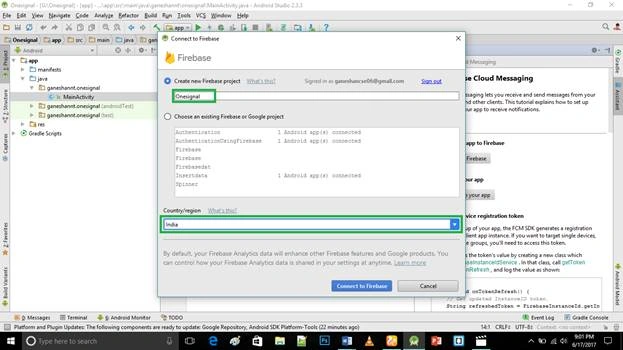
Choose your project name and country/region and click on "Connect to Firebase".
 Step 11
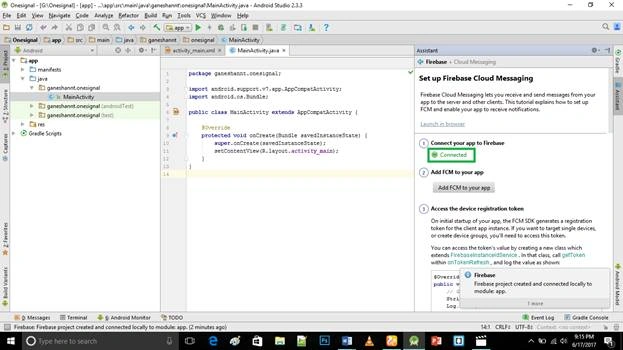
It will show a green-colored "Connected" symbol after establishing the connection.
 Step 12
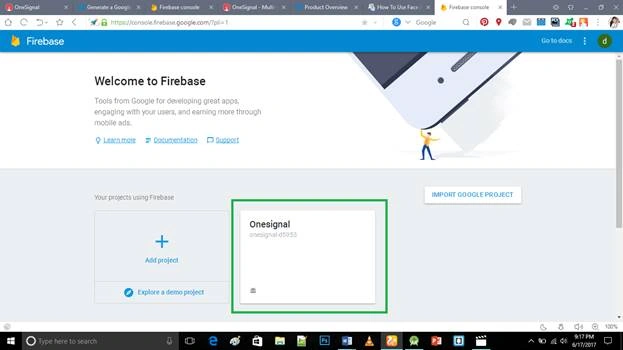
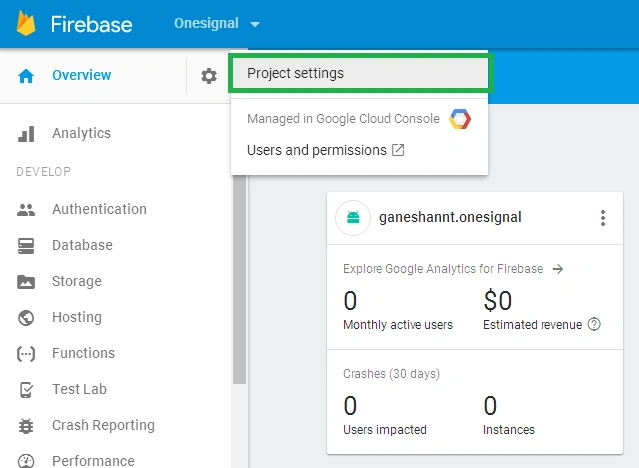
Go to your Firebase Console and open your created project.
 Step 13
Click "Project settings".
 Step 14
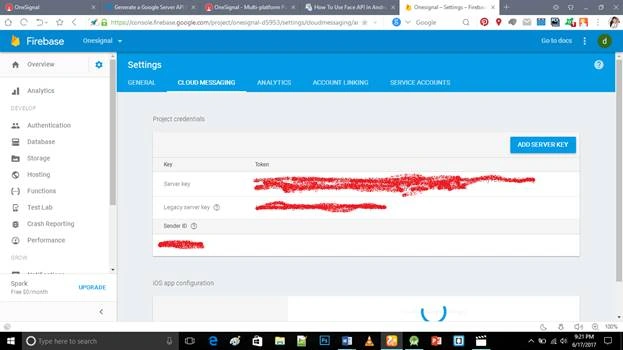
Go to the "Cloud Messaging" option and copy your Server key and sender id.
 Deliverables
Here, we have successfully created the Google Cloud Messaging Sender id and Server key for push notification delivery using One Signal in Android app.
Thank you for reading my article.
Don’t forget to like and follow me. If you have any doubts, just comment below.
deepak aPosted Jun 19, 2017, 11:54 AM
Nice article...................