

Introduction
This article describes an approach to displaying transparent forms in a Windows application. Such may be useful to anyone wishing to display an odd shaped form for a splash screen or possibly a tool dialog with a transparent background.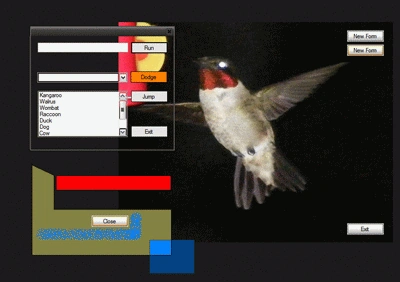
Figure 1: Transparent Forms
Getting Started
The solution contains three Windows Form classes; each shows something different about a transparent form.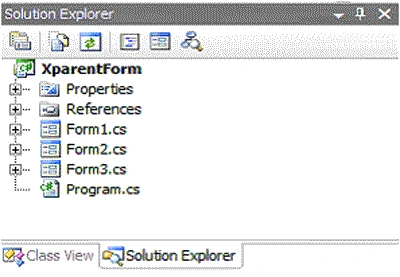
Figure 2: Solution Explorer with the Project Visible
Code: Form 1 (Form1.cs)
There is nothing much to creating the transparent form; setting the forms back color and transparency key property value to the same color is all that is required. In form 1, the form back color and transparency key are both set to lime green; this color does not occur within the image and so the image will not appear to have holes in it; do not use a transparency color that occurs in your images. That much takes care of making the form transparent. Setting the forms FormBorderStyle property to none removes the forms border and all that will remain when the form is displayed is an image. 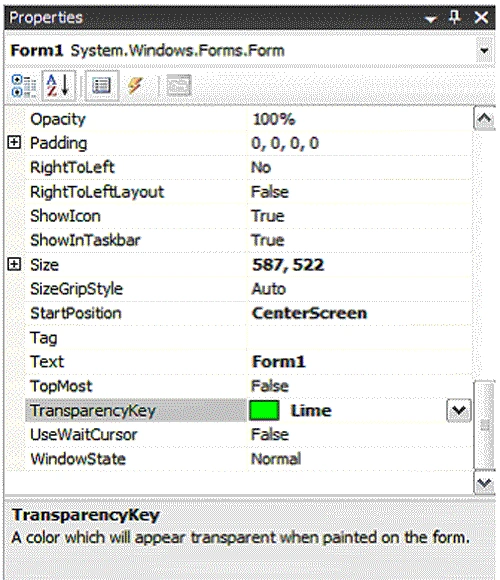
Figure 3: Form Transparency Key Property
Of course having a transparent, borderless form eliminates the ability to drag the form around the desktop; at least without doing a bit more work. In order to set up the form for dragging in this condition, a couple of DLL imports are needed. The following contains the code behind the Form1 class.
using System;
using System.Collections.Generic;
using System.ComponentModel;
using System.Data;
using System.Drawing;
using System.Text;
using System.Windows.Forms;
using System.Runtime.InteropServices;
InteropServices was added to the list of defaults to support the use of DLL imports within the class.
namespace XparentForm
{
public partial class Form1 : Form
{
The following user32.dll imports (SendMessage and ReleaseCapture) are required to support the dragging and dropping of the form in the absense of a caption bar on the form.
#region Form Dragging API Support
//The SendMessage function sends a message to a window or windows.
[DllImport("user32.dll", CharSet = CharSet.Auto, SetLastError = false)]
static extern IntPtr SendMessage(IntPtr hWnd, uint Msg, int wParam, int lParam);
//ReleaseCapture releases a mouse capture
[DllImportAttribute("user32.dll", CharSet = CharSet.Auto, SetLastError = false)]
public static extern bool ReleaseCapture();
#endregion
/// <summary>
/// default constructor
/// </summary>
public Form1()
{
InitializeComponent();
}
Mark BekkerPosted May 14, 2022, 9:37 AM
Thank you for such a clear description. I checked a lot of other pages like on stack...but they are all showoffs and unclear.
indhuPosted Sep 23, 2008, 3:36 AM
Thanks for providing such helpful tutorial it helps me a lot in customizing my forms