

Before reading this article, please go through the articles, mentioned below.
- Quick Start On Apache Cordova Using Visual Studio 2015
- Getting Started with Ionic Blank App Using Visual Studio 2015
Apache Cordova
Apache Cordova is an open source project, which aims to allow the mobile developers to build Applications for all the major mobile platforms , using HTML, CSS and JavaScript technologies.
Ionic Framework
Ionic is a powerful HTML5 SDK, which helps you to build native-feeling mobile apps, using Web technologies like HTML, CSS and JavaScript.
Building Ionic Blank app with different Color classes in Visual Studio 2015
Let's see how Ionic Framework makes use of colors for the different elements (buttons, Header, Footer).
Ionic Framework gives us a set of nine predefined color classes. You can use these colors or you can override it with your own styling.
Following list shows the default set of 9 colors, which are provided by Ionic.
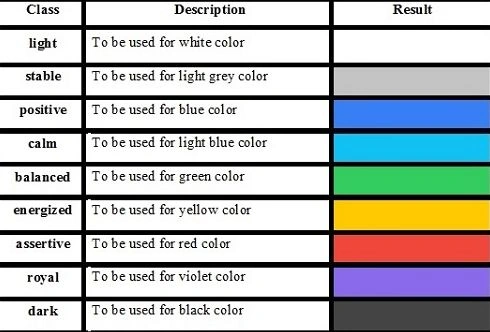
Ionic Color Usage
Ionic makes use of different classes for each element. For example, if you set a button, it contains button class.
Create a grey color button we will use button-stable class as follows.
<div class="button button-stable">
...
</div>
You can also use Ionic color class like any other CSS class.
Let’s see how to build color classes with Ionic Blank apps.
Prerequisites
- Visual Studio 2015
- Visual Studio Tools for Apache Cordova.
Follow the steps, mentioned below to use the Color classes in Ionic Blank apps, using Ionic Framework.
Step 1
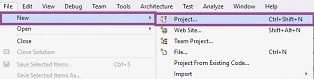
Let’s be ready to create a New Project. Thus, open Visual Studio 2015 and click File -> New -> Project Option to create Ionic Blank apps, using Ionic Framework.
Step 2
Thus, New Project Window will open. You can select an Installed -> Template -> JavaScript -> Apache Cordova Apps ->Ionic JavaScript Blank.
Type Project Name ionic-js-ColorApp and click OK button.
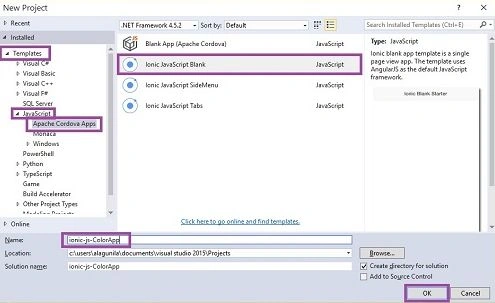
Step 3
Main screen is shown below.
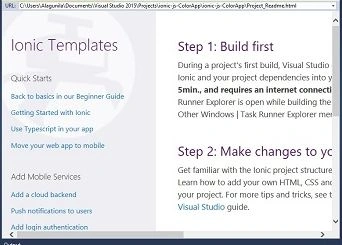
Step 4
Go to the solution bar and choose the index.html. This is the starting screen of your app. We can add our HTML coding, as shown below.
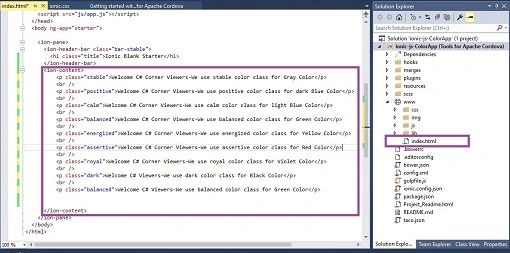
- <p class="stable">
- Welcome C# Corner Viewers-We use stable color class for Gray Color</p>
- <br />
- <p class="positive">Welcome C# Corner Viewers-We use positive color class for dark Blue Color</p>
- <br />
- <p class="calm">Welcome C# Corner Viewers-We use calm color class for light Blue Color</p>
- <br />
- <p class="balanced">Welcome C# Corner Viewers-We use balanced color class for Green Color</p>
- <br />
- <p class="energized">Welcome C# Corner Viewers-We use energized color class for Yellow Color</p>
- <br />
- <p class="assertive">Welcome C# Corner Viewers-We use assertive color class for Red Color</p>
- <br />
- <p class="royal">Welcome C# Corner Viewers-We use royal color class for Violet Color</p>
- <br />
- <p class="dark">Welcome C# Viewers-We use dark color class for Black Color</p>
- <br />
- <p class="balanced">Welcome C# Viewers-We use balanced color class for Green Color</p> // This is just a sample script. Paste your real code (javascript or HTML) here. if ('this_is'==/an_example/){of_beautifier();}else{var a=b?(c%d):e[f];}

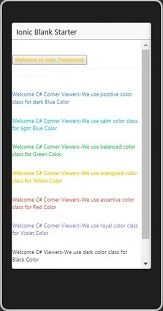
<button class="energized">Welcome to Ionic Framework</button>
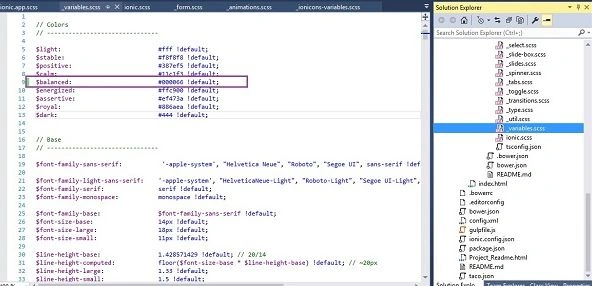
Subsequently, we also customize the default color.
Choose www->lib->ionicons->scss->_variables.scss
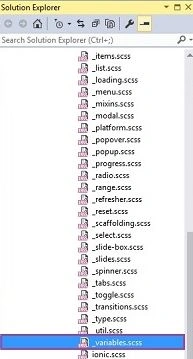
Now, change the default colors.
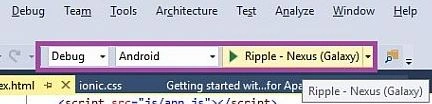
Now, we are ready to run our project. Thus, click the Ripple – Nexus (Galaxy) to run the Application. (Apache Ripple is a free mobile simulator).
Output of the main screen is shown below.
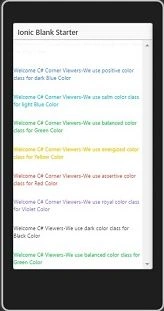
Output 1 is shown below after adding button control
Conclusion
I hope, you understood how to use the color classes in the Ionic blank app, using Visual Studio 2015 and how to run it.
Join the conversation! Your thoughts help the community grow.