

Hey folks, let’s continue to explore Ignite UI igGrid features. Here’s the link to my previous article, where I've discussed how to get started with it.
Getting Started with Ignite UI igGrid
Ignite UI igGrid control allows a number of customizations. Following are the features, we can play around with.
- Column Resizing: It allows the user to change the width of the grid’s columns. The resizing feature can be enabled at two levels – for the entire grid (default) and per column (not supported on the touch devices).
- Column Hiding: It gives an opportunity to hide the column(s) and is disabled by default.
- Column Summaries: It allows the grid to display a summary row for the data in the columns of the grid. There are predefined summary functions, but you can create a custom function to calculate the custom summaries. We will discuss this later.
- Row Selectors: It allows us to select the cell(s) or entire row(s) by clicking the row selector column, placed on the left of the first column of the grid.
- GroupBy: It enables the user to employ the data in one or more columns in a grid as a primary and secondary criterion respectively for organizing the records in the group.
- Tooltips: It provides the tooltips that allow the user to select and copy the text i.e. the tooltip container.
- Sorting: It enables single or multiple columns sorting in an ascending or descending order.
- Filtering: It allows the users to do Excel-style filtering of the data.
- Paging: The paging feature allows you to pide your data into pages. Thus, you can achieve better performance by retrieving only a predefined number of records from your original data source.
- Selection: It enables the selection of the rows and the cells of the igGrid control. The behavior closely follows Microsoft Windows Explorer style.
- Updating: It includes three different interactions: updating, adding new rows, and deleting the rows.
- jQuery templates: It allows substitution, using jQuery templating.
- Virtual Scrolling: Virtualization is a feature of the igGrid control, that reduces the number of active in-memory DOM objects.
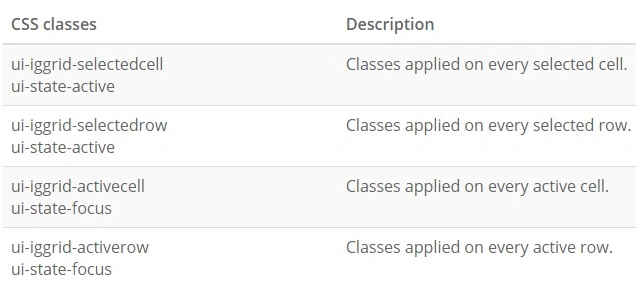
Let's start with the selection features and explore them one by one progressively. The Selection feature allows us to highlight the selected rows or cells. You can always intercept the selection of the events and do what your heart says with the selected rows/cells. As it highlights the selection, it adds certain CSS classes to the cells, which you can use to modify the theme at your will.
I am extending the sample code from my previous demo Getting Started with Ignite UI igGrid to explain this feature. igGrid control's config object accepts an array of the objects (features), allowing customization. To add or modify a feature, you need to add a feature object to this array. Every feature is identified by a name.
Please note, that the name of the feature starts with a capital letter.
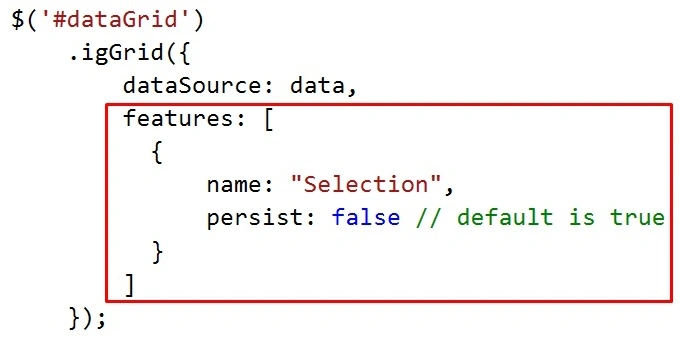
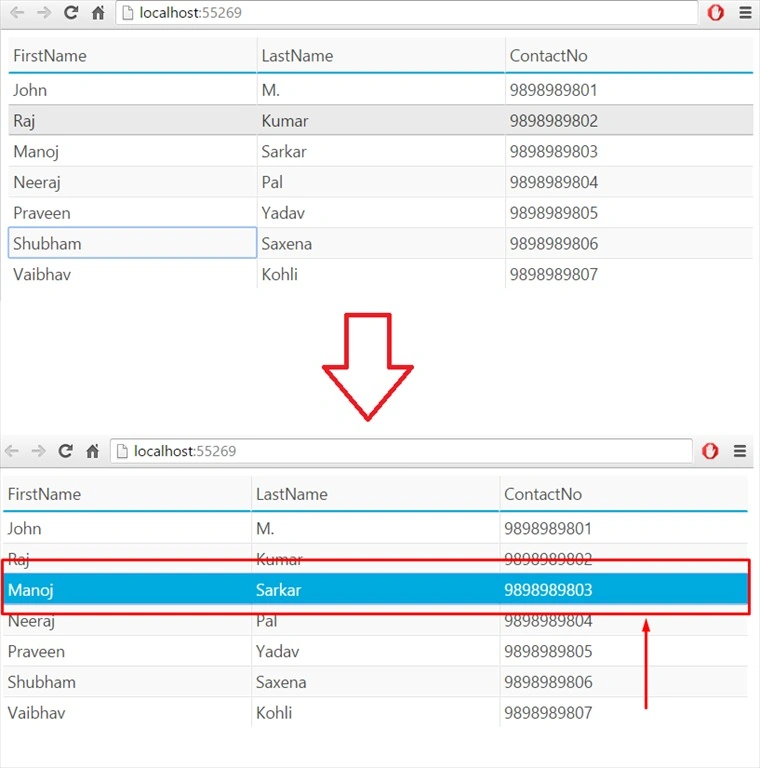
The color/texture of the highlighted cells/rows will depend on the referenced theme. Another attribute you will see along with the feature name is "persist". It allows the grid control to persist the selected cells or the rows after you've done some filtering or sorting on it. The attribute is true by default.
Selection can be set for cells or rows, using the "mode" attribute of the selection feature. It is "rows" by default.

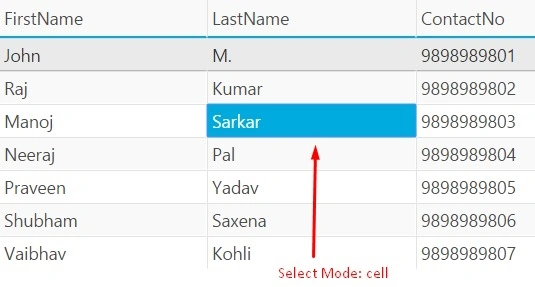
Select Multiple Cells or Rows
It also allows the selection of multiple cells/rows. The attribute for it is "multiple selection" and is disabled by default.
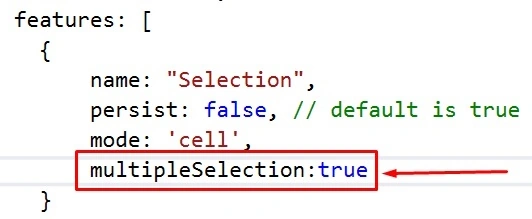
You get a Microsoft Windows Explorer-type experience while selecting multiple rows/cells. By pressing the CTRL key, clicking the different cells will select them. It toggles the selection, every time you click on a cell/row. You can also select a cell, press the Shift key, and select another cell. It will select all the cells/rows in between.
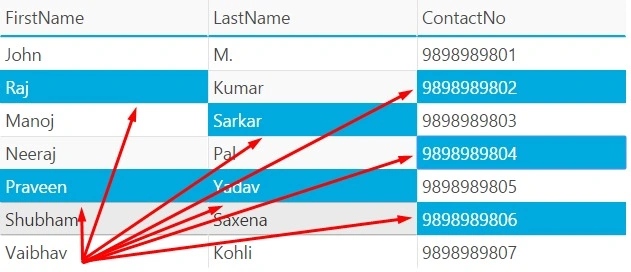
Select Multiple Cells/Rows by dragging the mouse
You can also drag to select multiple cells or rows at one go, using the mouse after you set "mouseDragSelect" to true. It is disabled by default.

Click and drag the mouse after you've set it to true and all the cells/rows across the range will be selected.
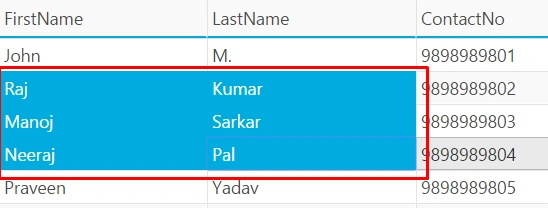
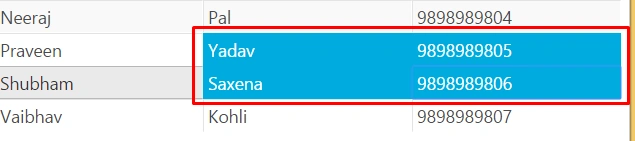
Select Fields using Arrow Keys

Ignite UI igGrid control allows the "activation" of keys. Setting the "activation" attribute to true will enable users to use their arrow keys for the selection of cells/rows. Works exactly like Microsoft Windows Explorer item selection. By pressing the shift key and arrow key it will select continuous cells/rows. Keeping the CTRL key pressed, using keys to move around other cells/rows, and hitting SPACEBAR on the desired cell/row will select that particular cell or row.
Drag and Select on Touch devices

Set "touchDragSelect" to true to enable drag selection on touch-enabled devices. touchDragSelect is limited to cells only.
Wrap Around

This attribute works in conjunction with activation. If you have enabled "activation" for the grid control the selection goes seamlessly on keypress. The selection will keep moving from cell to cell even if it reaches the last cell in the grid. It starts from the first cell after reaching the last every time. This is called wrap-around.
To prevent this and limit the keyboard selection at the first and last cell, set the "wrapAround" attribute to false. It is enabled by default.
Modifying the theme
Below is a reference table if you want to customize the look and feel of the Selection feature. Add your styles and that's it!
Download the sample code for this post here at my GitHub repo.
Well, that pretty much wraps up the Ignite UI igGrid selection feature. I'll be discussing selection events in a separate post. Hope you enjoyed reading. Please share your valuable feedback in the comments section.
Shobana JPosted Jul 16, 2016, 6:28 AM
Good one sir
kalu singh raoPosted Jul 7, 2016, 1:29 AM
Nice...
RajaPosted Jul 7, 2016, 12:12 AM
Good One...