

Introduction
In this article, we are going to play a video and an audio in Xamarin.Forms application.There is no default function available for playing the video or audio. So, we need to add a plugin for this.
In this article, we are going to play a video and an audio in Xamarin.Forms application.There is no default function available for playing the video or audio. So, we need to add a plugin for this.
Nuget Packages
Xamarin.Forms = search "Plugin.MediaManager.Forms".
Xamarin.Forms = search "Plugin.MediaManager.Forms".
Xamarin.Android = search"Plugin.MediaMager".
MediaMager Cross-platform media plugin features
- Designed to be simple and easy to play
- Stand alone for easy integration with existing projects and frameworks
- Native playback of media files from remote and local sources
- Native media notifications and remote controls
- Playback status(Playing, Buffering, Loading, Paused, Progress)
Step 1
You can create Xamarin.Forms app by going to File >> New >> Visual C# >>Cross platform >>> Cross-platform App (Xamarin.Native or Xamarin.Forms), give the application name, and press OK.
(Project Name : VideoPlayerApp)
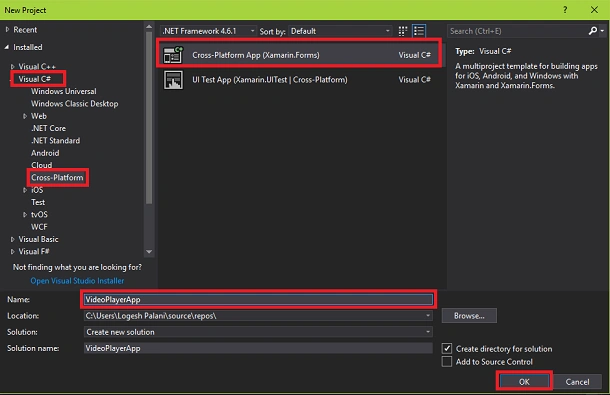
(Project Name : VideoPlayerApp)
Step 2
After the project creation, add the following NuGet Packages to your project.
After the project creation, add the following NuGet Packages to your project.
- Plugin.MediaManager
- Plugin.MediaManager.Forms
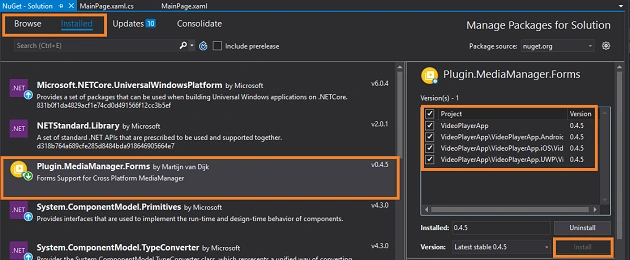
For that, go to Solution Explorer and select your solution. Right-click and select "Manage NuGet Packages for the Solution". Now, select the following NuGet Package and select your project to install it.
- Plugin.MediaManager.Forms
Step 3
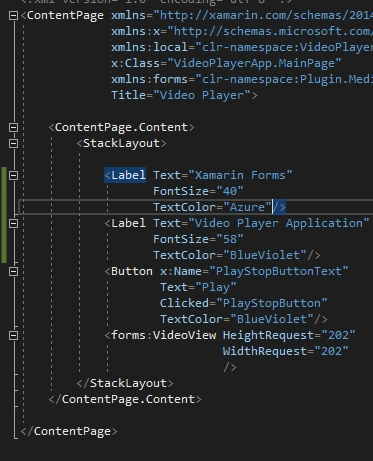
In this step, add a VideoView control to your project. For that, go to Solution Explorer >> VideoPlayerApp (PCL) >> double click on MainPage.Xaml. After opening this, you can add VideoView assembly and XAML code to your project.
In this step, add a VideoView control to your project. For that, go to Solution Explorer >> VideoPlayerApp (PCL) >> double click on MainPage.Xaml. After opening this, you can add VideoView assembly and XAML code to your project.
Write the code as given below.
Assembly
- xmlns:forms="clr-namespace:Plugin.MediaManager.Forms;assembly=Plugin.MediaManager.Forms"
- <?xml version="1.0" encoding="utf-8" ?>
- <ContentPage xmlns="http://xamarin.com/schemas/2014/forms"
- xmlns:x="http://schemas.microsoft.com/winfx/2009/xaml"
- xmlns:local="clr-namespace:VideoPlayerApp"
- x:Class="VideoPlayerApp.MainPage"
- xmlns:forms="clr-namespace:Plugin.MediaManager.Forms;assembly=Plugin.MediaManager.Forms"
- Title="Video Player">
- <ContentPage.Content>
- <StackLayout>
- <Label Text="Xamarin Forms"
- FontSize="40"
- TextColor="Azure"/>
- <Label Text="Video Player Application"
- FontSize="58"
- TextColor="BlueViolet"/>
- <Button x:Name="PlayStopButtonText"
- Text="Play"
- Clicked="PlayStopButton"
- TextColor="BlueViolet"/>
- <forms:VideoView HeightRequest="202"
- WidthRequest="202"
- />
- </StackLayout>
- </ContentPage.Content>
- </ContentPage>
Step 4
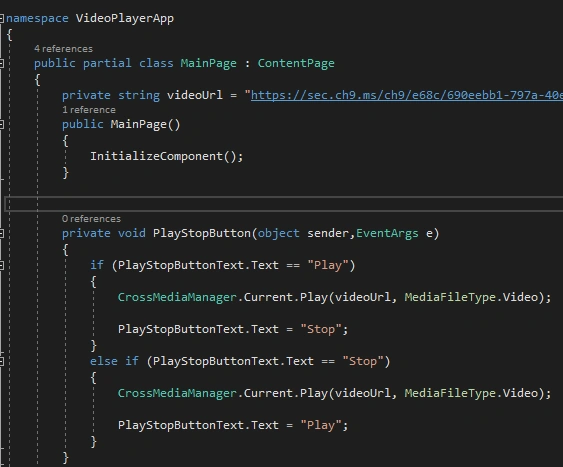
Next, open Solution Explorer >> VideoPlayerApp(PCL) >> MainPage.xaml.cs page and double-click to open its design view. The code is given below.
Next, open Solution Explorer >> VideoPlayerApp(PCL) >> MainPage.xaml.cs page and double-click to open its design view. The code is given below.
cs code
- using System;
- using System.Collections.Generic;
- using System.Linq;
- using System.Text;
- using System.Threading.Tasks;
- using Xamarin.Forms;
- using Plugin.MediaManager.Forms;
- using Plugin.MediaManager;
- using Plugin.MediaManager.Abstractions.Enums;
- namespace VideoPlayerApp
- {
- public partial class MainPage : ContentPage
- {
- private string videoUrl = "https://sec.ch9.ms/ch9/e68c/690eebb1-797a-40ef-a841-c63dded4e68c/Cognitive-Services-Emotion_high.mp4";
- public MainPage()
- {
- InitializeComponent();
- }
- private void PlayStopButton(object sender,EventArgs e)
- {
- if (PlayStopButtonText.Text == "Play")
- {
- CrossMediaManager.Current.Play(videoUrl, MediaFileType.Video);
- PlayStopButtonText.Text = "Stop";
- }
- else if (PlayStopButtonText.Text == "Stop")
- {
- CrossMediaManager.Current.Play(videoUrl, MediaFileType.Video);
- PlayStopButtonText.Text = "Play";
- }
- }
- }
- }
Step 5
Make sure to call " VideoViewRenderer.Init(); " from your platform code before starting playback, otherwise the video View will not be prepared to display the video.
Make sure to call " VideoViewRenderer.Init(); " from your platform code before starting playback, otherwise the video View will not be prepared to display the video.
Android Project
Add Android project by going to Solution Explorer >> VideoPlayerApp.Droid >>MainActivity.cs and double-click to open its design View. Here is the code.
Add Android project by going to Solution Explorer >> VideoPlayerApp.Droid >>MainActivity.cs and double-click to open its design View. Here is the code.
MainActivity.cs page code
- using System;
- using Android.App;
- using Android.Content.PM;
- using Android.Runtime;
- using Android.Views;
- using Android.Widget;
- using Android.OS;
- using Plugin.MediaManager.Forms.Android;
- namespace VideoPlayerApp.Droid
- {
- [Activity(Label = "VideoPlayerApp", Icon = "@drawable/icon", Theme = "@style/MainTheme", MainLauncher = true, ConfigurationChanges = ConfigChanges.ScreenSize | ConfigChanges.Orientation)]
- public class MainActivity : global::Xamarin.Forms.Platform.Android.FormsAppCompatActivity
- {
- protected override void OnCreate(Bundle bundle)
- {
- TabLayoutResource = Resource.Layout.Tabbar;
- ToolbarResource = Resource.Layout.Toolbar;
- base.OnCreate(bundle);
- VideoViewRenderer.Init();//Nuget Packages oncreate mathod
- global::Xamarin.Forms.Forms.Init(this, bundle);
- LoadApplication(new App());
- }
- }
- }
IOS Project
Add iOS project. For that, go to Solution Explorer >> VideoPlayerApp.IOS >>AppDelegate.cs and click open AppDelegate.cs. Here is the code for this page.
Add iOS project. For that, go to Solution Explorer >> VideoPlayerApp.IOS >>AppDelegate.cs and click open AppDelegate.cs. Here is the code for this page.
AppDelegate.cs page code
- using System;
- using System.Collections.Generic;
- using System.Linq;
- using Foundation;
- using Plugin.MediaManager.Forms.iOS;
- using UIKit;
- namespace VideoPlayerApp.iOS
- {
- // The UIApplicationDelegate for the application. This class is responsible for launching the
- // User Interface of the application, as well as listening (and optionally responding) to
- // application events from iOS.
- [Register("AppDelegate")]
- public partial class AppDelegate : global::Xamarin.Forms.Platform.iOS.FormsApplicationDelegate
- {
- //
- // This method is invoked when the application has loaded and is ready to run. In this
- // method you should instantiate the window, load the UI into it and then make the window
- // visible.
- //
- // You have 17 seconds to return from this method, or iOS will terminate your application.
- //
- public override bool FinishedLaunching(UIApplication app, NSDictionary options)
- {
- global::Xamarin.Forms.Forms.Init();
- LoadApplication(new App());
- VideoViewRenderer.Init();// nuget packages oncreate mathod
- return base.FinishedLaunching(app, options);
- }
- }
- }
Universal Windows Project
Add Universal Windows project. For that, open Solution Explorer >> VideoPlayerApp.UWP >> MainPage.xaml.cs and click open MainPage.xaml.cs.
Add Universal Windows project. For that, open Solution Explorer >> VideoPlayerApp.UWP >> MainPage.xaml.cs and click open MainPage.xaml.cs.
Add the below given code to this page.
MainActivity.xaml.cs page code
- using Plugin.MediaManager.Forms.UWP;
- using System;
- using System.Collections.Generic;
- using System.IO;
- using System.Linq;
- using System.Runtime.InteropServices.WindowsRuntime;
- using Windows.Foundation;
- using Windows.Foundation.Collections;
- using Windows.UI.Xaml;
- using Windows.UI.Xaml.Controls;
- using Windows.UI.Xaml.Controls.Primitives;
- using Windows.UI.Xaml.Data;
- using Windows.UI.Xaml.Input;
- using Windows.UI.Xaml.Media;
- using Windows.UI.Xaml.Navigation;
- namespace VideoPlayerApp.UWP
- {
- public sealed partial class MainPage
- {
- public MainPage()
- {
- this.InitializeComponent();
- VideoViewRenderer.Init();
- LoadApplication(new VideoPlayerApp.App());
- }
- }
- }
Step 6

Click ' F5 ' or "Build " to run your projects. Running this project, you will have the result like below.
Click ' F5 ' or "Build " to run your projects. Running this project, you will have the result like below.
Finally, we have successfully created a Xamarin.Forms VideoPlayerApp Application.
Krishna MudiyalaPosted Aug 31, 2018, 6:14 PM
Plagiarism. Please acknowledge original author.
satya mPosted Aug 22, 2018, 3:06 AM
It is not playing IOS i have added VideoViewRenderer.Init(); in appdelegate but it is not playing video
Deepak EPosted Apr 12, 2018, 4:24 AM
Good one..This helps a lot.. finally i resolved my issue
Rafnas T PPosted Dec 8, 2017, 11:28 PM
Nice share, keep sharing..