

Introduction
Xamarin.Forms code runs on multiple platforms -- each of which has its own filesystem. This means that reading and writing files are the most easily done tasks using native file APIs on each platform. Alternatively, embedded resources are also a simpler solution to distribute the data files with an app.
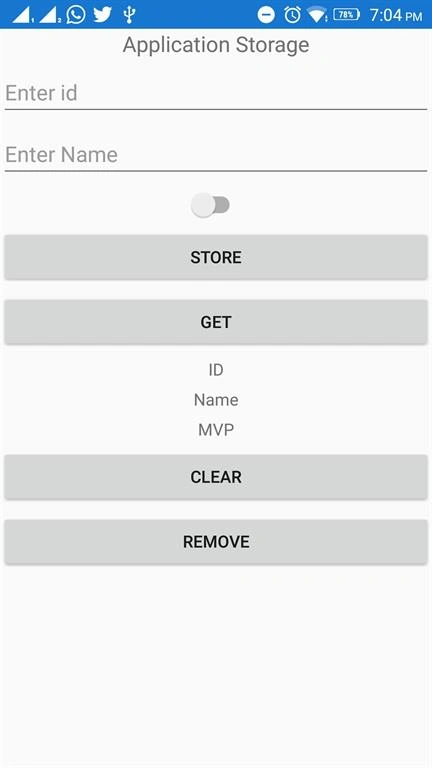
Xamarin.Forms code runs on multiple platforms -- each of which has its own filesystem. This means that reading and writing files are the most easily done tasks using native file APIs on each platform. Alternatively, embedded resources are also a simpler solution to distribute the data files with an app.
Application Storage
Xamarin Android - Shared Preferences
Android provides many ways of storing the data of an application. One of the ways is called Shared Preferences. Shared Preferences allow you to save and retrieve data in the form of key, value pair.
In order to use shared preferences, you have to call a method getSharedPreferences() that returns a SharedPreference instance pointing to the file that contains the values of preferences.
Xamarin Android - Shared Preferences
Android provides many ways of storing the data of an application. One of the ways is called Shared Preferences. Shared Preferences allow you to save and retrieve data in the form of key, value pair.
In order to use shared preferences, you have to call a method getSharedPreferences() that returns a SharedPreference instance pointing to the file that contains the values of preferences.
Xamarin iOS - NSUserDefaults
The NSUserDefaults class provides a way for iOS Apps and Extensions to programmatically interact with the system-wide Default System. By using the Defaults System, the user can configure an app's behavior or styling to meet their preferences (based on the design of the app). For example, to present data in Metric vs Imperial measurements or select a given UI Theme.
UWP - ApplicationDataContainer
Represents a container for app settings. The methods and properties of this class support creating, deleting, enumerating, and traversing the container hierarchy.
Xamarin Forms - Properties Dictionary
The Application subclass has a static Properties dictionary which can be used to store data, in particular for use in the OnStart, OnSleep, and OnResume methods. This can be accessed from anywhere in your Xamarin.Forms code using Application.Current.Properties.
The Properties dictionary uses a string key and stores an object value.
Prerequisites
The NSUserDefaults class provides a way for iOS Apps and Extensions to programmatically interact with the system-wide Default System. By using the Defaults System, the user can configure an app's behavior or styling to meet their preferences (based on the design of the app). For example, to present data in Metric vs Imperial measurements or select a given UI Theme.
UWP - ApplicationDataContainer
Represents a container for app settings. The methods and properties of this class support creating, deleting, enumerating, and traversing the container hierarchy.
Xamarin Forms - Properties Dictionary
The Application subclass has a static Properties dictionary which can be used to store data, in particular for use in the OnStart, OnSleep, and OnResume methods. This can be accessed from anywhere in your Xamarin.Forms code using Application.Current.Properties.
The Properties dictionary uses a string key and stores an object value.
Prerequisites
- Visual Studio 2017(Windows or Mac)
Setting up a Xamarin.Forms Project
Start by creating a new Xamarin.Forms project. You’ll learn more by going through the steps yourself.
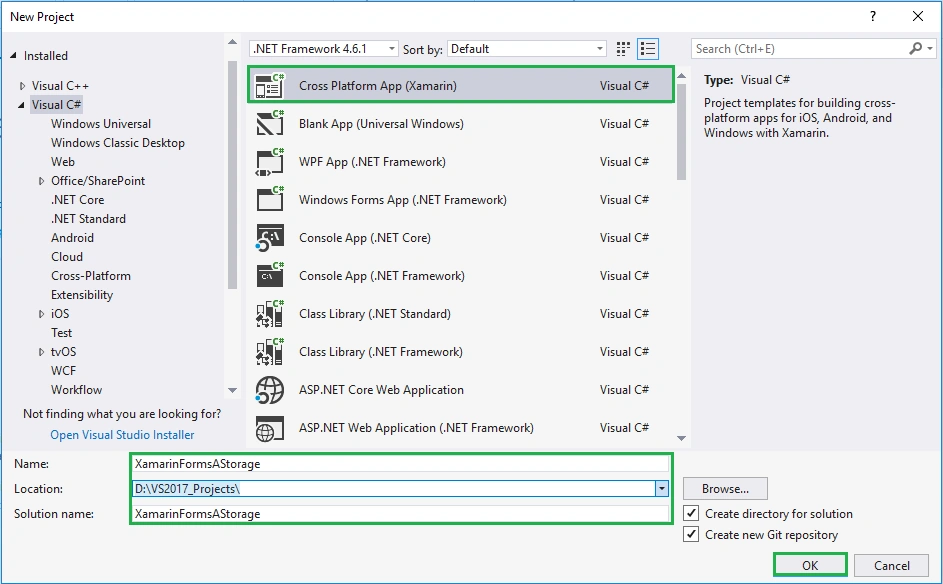
Choose the Cross-platform App project under Visual C#-->Cross-platform in the New Project dialog.
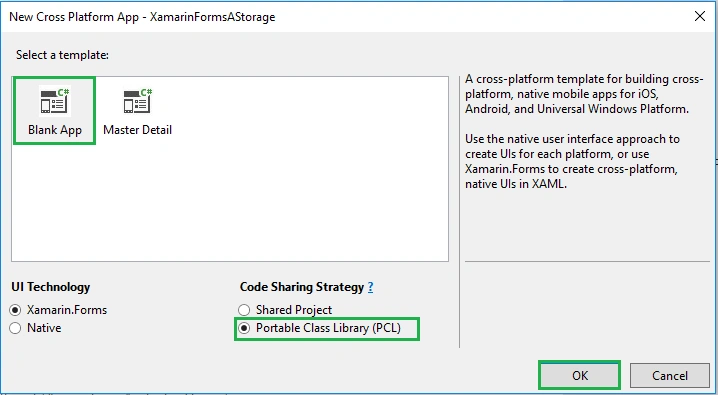
Now Select the Blank App and Choose Portable Class Library (PCL).
Start by creating a new Xamarin.Forms project. You’ll learn more by going through the steps yourself.
Choose the Cross-platform App project under Visual C#-->Cross-platform in the New Project dialog.
Now Select the Blank App and Choose Portable Class Library (PCL).
You now have a basic Xamarin.Forms app. Click the Play button to try it out.
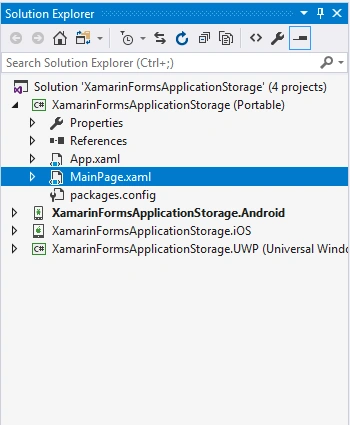
Setting up the User Interface.
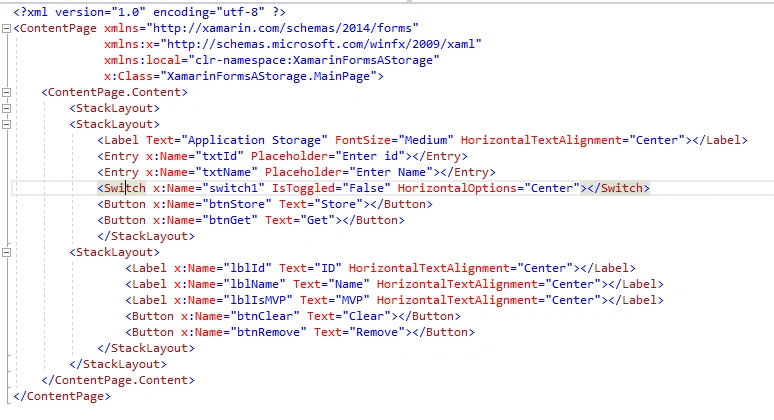
Go to MainPage.Xaml and write the following code.
Go to MainPage.Xaml and write the following code.
MainPage.Xaml
- <?xml version="1.0" encoding="utf-8" ?>
- <ContentPage xmlns="http://xamarin.com/schemas/2014/forms"
- xmlns:x="http://schemas.microsoft.com/winfx/2009/xaml"
- xmlns:local="clr-namespace:XamarinFormsAStorage"
- x:Class="XamarinFormsAStorage.MainPage">
- <ContentPage.Content>
- <StackLayout>
- <StackLayout>
- <Label Text="Application Storage" FontSize="Medium" HorizontalTextAlignment="Center"></Label>
- <Entry x:Name="txtId" Placeholder="Enter id"></Entry>
- <Entry x:Name="txtName" Placeholder="Enter Name"></Entry>
- <Switch x:Name="switch1" IsToggled="False" HorizontalOptions="Center"></Switch>
- <Button x:Name="btnStore" Text="Store"></Button>
- <Button x:Name="btnGet" Text="Get"></Button>
- </StackLayout>
- <StackLayout>
- <Label x:Name="lblId" Text="ID" HorizontalTextAlignment="Center"></Label>
- <Label x:Name="lblName" Text="Name" HorizontalTextAlignment="Center"></Label>
- <Label x:Name="lblIsMVP" Text="MVP" HorizontalTextAlignment="Center"></Label>
- <Button x:Name="btnClear" Text="Clear"></Button>
- <Button x:Name="btnRemove" Text="Remove"></Button>
- </StackLayout>
- </StackLayout>
- </ContentPage.Content>
- </ContentPage>
Store Value
The Properties dictionary uses a string key and stores an object value.
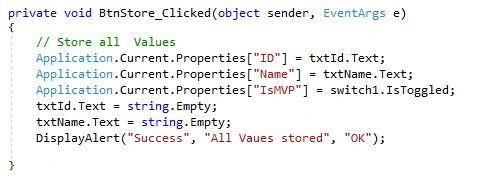
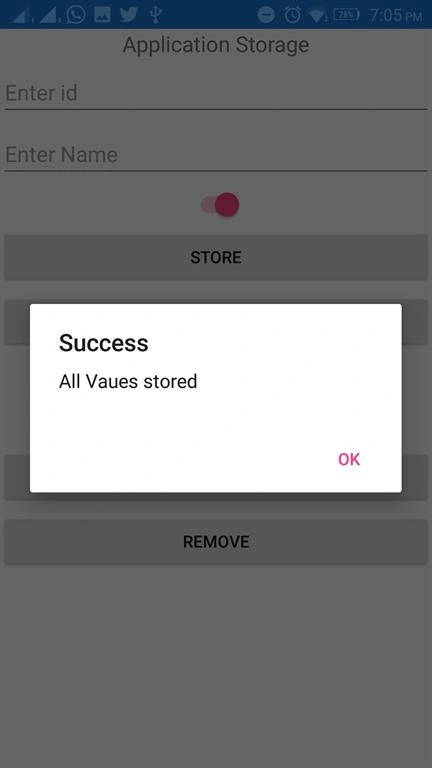
Now, write the following code on the BtnStore_Clicked event.
The Properties dictionary uses a string key and stores an object value.
Now, write the following code on the BtnStore_Clicked event.
MainPage.Xaml.cs
- private void BtnStore_Clicked(object sender, EventArgs e)
- {
- // Store all Values
- Application.Current.Properties["ID"] = txtId.Text;
- Application.Current.Properties["Name"] = txtName.Text;
- Application.Current.Properties["IsMVP"] = switch1.IsToggled;
- txtId.Text = string.Empty;
- txtName.Text = string.Empty;
- DisplayAlert("Success", "All Vaues stored", "OK");
- }
Get Value
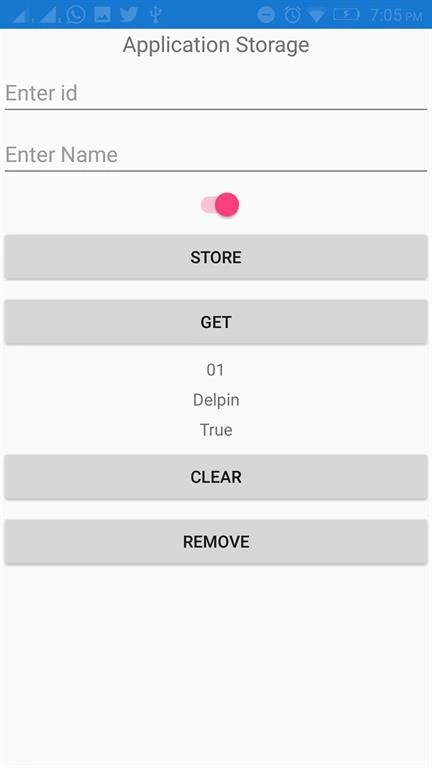
The Properties dictionary stores objects so you need to cast its value before using it.
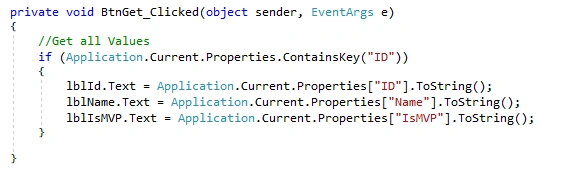
Now, write the following code on the BtnGet_Clicked event.
MainPage.Xaml.cs
- private void BtnGet_Clicked(object sender, EventArgs e)
- {
- //Get all Values
- if (Application.Current.Properties.ContainsKey("ID"))
- {
- lblId.Text = Application.Current.Properties["ID"].ToString();
- lblName.Text = Application.Current.Properties["Name"].ToString();
- lblIsMVP.Text = Application.Current.Properties["IsMVP"].ToString();
- }
- }
Remove Value
If you want to remove values, you can remove them.
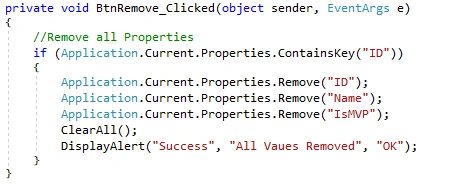
Now, write the following code on the BtnRemove_Clicked event.
MainPage.Xaml.cs
- private void BtnRemove_Clicked(object sender, EventArgs e)
- {
- //Remove all Properties
- if (Application.Current.Properties.ContainsKey("ID"))
- {
- Application.Current.Properties.Remove("ID");
- Application.Current.Properties.Remove("Name");
- Application.Current.Properties.Remove("IsMVP");
- ClearAll();
- DisplayAlert("Success", "All Vaues Removed", "OK");
- }
- }
Clear Values
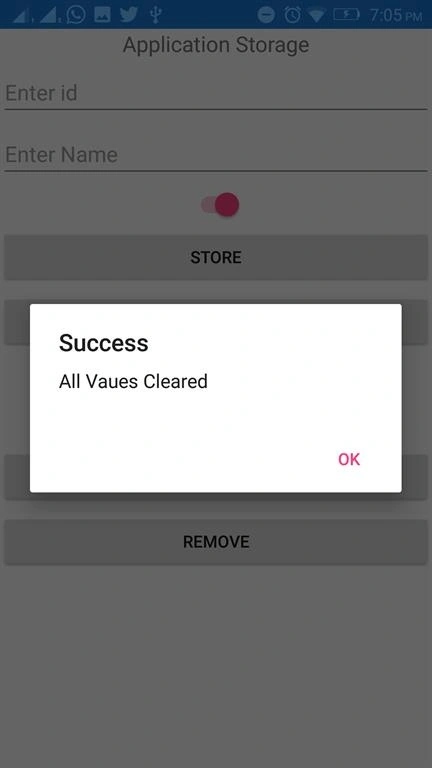
If you want clear all Properties, you can use the following code.
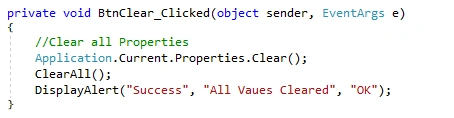
Now, write the following code on the BtnClear_Clicked event.
MainPage.Xaml.cs
- private void BtnClear_Clicked(object sender, EventArgs e)
- {
- //Clear all Properties
- Application.Current.Properties.Clear();
- ClearAll();
- DisplayAlert("Success", "All Vaues Cleared", "OK");
- }
Full Code - MainPage.Xaml.cs
- namespace XamarinFormsAStorage
- {
- public partial class MainPage : ContentPage
- {
- public MainPage()
- {
- InitializeComponent();
- btnStore.Clicked += BtnStore_Clicked;
- btnGet.Clicked += BtnGet_Clicked;
- btnRemove.Clicked += BtnRemove_Clicked;
- btnClear.Clicked += BtnClear_Clicked;
- switch1.Toggled += Switch1_Toggled;
- }
- private void BtnClear_Clicked(object sender, EventArgs e)
- {
- //Clear all Properties
- Application.Current.Properties.Clear();
- ClearAll();
- DisplayAlert("Success", "All Vaues Cleared", "OK");
- }
- private void BtnRemove_Clicked(object sender, EventArgs e)
- {
- //Remove all Properties
- if (Application.Current.Properties.ContainsKey("ID"))
- {
- Application.Current.Properties.Remove("ID");
- Application.Current.Properties.Remove("Name");
- Application.Current.Properties.Remove("IsMVP");
- ClearAll();
- DisplayAlert("Success", "All Vaues Removed", "OK");
- }
- }
- private void Switch1_Toggled(object sender, ToggledEventArgs e)
- {
- Application.Current.Properties["IsMVP"] = switch1.IsToggled;
- }
- private void BtnGet_Clicked(object sender, EventArgs e)
- {
- //Get all Values
- if (Application.Current.Properties.ContainsKey("ID"))
- {
- lblId.Text = Application.Current.Properties["ID"].ToString();
- lblName.Text = Application.Current.Properties["Name"].ToString();
- lblIsMVP.Text = Application.Current.Properties["IsMVP"].ToString();
- }
- }
- private void BtnStore_Clicked(object sender, EventArgs e)
- {
- // Store all Values
- Application.Current.Properties["ID"] = txtId.Text;
- Application.Current.Properties["Name"] = txtName.Text;
- Application.Current.Properties["IsMVP"] = switch1.IsToggled;
- txtId.Text = string.Empty;
- txtName.Text = string.Empty;
- DisplayAlert("Success", "All Vaues stored", "OK");
- }
- public void ClearAll()
- {
- lblId.Text = string.Empty;
- lblName.Text = string.Empty;
- lblIsMVP.Text = string.Empty;
- }
- }
- }
Click the Play button to try it out.
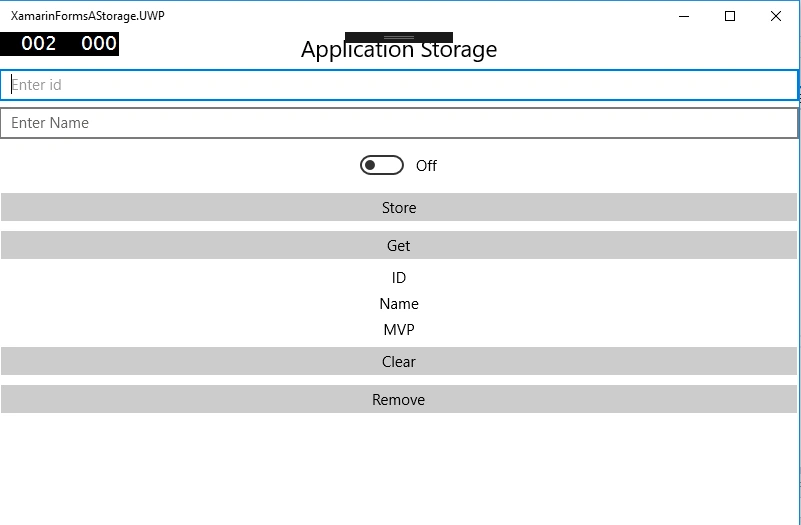
I hope you have understood how to use Application Storage in Xamarin Forms.
Thanks for reading. Please share comments and feedback.
Divya RPosted Feb 26, 2021, 7:17 AM
Delpin Susai Raj can you help me on How to temporarily store data in application memory ,so that it does not get saved when the application is restarted ?
Thamaraiselvan TPosted Nov 18, 2020, 5:03 AM
Can we use this for app's login-logout flow? Is it secure for that?
Saeed BalkhairPosted Feb 12, 2020, 7:45 AM
What is the best way to store item of cart on xamarin forms
Rameez ShaikhPosted Apr 24, 2019, 3:52 AM
Dear , I have a question.. Will it store the data when we kill the app..I mean If I close the app..will it still store data and can be reused when app is reopened?
Kun. Os.Posted Oct 17, 2018, 4:50 AM
Hello. Great tutorial. Keep it up. Is it possible to view the .txt file where the data is stored?
Gajendra JangidPosted Mar 10, 2018, 6:10 AM
Great article........................
Delpin Susai RajPosted Mar 10, 2018, 1:05 AM
Dear Vishal Prajapati , thanks for your question. yes, it's possible to store a large amount of data. following example code helps to you. Set value [ List<string> list = new List<string>(); list.Add("One"); list.Add("Two"); list.Add("Three"); list.Add("Four"); list.Add("Five"); Application.Current.Properties["List"] = list;] get valueList<string> getList = new List<string>(); getList= Application.Current.Properties["List"] as List<string>;
Vishal PrajapatiPosted Mar 8, 2018, 11:58 PM
Good Article and Thanks for sharing..but still i have a question.. is it possible to store large amount of data?..like collection of any object...:)