

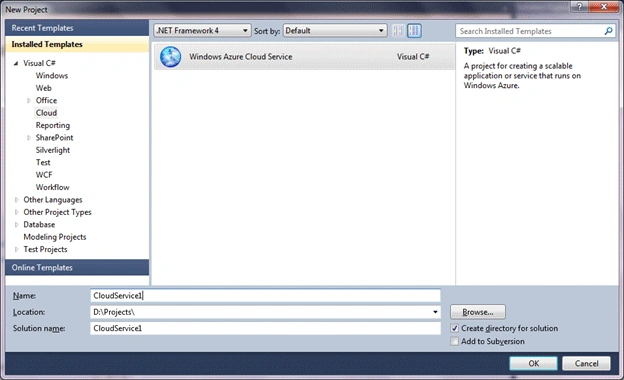
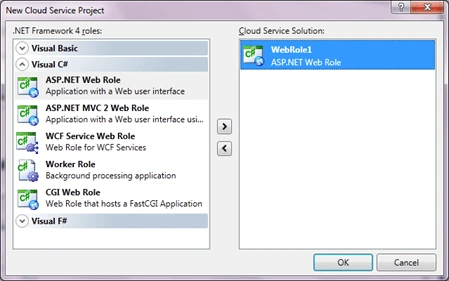
Once you click OK, it asks for selecting a Role. Here we are adding an ASP.Net Web role.
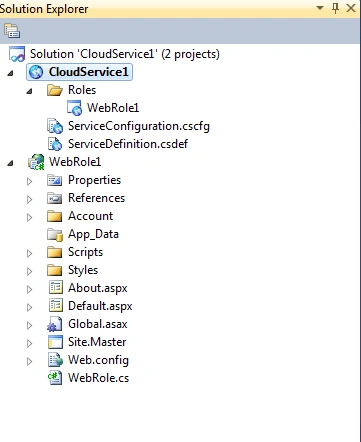
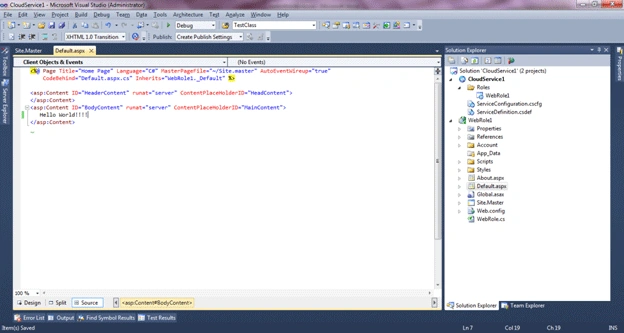
It will create two projects, CloudService1 (Azure Service Project) and WebRole1 (ASP.Net Project). The Azure service project is used to configure the application, and to create a deployment package. The ASP.Net project is like a normal web project.
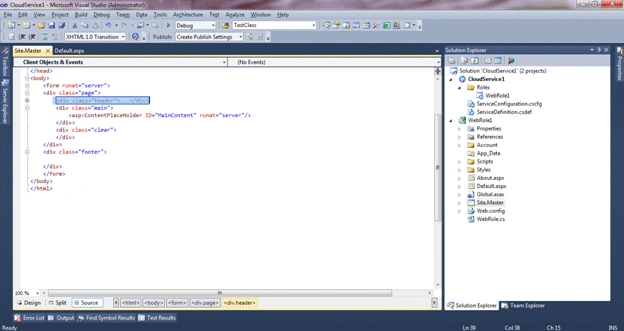
Here I removed header div from the SiteMaster.
And add a text "Hello World!!!!" in the default.aspx
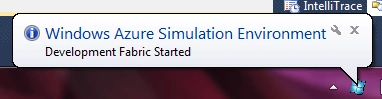
And we are done. Now Select Cloud Service as your startup project and run it. When you run it, the Azure simulation environment is initialized, and it starts development storage and development fabric.
And here you can see your Hello World!!!
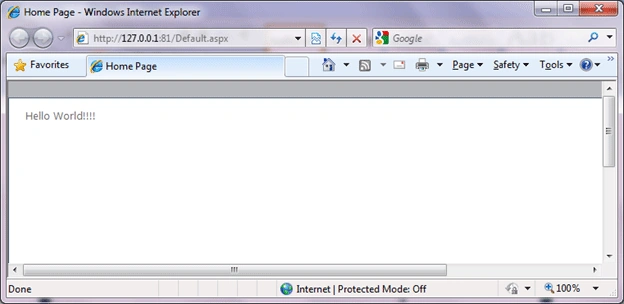
If you select WebRole1 as your startup project and run the solution, it will run as a normal ASP.Net project and hosted locally on localhost.
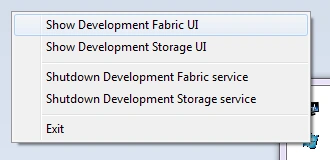
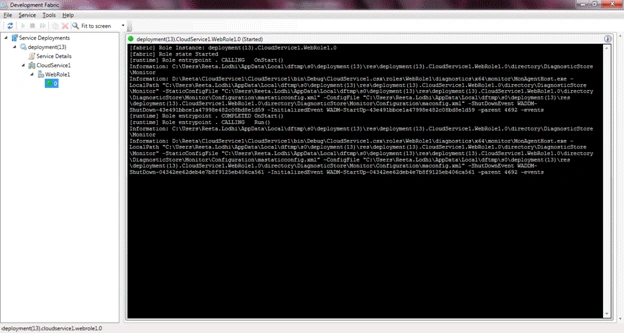
If you click on the Azure Simulation and select "Show development Fabric UI" then it will show the Azure services running on your machine.
Here My CloudService1 is running having a single instance of WebRole.
Gobi GPosted Jun 27, 2011, 8:33 AM
Nice Article...
Reeta Singh LodhiPosted Mar 1, 2011, 1:30 AM
Thanks Kayleigh. Thanks Sutish. In my next article we will see how to deploy it in Azure.
Suthish NairPosted Mar 1, 2011, 1:13 AM
Welcome, for your first article. Keep posting. Its nice to see lots of "Hello World of Cloud Computing" articles from our members.
KayleighPosted Mar 1, 2011, 1:05 AM
Nice Article...