

Here we will see how we can hide the title field in the SharePoint List.
In this article you will learn hide the title field in SharePoint list 2010 using list settings.
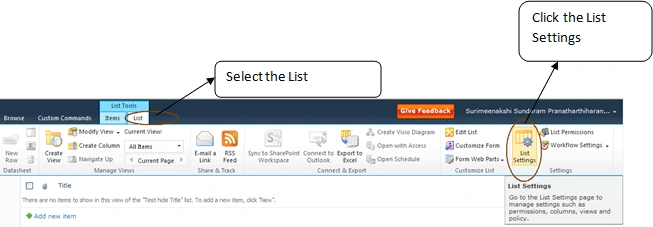
Steps to follow to hide the Title Field
Create a list by default there is a TITLE column created.
After creation.
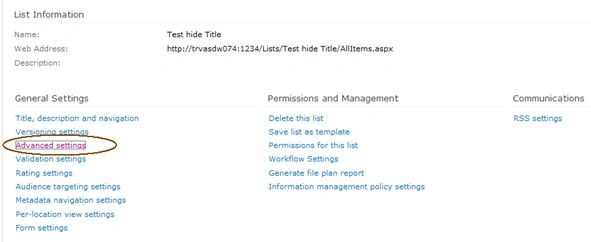
Click on "Advanced Settings" under General Settings:
Then, under Content Types - Allow management of content types set it to YES. By default it is NO and click OK.

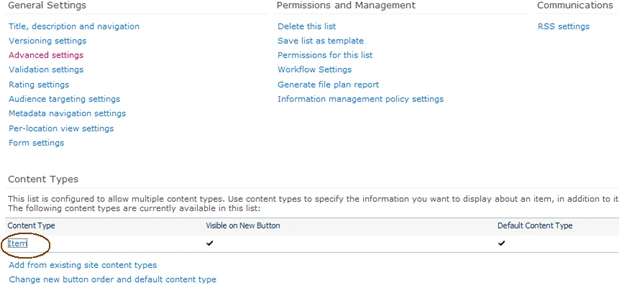
You will be re-directed to the List Settings page and if you observe there is a new option available as Content Types. Click on "Item" under this as shown below.
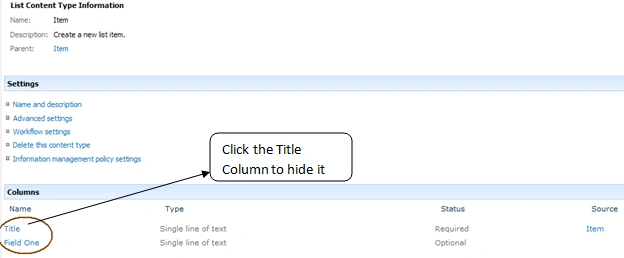
You will then see the below screen. Click on "Title" under Columns. As this is a new list I did create a one additional column as 'Field One'. Similarly If you have created any columns you would see them under the Columns section.
Once you click the title you will see the below screen and then choose Hidden (will not appear in forms). That's it!. Simple,yes?
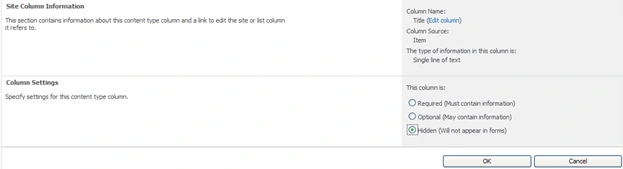
After click, if you observe, now the status of the title column is hidden, as shown below

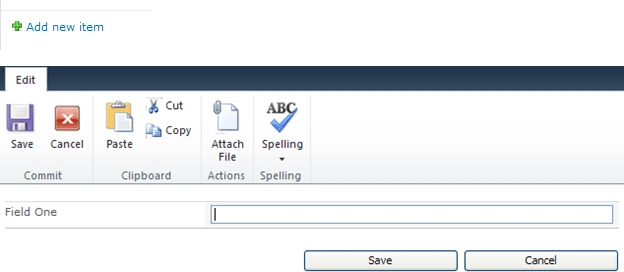
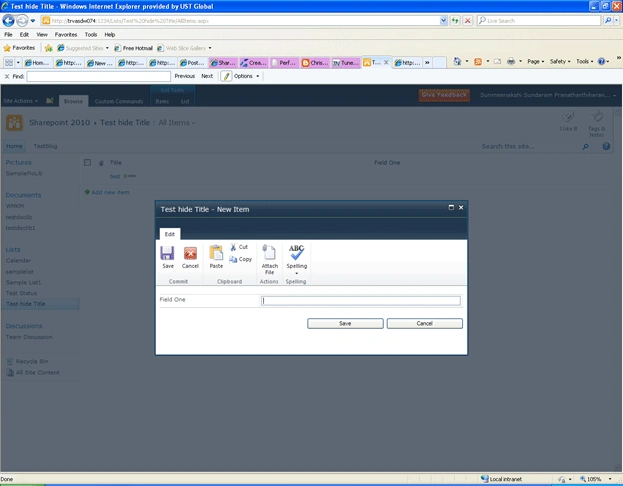
This is it!!!! To check, if you go to the list and click on "Add new item", you will see that title is not there...enjoy!!!
Join the conversation! Your thoughts help the community grow.