
The purpose of this paper is to show the functions and elements used to plot
basic shapes and implement their transformations.
The line drawing in OpenGL is based on the use of vertices, i.e. if you want to
draw a line you must define two vertices (start and end), the line will be drawn
according to the connection mode you choose, taking into account each of the
vertices defined (GL_LINESGL_POLYGON, etc.) then if we define four vertices and
selects as the connection mode "GL_LINES" this may result in 2-line stroke, but
if you select "GL_QUADS" will result a square.
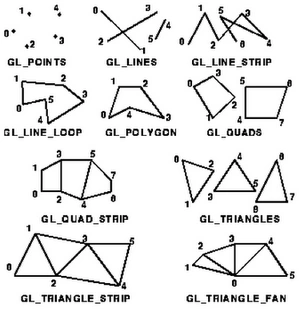
Well, having said this we will proceed with our application. The first thing we
do is add our control SimpleOpenGlControl which make our lives easier by not
having to follow a series of complicated steps to initialize your work area.
El SimpleOpenGlControl belongs to Tao Framework and if we want to use it we must
add a reference to Tao.Platform.Windows.
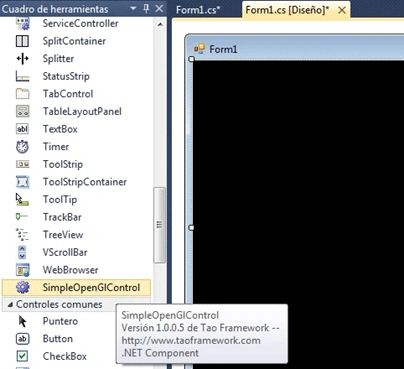
SimpleOpenGlControl
Step 1:
public
Form1()
{
InitializeComponent();
int height = simpleOpenGlControl1.Height;
int width =
simpleOpenGlControl1.Width;
simpleOpenGlControl1.InitializeContexts();
Gl.glViewport(0, 0, width,height);
Gl.glMatrixMode(Gl.GL_PROJECTION);
Gl.glLoadIdentity();
Glu.gluPerspective(45.0f, (double)width
/ (double)height, 0.01f, 5000.0f);
}
double
xrot, yrot, zrot = 0;
Initialize our workspace and variables that will control the rotation of our
figure
simpleOpenGlControl1.InitializeContexts() Initialize out control context or work
area.
Gl.glViewport().-Our work
area
Gl.glMatrixMode().-
Specify which matrix is the
current matrix
Gl.GL_PROJECTION
.- Defines the properties of the
camera that views the objects
Gl.GL_MODELVIEW.-
matrix defines how your objects are transformed
Glu.gluPerspective.-
set up a perspective projection matrix
Step 2:
Now we are ready to start drawing.
For this we will use the "Paint" event of the control.
private
void simpleOpenGlControl1_Paint(object
sender, PaintEventArgs e)
// OnPaint event
{
Gl.glClear(Gl.GL_COLOR_BUFFER_BIT
| Gl.GL_DEPTH_BUFFER_BIT);
//clear buffers to preset values
Gl.glMatrixMode(Gl.GL_MODELVIEW);
Gl.glLoadIdentity();
// load the identity matrix
Gl.glTranslated(0, 0, -4);
//moves our figure (x,y,z)
Gl.glRotated(xrot += 0.5,
1, 0, 0); //rotate on x
Gl.glRotated(yrot += 0.3,
0, 1, 0); //rotate on y
Gl.glRotated(zrot += 0.2,
0, 0, 1); //rotate on z
//face 1
Gl.glBegin(Gl.GL_LINE_LOOP);
//start drawing GL_LINE_LOOP is the connection mode
Gl.glColor3ub(255,
0, 255);
Gl.glVertex3d(1, 1, -1);
Gl.glVertex3d(1, -1, -1);
Gl.glVertex3d(-1, -1, -1);
Gl.glVertex3d(-1, 1, -1);
Gl.glEnd();
//face 2
Gl.glBegin(Gl.GL_LINE_LOOP);
Gl.glColor3ub(0,
255, 255);
Gl.glVertex3d(-1, -1, -1);
Gl.glVertex3d(1, -1, -1);
Gl.glVertex3d(1, -1, 1);
Gl.glVertex3d(-1, -1, 1);
Gl.glEnd();
//face 3
Gl.glBegin(Gl.GL_LINE_LOOP);
Gl.glColor3ub(255,
255, 0);
Gl.glVertex3d(-1, 1, -1);
Gl.glVertex3d(-1, -1, -1);
Gl.glVertex3d(-1, -1, 1);
Gl.glVertex3d(-1, 1, 1);
Gl.glEnd();
//face 4
Gl.glBegin(Gl.GL_LINE_LOOP);
Gl.glColor3ub(0,
0, 255);
Gl.glVertex3d(1, 1, 1);
Gl.glVertex3d(1, -1, 1);
Gl.glVertex3d(1, -1, -1);
Gl.glVertex3d(1, 1, -1);
Gl.glEnd();
//face 5
Gl.glBegin(Gl.GL_LINE_LOOP);
Gl.glColor3ub(0,
255, 0);
Gl.glVertex3d(-1, 1, -1);
Gl.glVertex3d(-1, 1, 1);
Gl.glVertex3d(1, 1, 1);
Gl.glVertex3d(1, 1, -1);
Gl.glEnd();
//face 6
Gl.glBegin(Gl.GL_LINE_LOOP);
Gl.glColor4d(255,
0, 0, 100);
Gl.glVertex3d(-1, 1, 1);
Gl.glVertex3d(-1, -1, 1);
Gl.glVertex3d(1, -1, 1);
Gl.glVertex3d(1,
1, 1);
Gl.glEnd();
}
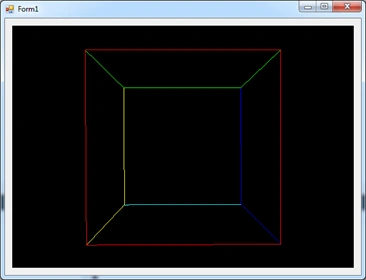
Gl.glTranslated(0,
0, -4); //moves our figure (x,y,z)
Gl.glRotated(xrot
+= 0.5, 1, 0, 0); //rotate on x
Gl.glRotated(yrot
+= 0.3, 0, 1, 0); //rotate on y
Gl.glRotated(zrot
+= 0.2, 0, 0, 1); //rotate on z
Applies rotation and translation matrix to our figure.
Don't you know what TAO is?
Get in here http://tinyurl.com/2d5napd
You need it to start working with openGL and C#
____________
Thanks to Sam ... Great advice
References:
http://www.fastgraph.com/makegames/3drotation/
http://www.opengl.org/
Alessio SandronoPosted Oct 11, 2013, 12:40 PM
sorry but every time i download samples for these site.... same .dll are missing... unbelivebale
can canPosted Mar 7, 2012, 8:30 AM
Thx gj
Mayshol mgPosted Dec 15, 2010, 9:40 PM
Thanks for your contribution..very useful!
Sam HobbsPosted Dec 15, 2010, 2:21 PM
What is TAO? Is it part of .Net, or at least in Visual Studio? It seems to be missing from my system.
Mahesh ChandPosted Dec 15, 2010, 9:25 AM
Thanks for sharing. I am learning OpenGL.