SIGN UP MEMBER LOGIN:    
ARTICLE

Working With ComboBox in FSharp

Posted by Alok Pandey Articles | F# October 12, 2011
ComboBox is used to make a single selection from a list of items by user. In this article you will learn how to use a ComboBox in FSharp.
Reader Level:

Introduction: ComboBox is used to make a single selection from a list of items by user. Now we will create a ComboBox in FSharp application. The syntax for creating ComboBox is given below

Syntax For Creating ComboBox:
    let ComboBox_Name=new ComboBox()

Like,
let combo=new ComboBox()

Now we create a window form. For doing this we create a F# Application as show below
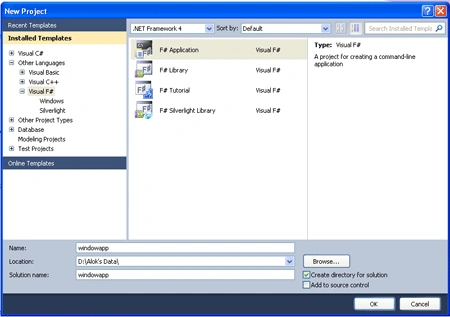
combobox in f#

We go to Solution Explorer and right Click on References. Then Click on .NET and select System.Drawing and System.Windows.Form and Click on ok button. Figure is given below
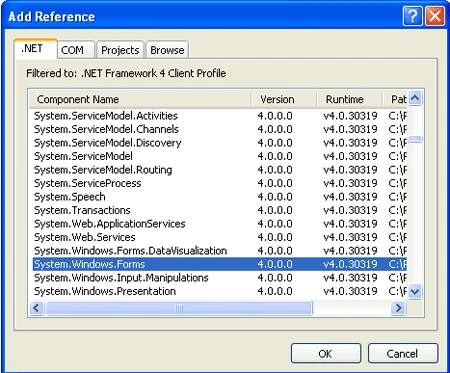
combobox in f#

Then, We write the following code.

open System
open
System.Windows.Forms
open
System.Drawing 
 

let
form=new Form()
form.Text<- "My Window Application"
form.BackColor <-Color.Gray
 

let
combo=new ComboBox()
 
form.Controls.Add(combo)
Application.Run(form)

Now we run the application. The output will look like the below figure
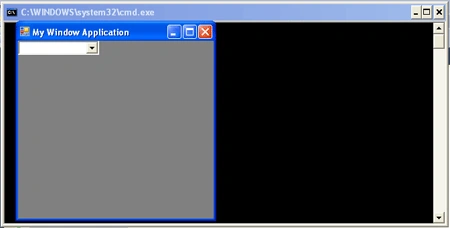
combobox in f#

This ComboBox has no items. Now we bind the ComboBox with a set of values. We write the following code

open System
open
System.Windows.Forms
open
System.Drawing 
 

let
form=new Form()
form.Text<- "My Window Application"
form.BackColor <-Color.Gray

let
items=[|"A";"B";"C";"D";"E";"F"|]
 

let
combo=new ComboBox(DataSource=items)
form.Controls.Add(combo)
Application.Run(form)

We run the application. The output will look like the below figure
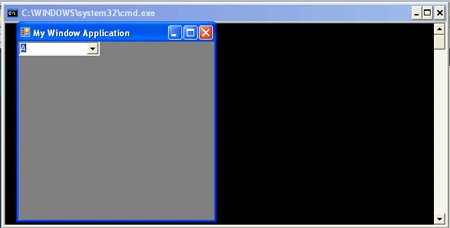
combobox in f#

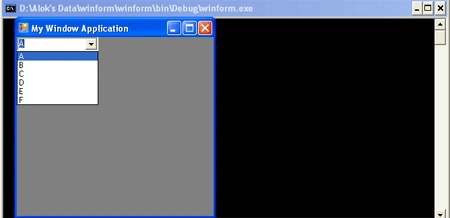
When we Click on the ComboBox, it shows all items, allowing the user to select one of them, like the below figure
combobox in f#

Login to add your contents and source code to this article
share this article :
post comment
 
6 Months Free & No Setup Fees ASP.NET Hosting!
Become a Sponsor
PREMIUM SPONSORS
  • Finally – a virtual platform that delivers next-generation Windows Server 2008 Hyper-V virtualization technology from a managed hosting partner you can truly depend on. Visit www.maximumasp.com/max for a FREE 30 day trial. Hurry offer ends soon. Climb aboard the MaxV platform and take advantage of High Availability, Intelligent Monitoring, Recurrent Backups, and Scalability – with no hassle or hidden fees. As a managed hosting partner focused solely on Microsoft technologies since 2000, MaximumASP is uniquely qualified to provide the superior support that our business is built on. Unparalleled expertise with Microsoft technologies lead to working directly with Microsoft as first to offer IIS 7 and SQL 2008 betas in a hosted environment; partnering in the Go Live Program for Hyper-V; and product co-launches built on WS 2008 with Hyper-V technology.
    The leading .NET charting control now features PDF, Flash and Silverlight export, visualization of large datasets and more. Deliver true charting functionality to your BI, Scorecard, Presentation or Scientific apps. Download evaluation now.
Nevron Gauge for SharePoint
Become a Sponsor