
In this article let us check out how to bind the listbox to an xmldatasource.
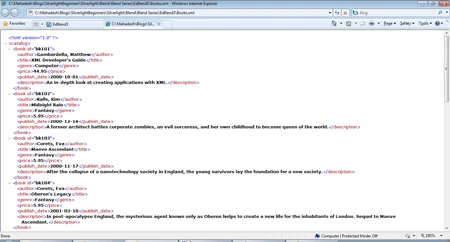
Let's create our XML file first. I just took the one in the following path:
http://msdn.microsoft.com/en-us/library/ms762271%28v=vs.85%29.aspx
and named it Books.xml.
Looks like below:
Let's create a new Blend Silverlight Application.
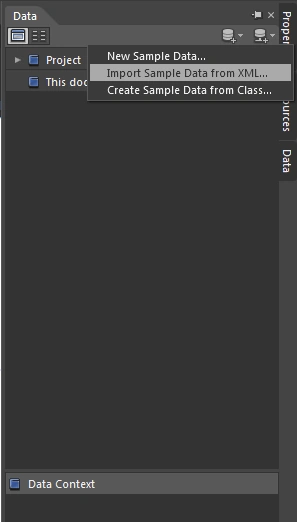
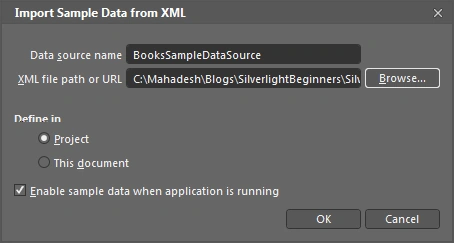
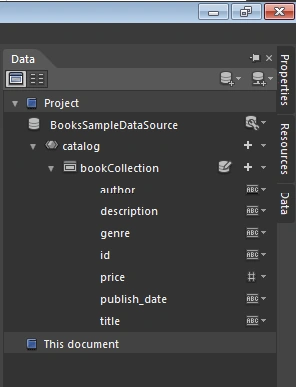
Simply drag the Books collection on to the ListBox.
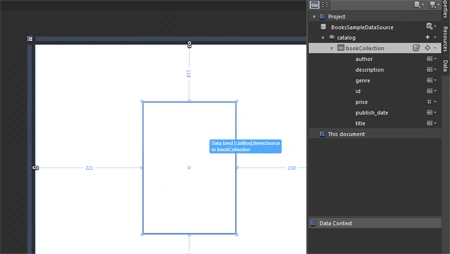
We are done. The XAML should now look as follows :
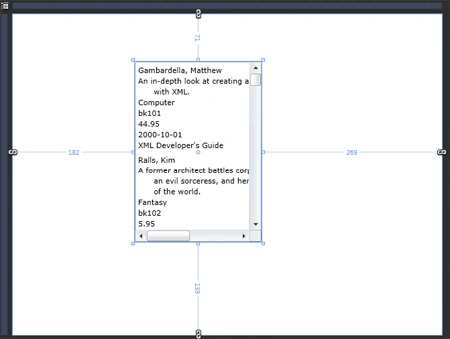
Well I have used ListBox a lot in this series. I need a change; let me try a datagrid. Simply Delete the Listbox and drag a DataGrid from the assets toolbar and drop it into the XAML area.
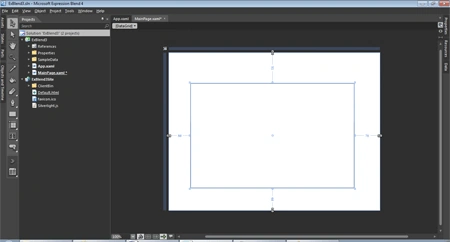
Again drag the Bookscollection into the datagrid as shown below:
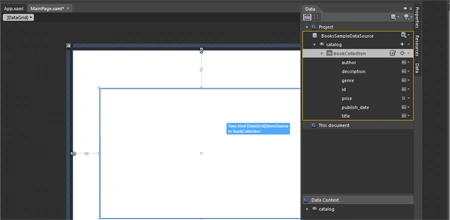
We should be ok now.
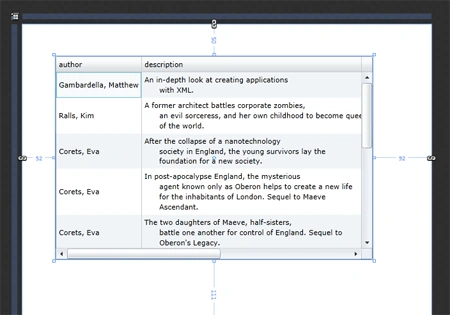
Cool. We did not have to do anything new there really.
See the XAML and you would know the amount of work you just did.
<UserControl
xmlns="http://schemas.microsoft.com/winfx/2006/xaml/presentation"
xmlns:x="http://schemas.microsoft.com/winfx/2006/xaml"
xmlns:sdk="http://schemas.microsoft.com/winfx/2006/xaml/presentation/sdk"
x:Class="ExBlend3.MainPage"
Width="640" Height="480">
<UserControl.Resources>
<DataTemplate x:Key="bookTemplate">
<StackPanel>
<TextBlock Text="{Binding author}"/>
<TextBlock Text="{Binding description}"/>
<TextBlock Text="{Binding genre}"/>
<TextBlock Text="{Binding id}"/>
<TextBlock Text="{Binding price}"/>
<TextBlock Text="{Binding publish_date}"/>
<TextBlock Text="{Binding title}"/>
</StackPanel>
</DataTemplate>
</UserControl.Resources>
<Grid x:Name="LayoutRoot" Background="White" DataContext="{Binding Source={StaticResource BooksSampleDataSource}}" >
<sdk:DataGrid Margin="52,50,92,111" AutoGenerateColumns="False" ItemsSource="{Binding bookCollection}">
<sdk:DataGrid.Columns>
<sdk:DataGridTextColumn Binding="{Binding author}" Header="author"/>
<sdk:DataGridTextColumn Binding="{Binding description}" Header="description"/>
<sdk:DataGridTextColumn Binding="{Binding genre}" Header="genre"/>
<sdk:DataGridTextColumn Binding="{Binding id}" Header="id"/>
<sdk:DataGridTextColumn Binding="{Binding price}" Header="price"/>
<sdk:DataGridTextColumn Binding="{Binding publish_date}" Header="publish_date"/>
<sdk:DataGridTextColumn Binding="{Binding title}" Header="title"/>
</sdk:DataGrid.Columns>
</sdk:DataGrid>
</Grid>
</UserControl>
Let's give it a run and see how it works:
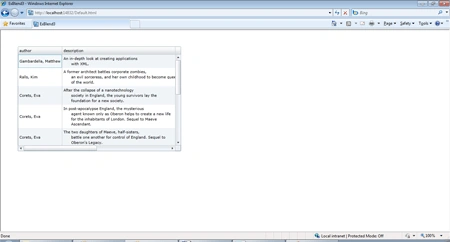
In my next article we will see animations in Blend. Until then, Happy Coding.
Join the conversation! Your thoughts help the community grow.