In this article we are going to explore the WCF Ria Services with Silverlight 5.
Lets start with the basics for the first timers .
Create a new SL project as shown below :
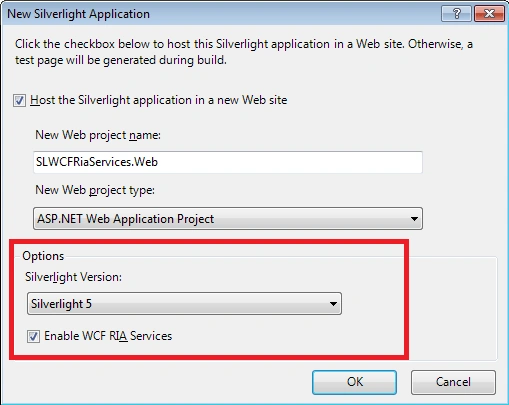
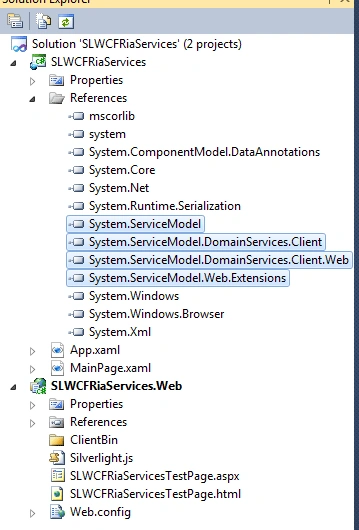
Note the DLLs that are added when you enable WCF RIA Service support .
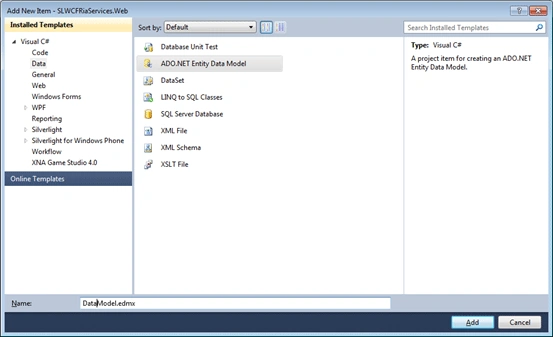
In the web project Add New Item . Add a Data Model as shown below :
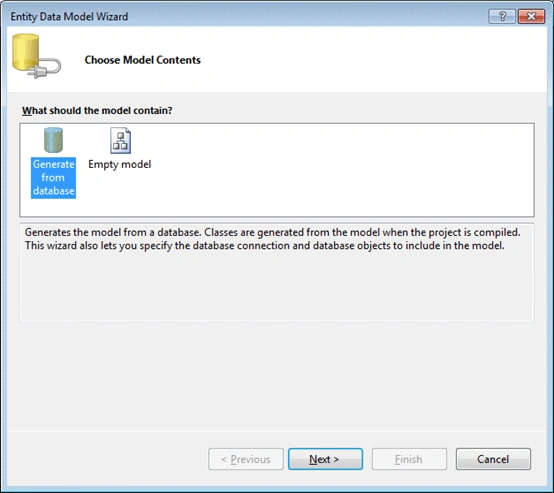
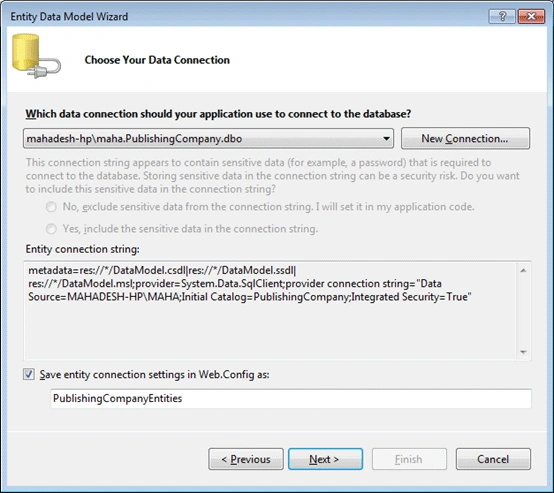
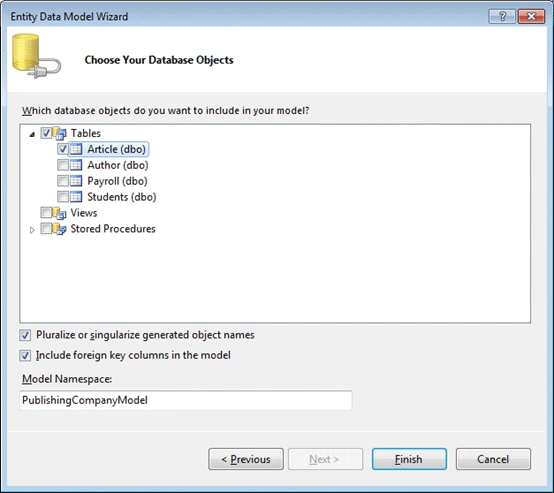
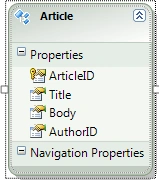
Then Build the Solution . It is necessary you give it a build otherwise when we
create a Domain Service , the Data Model would not be recognised by the Domain
Service .
Creating a Domain Service :
In the Web project , add a Domain Service .
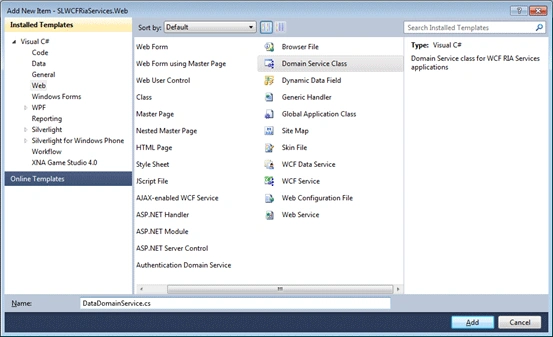
Add new Domain Service class Dialog appears .
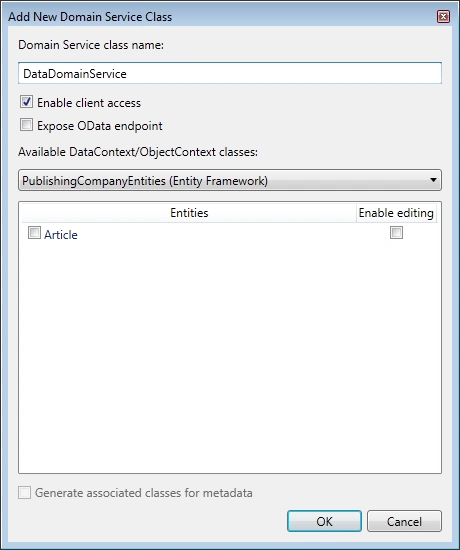
Select the Article Entity .
A couple of classes are generated as shown below :
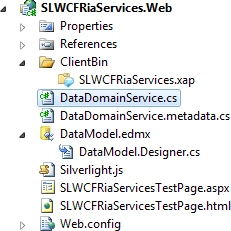
Give it a Build again .
Go to the Data Menu and click Show Data Sources .
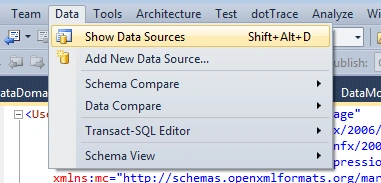
Data Sources Panel should now show the DataDomainContext . Under that Article .
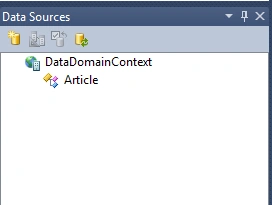
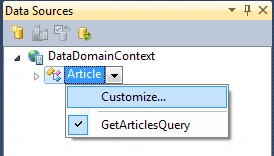
Select the Article and a drop down appears . say Customize as shown below :
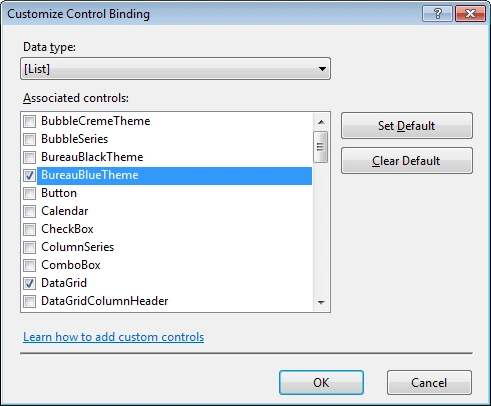
Go ahead and attach the DataGrid Control to the Data Source . You could select
themes as well.
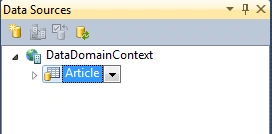
Notice the change in the icon .
Now go to the Design Screen . Simply drag and drop the entity into the MainPage
layout area . A datagrid should be added automatically now .
Make sure AutoGenerateColumns="True" .
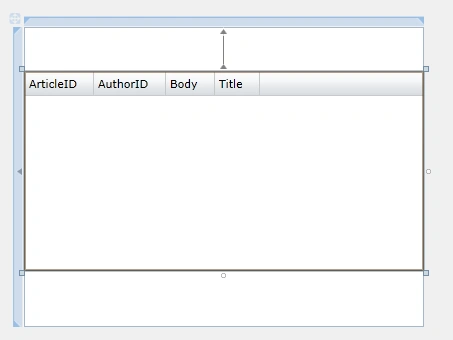
Build and Run it.
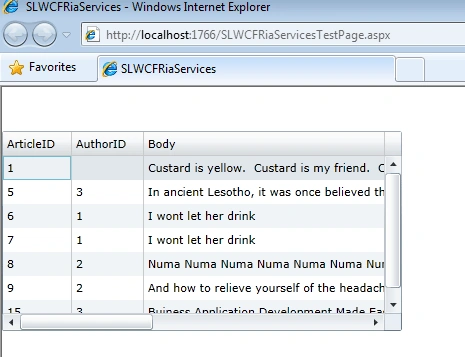
In the next post we will check out some advanced concepts in WCF Ria Services .
Till then Happy Coding .

Silverlight 5 WCF RIA Services: Part 1
Join the conversation! Your thoughts help the community grow.
Sign in to leave a comment
It is the same account you read, post and publish with — and you will come straight back to this page.
urang kitoPosted Mar 26, 2014, 2:02 AM
There was the solution under http://support.microsoft.com/kb/2745294
urang kitoPosted Mar 26, 2014, 2:02 AM
Hi daniel,
Daniel ApplingPosted Jun 9, 2012, 12:52 PM
What if no drop down appears around the entity you select in the data sources context? I get no drop down and not really sure what is wrong. I followed your example exactly.