

In this article I am showing you how to perform backup/restore operation using
Power Shell
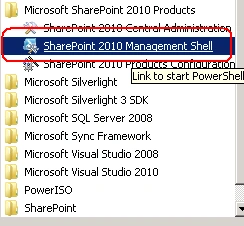
1. On the Start menu, click All Programs.
2. Click Microsoft SharePoint 2010 Products.
3. Click SharePoint 2010 Management Shell.
4. At the Windows Power Shell command prompt type the following command:
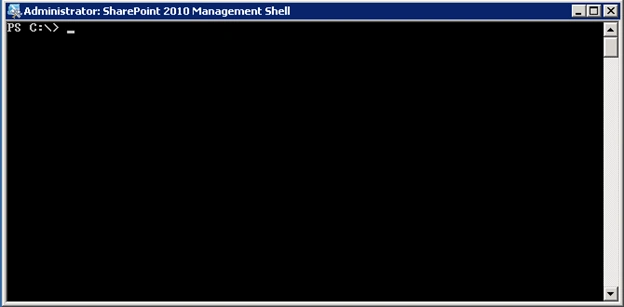
5. You will get a Power shell command prompt like
below
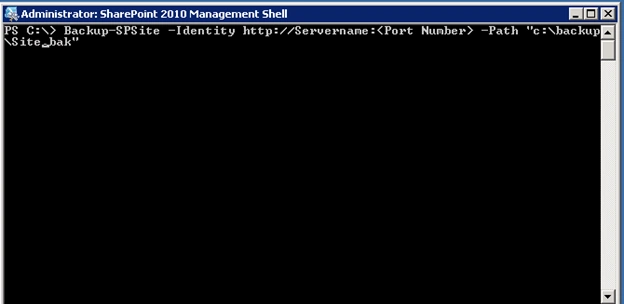
6. In SharePoint 2010, Power Shell command Backup-SPSite is used
for taking backup
7. Please see the screen shot for the backup Power
Shell command
8. Backup-SPSite -Identity http://ServerName:port -Path "c:\backup\file.bak"
9. If you want to
overwrite a previously used backup file, use the Force parameter. You can use
the NoSiteLock parameter to keep the read-only lock from being set on the site
collection while it is being backed up. However, using this parameter can allow
users to change the site collection while it is being backed up and might lead
to possible data corruption during backup.
10. Once this done you will
get the backup.
11. Next you have to create site collection then use the
below command to restore the backup that we currently taken.
12.
Restore-SPSite -Identity http://Servername:port -Path "c:\backup\file.bak"
-force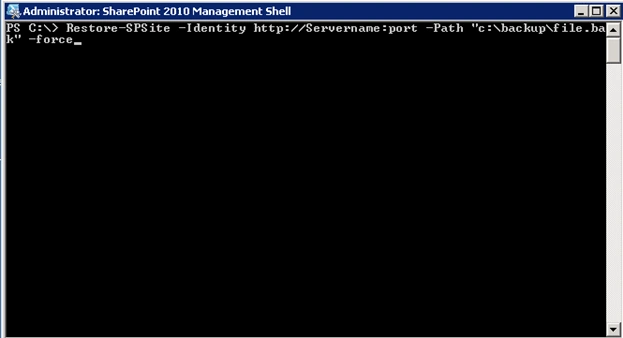
13. I am using force command because I want to overwrite the
existing site collection that I created now.
Destin JoyPosted Jun 25, 2015, 12:59 AM
Yes you are right.Venkatesan Nadimuthu
Venkatesan NadimuthuPosted Jun 15, 2015, 11:20 AM
Hi Destin, Correct me if am wrong. In order to Migrate Site Collection, We need to use Backup/Restore and in order to migrate Subsites and Webs, We need to use Export/Import. Am i right?... or We can use Export/Import for migration of Sitecollection from say Dev to Prod environment. Let me know if you have any queries,. Many thanks in advance
Noam HassanPosted May 5, 2015, 10:40 AM
Hi Destin, I've been struggling with SP 2010 Central Admin to backup but after using your command in Powershell it seems to have don exactly what I was looking to achieve, so thank you. The only question I have is so this command backup everything within a site? e.g. documents, Calendar entries etc? Kind Regards
Destin JoyPosted Dec 11, 2012, 11:12 PM
No Jundae,You have to restire the backup/Then only you can pull the files from that
Juande NonePosted Dec 11, 2012, 4:10 PM
Hi, thanks a lot for your post, this help me out a lot. One question. Can I have the files inside the backup.bak file whitout the need of restoring the backup? We lost our server but I have the backup files and i need to pull out the files stored in it. thanks in advance from Honduras
Destin JoyPosted Aug 26, 2012, 10:25 AM
As the error says you dont have access in the sharePoint DB.Make sure you opened the powershell command with Run as Administrater and the user executing the command have necessary rights in DB
Arockiaraj LPosted Aug 21, 2012, 8:24 AM
Hi I am Having a error while doing my restore, Below is the error "Restore-SPSite : Cannot open database "<DB_Name>" requested by the login <User Login>. The login failed."
Merin NakarmiPosted May 4, 2011, 11:26 PM
Hi, thank you very much. This is simple and nice and helped me at the right time.
jibin koshyPosted Oct 24, 2010, 8:02 AM
Destin in your previous article you mentioned abt import/export .here you mentioned about backup/restore.........Can you tell whats the difference between this two.