
SIGN UP MEMBER LOGIN:    
ARTICLE

Using Quota Template to manage site collection storage limits through Central Administration

Posted by Destin joy Articles | SharePoint October 22, 2010
In this article I showing you how t o create a managed path using SharePoint Central Administration.
Reader Level:

In this article I showing you how t o create a managed path using SharePoint Central Administration.

Create Quota Template

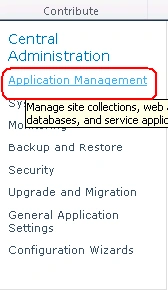
1. In Central Administration click Application Management TAB.
1.gif

2. From Application Management page, click Specify Quota templates from Site Collection 

2.gif 

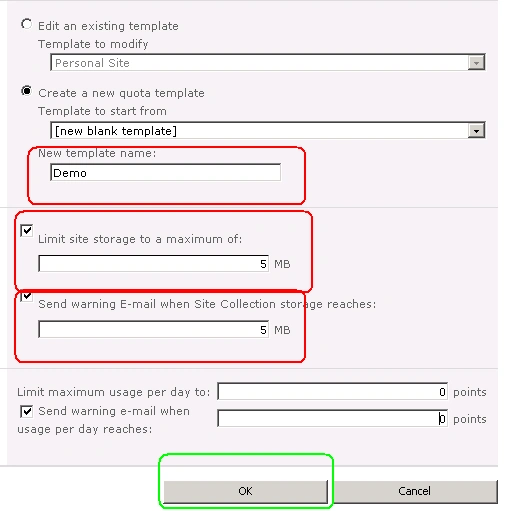
3. Select Create new quota template option

4. Give the Name for the new Quota.

5. Set Maximum storage limit and warning message limit and click ok
3.gif
 
Set Quota Template to Site Collection

1. From Application Management page, click Configure quotas and locks from Site Collection 

4.gif

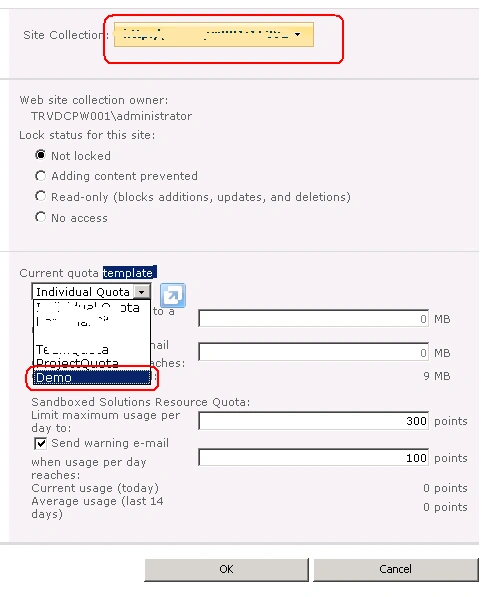
2. Select the Quota that we just created. Please make sure you have selected your site collection from the First drop down (Site Collection section)
5.gif
 
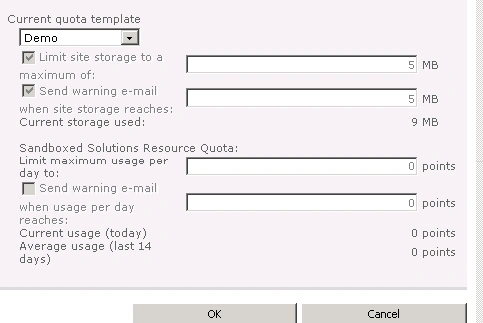
3. I have selected the Quota Template that we just created and clicked OK
6.gif
 
You have done with attaching a site collection to the quota template.

Login to add your contents and source code to this article
share this article :
post comment
 
6 Months Free & No Setup Fees ASP.NET Hosting!
Become a Sponsor
PREMIUM SPONSORS
  • Get 2 Months Free of ASP.NET Hosting for Only $4.95/month! Receive FREE MS SQL and MySQL Databases Including ASP.NET 4/3.5, MVC 3.0, Silverlight 4, Windows 2008/IIS 7.0 Plus FREE IIS 7 Modules. Host UNLIMITED ASP.NET Web Sites - Click Here!
    Get 2 Months Free of ASP.NET Hosting for Only $4.95/month! Receive FREE MS SQL and MySQL Databases Including ASP.NET 4/3.5, MVC 3.0, Silverlight 4, Windows 2008/IIS 7.0 Plus FREE IIS 7 Modules. Host UNLIMITED ASP.NET Web Sites - Click Here!
6 Months Free & No Setup Fees ASP.NET Hosting!
Become a Sponsor