

1. In order to work with LINQ in SharePoint 2010, we need to use a tool called SPMetal.exe which resides in the "C:\Program Files\Common Files\Microsoft Shared\Web Server Extensions\14\bin". This tool is used to generate some entity classes which allows for LINQ-based queries to be performed.
2. For that, first you need to open your command prompt then go to the path "C:\Program Files\Common Files\Microsoft Shared\Web Server Extensions\14\bin".
3. Type the command.
SPMetal.exe /web:http://server:port /code:D:\Destin\EntityFile.cs /user:domain name/username /password:yourpassword
4. If the server name is not resolving then try with IP address of the server.
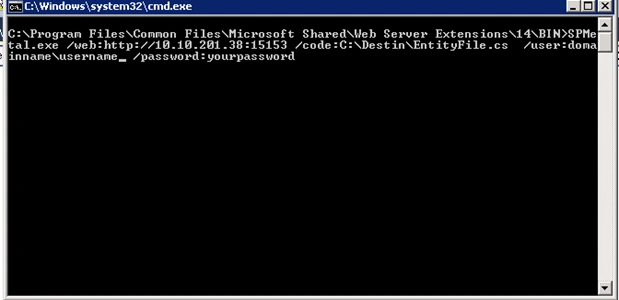
5. You can check the path where you generated the Entity file.
6. Now we have done half.
7. Go to visual studio and create a new web part project as shown below:
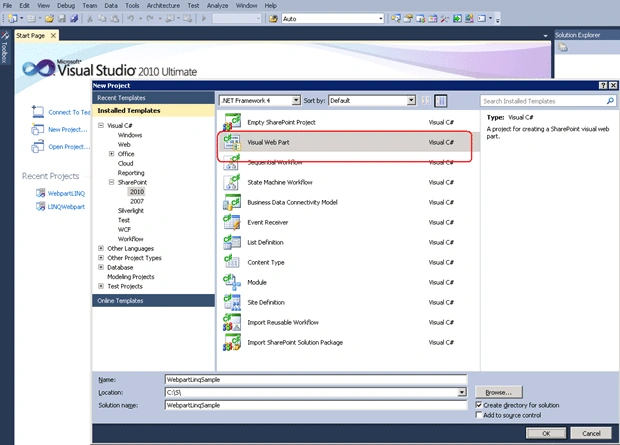
8. Here I am going to fetch data from an Announcement list that I already have in my SharePoint site.
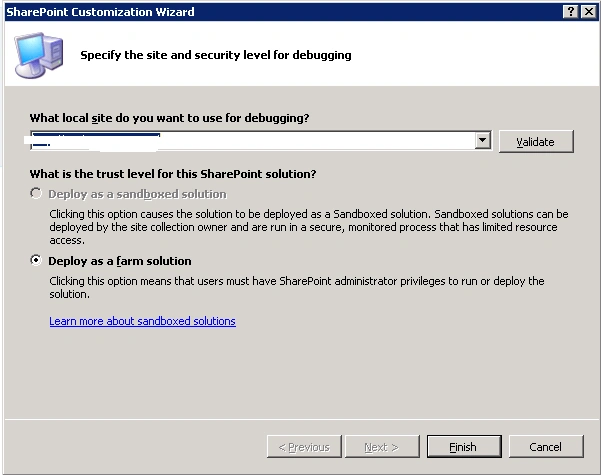
9. You have to give the path of the web application where you want to deploy the webpart.
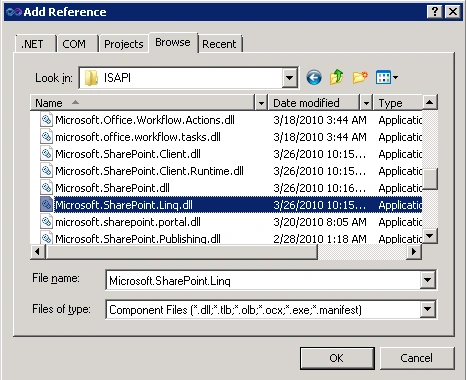
10. Now we have to add Sharepoint LINQ dll.
11. Right click on the project then add reference points to browse.
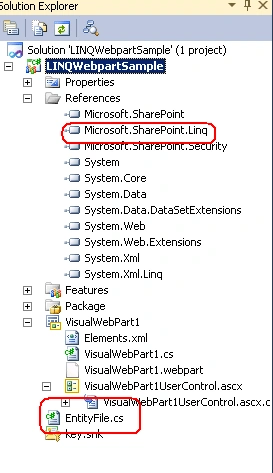
12. Go to this path "C:\Program Files\Common Files\Microsoft Shared\Web Server Extensions\14\ISAPI"; you will find sharepoint.Linq.Dll; add it as shown below:
13. Next step, we have to include our Entityclass we just genereated with SPMetal.exe.
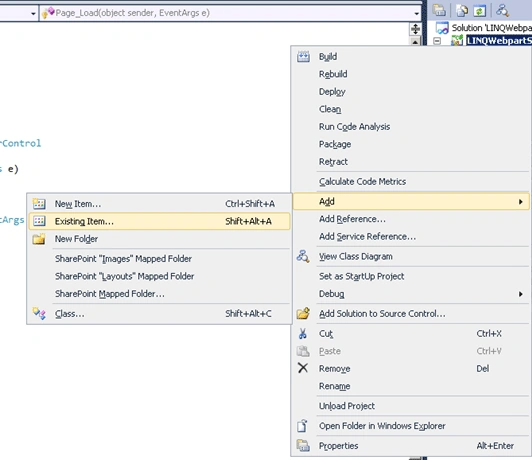
14. Right click on the solution Click Add points to Existing Item and select our Entitylass.cs file.
15. Please check that Entitylass.cs was added to your solution.
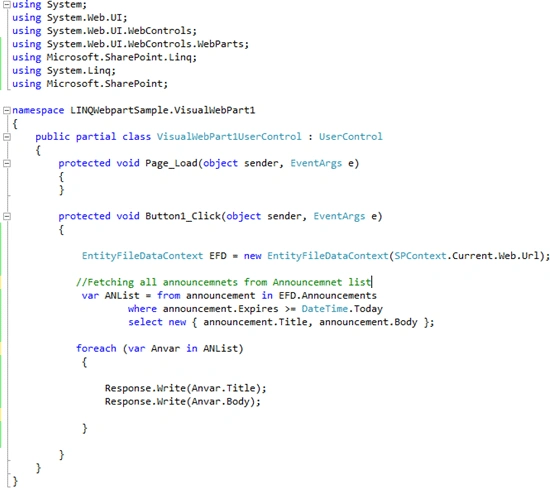
16. Please add the code attached in the button click to the web part or in the page load and deploy it in your SharePoint site as explained in my previous post.
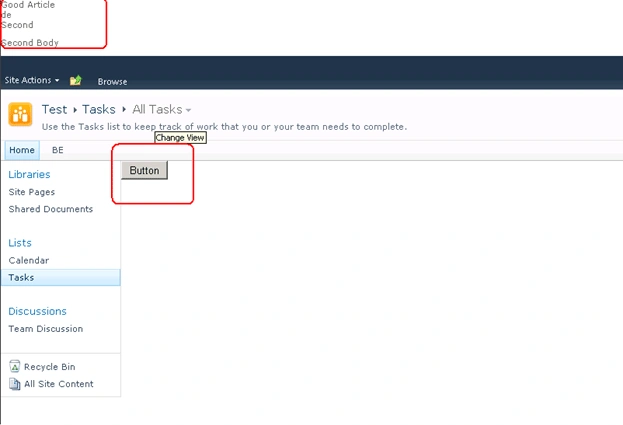
17. Once you added to your sharepoint site you can see the webpart fetchng data from the announcemnt list.
ashok mPosted Sep 20, 2012, 4:46 AM
when i executing spmetal command getting following error Error:Feature '33a75c5d-110a-41b6-805d-0c360e1ce2e7' for list template'10001' is not installed in this farm
Kavin FranciseditedPosted Nov 2, 2010, 11:45 AMEdited Nov 2, 2010, 11:46 AM
Very good Article.Iam starting 2010.It helped me to learn how to use LINQ in SharePoint!! Thanks Destin..........Keep contributing