

Using an ASP.Net master page with a theme and CSS can be tricky. Themes and master pages came out in 2005. There were hundreds of articles written about them at the time. Since then, however, the way we do web development has changed a great deal. It's time to readdress the subject. In this article, we'll cover the basics. Then we'll add stylesheets for printing and for Internet Explorer only.
The Problem
Suppose I want to make a website without .Net, one that's nothing but HTML and CSS. My HTML head might look something like this:
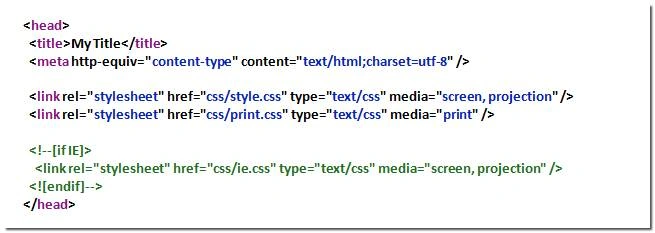
Notice I'm linking in three CSS stylesheets, style.css, print.css and ie.css.
Style.css, is the main CSS file for my website. The "media" attribute indicates that this CSS applies when my page is displayed on a computer screen or projector.
The media attribute for my second CSS file, print.css, indicates that this file contains special CSS which only applies when someone is printing my page. I can add CSS here that will hide the header, footer, advertisements, etc., when the page is being printed. I can define different fonts and font colors for printing.
The last CSS file, ie.css, contains CSS which only applies when my page is being viewed in Internet Explorer. The link to the CSS file is contained within a comment block. Internet Explorer will include this extra CSS file. Other browsers will ignore it. The file will contain special CSS hacks necessary to make my page display correctly in Internet Explorer.
So my issue is this: I want a Master Page that will apply style.css as the primary CSS. I also want to include ie.css when I'm using Internet Explorer. I want to use print.css when I'm printing. Going further, when I'm in Visual Studio looking at a page in designer view, I want the Studio to apply style.css, so I can get some idea how my page is going to look when it's done.
The Basics
I'm going to go through the basics very quickly. There are hundreds of articles out there about how to create a master page and theme. I'm only going to make a few points here.
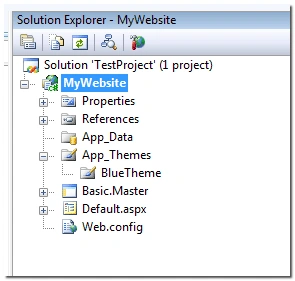
First I created a website. I added a folder called App_Themes. Within this, I added a second folder called BlueTheme. That's my theme for this site. If I wanted to add other themes, I could add other folders, GreenTheme, ModernTheme, etc. I have also added a Master Page called Basic.Master.

Note that I could have said theme=BlueTheme instead of styleSheetTheme =BlueTheme. The main difference between these is whether the style from the theme applies first and then the styles added to a particular page can override these, or the opposite.
Adding Style.css
Including style.css is simple. I just place the file inside the BlueTheme folder. Now that I've specified in the Web.config file that I want to use BlueTheme, any CSS files I put in the BlueTheme folder will be linked in and applied automatically. I don't need to do anything to the Master Page.
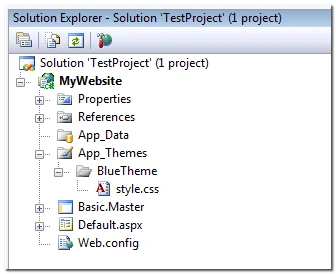
Now, when I look at the Master Page in Visual Studio in designer view, it shows me (approximately) what my page looks like after applying style.css.
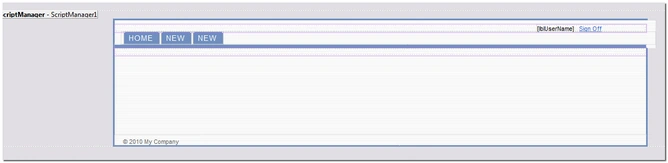
I could include multiple CSS files this way just by adding them to the BlueTheme folder. All the CSS files in the BlueTheme folder will be linked in and applied automatically.
CSS For Printing
I can't just put my print.css file in the BlueTheme folder. All the CSS files in the BlueTheme folder will be linked in and applied, even if I'm not printing. I only want the print.css file to be applied when I'm printing. I need to put my CSS file somewhere else.
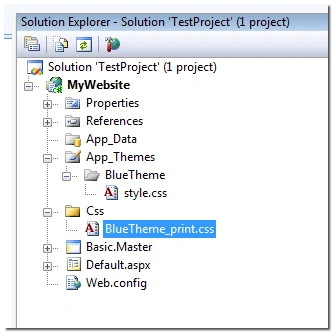
I have added a new folder to my project, Css. Inside this folder, I've added my print CSS file. I renamed my file from print.css to BlueTheme_print.css so that I won't get confused if I add additional themes later.
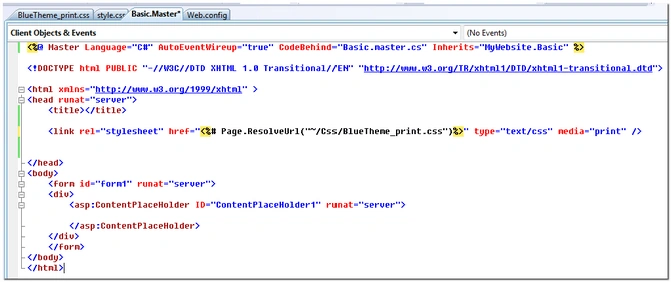
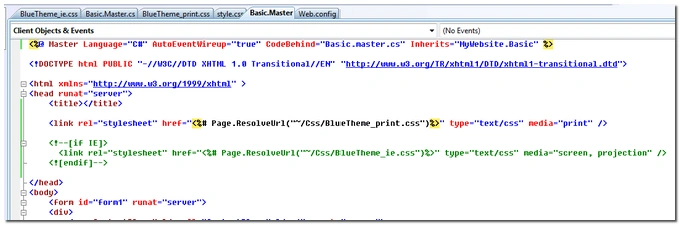
Notice I didn't hard code the address for the CSS file. Instead, I used <%# Page.ResolveUrl( ) %> to link in the file at run time. To make this work, the head tag must include runat="server." Finally, in the code behind for the Master Page, I add one line of code, Page.Header.DataBind(); .
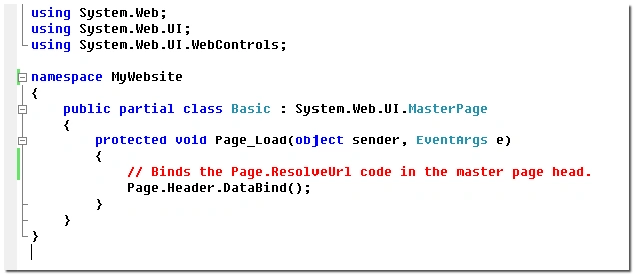
Note that you must use <%# Page.ResolveUrl( ) %>, not <%= Page.ResolveUrl( ) %> . That is, use #, not =. This is an easy mistake to make, one which has caused hundreds of programmers to post frustrated questions to .Net forums looking for help. If you put the wrong thing, you will get this error:

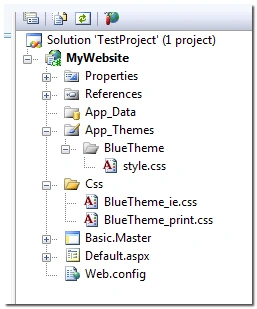
As with the print CSS, I can't just include ie.css in the BlueTheme folder. All the CSS files in the BlueTheme folder will be linked in and applied, regardless of what browser I'm using. I only want the ie.css file to be applied in Internet Explorer. I need to put my CSS file somewhere else. I will put it with the print CSS file:
Join the conversation! Your thoughts help the community grow.