

SQL Server Reporting Services [SSRS] is Reporting system based on SQL Server. It provides a set of tools & services enabling us to create, manage, and deliver reports for entire organization. It is a Microsoft Product released in year 2000.
SSRS Architecture intentionally not given in the starting of article. Before looking on each component of architecture, I preferred to make practical approach to it. In the end of article Architecture has been explained.
Create SSRS Report
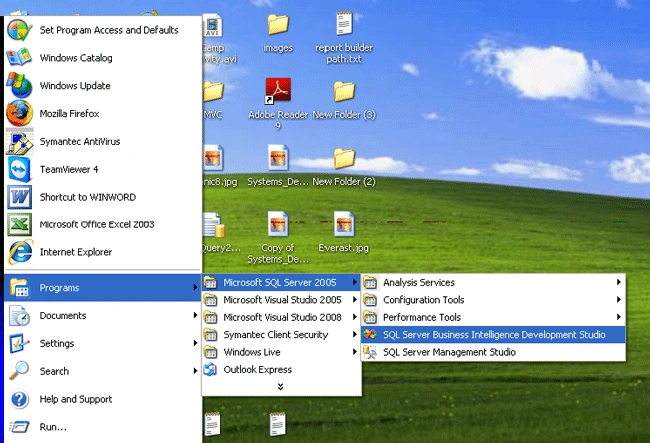
First of all go to MS SQL Server 2005=>SQL Server Business Intelligence Development Studio.
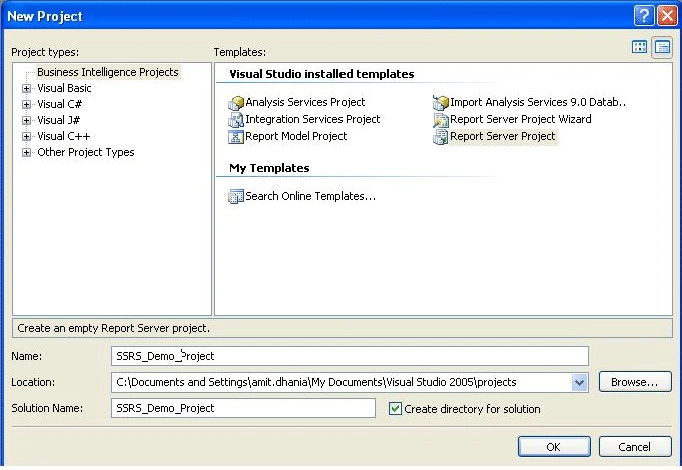
Move to File=>New=>Project=>Report Server Project
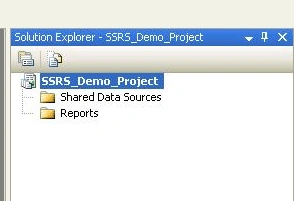
After creating new report project, we get two folders in Solution:-
Share Data Sources=>here we set database credentials.
Reports=>here we add report files
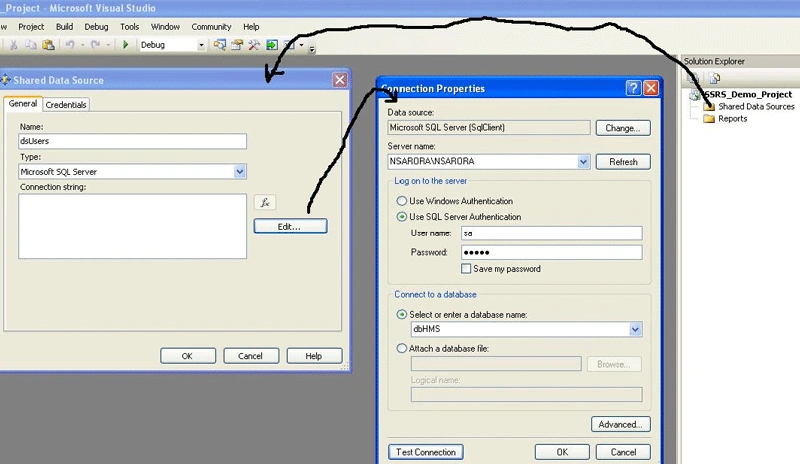
SSRS Data Source
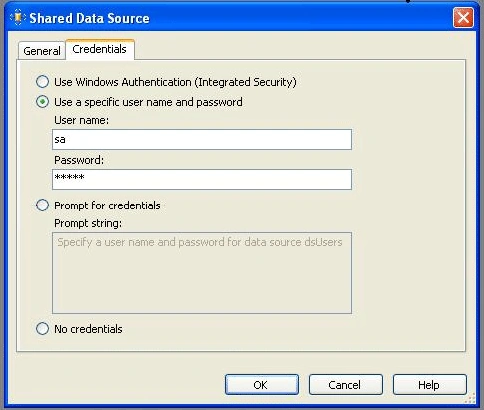
Right click on Shared Data Sources folder & add data source. Following window panel will be opened where we need to provide data server details & database name.
To confirm that defined database is successfully connected click on 'Test Connection'.
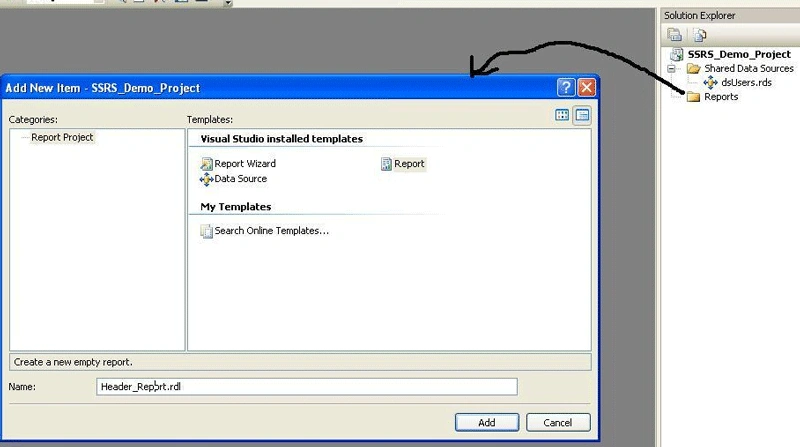
After successfully adding data source, we can add a report in Report folder. Right click on Report folder & Add-New-Report. Window panel will be opened. Select Report item & provide report name 'Header_Report'.
SSRS Report Design
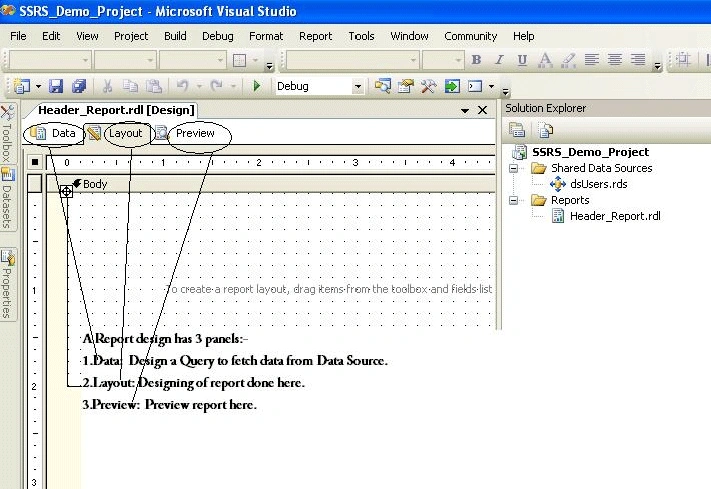
After adding new report, we see report has 3 sections in different Tabs:
- Data-Here we put SQL Query or Procedure to fetch data from database that we have to show on report.
- Layout-This is the designing section where we format report by dragging tables, rectangle, lines etc from Toolbox. And Data field on report from Dataset panel.
- Preview-This panel shows how the report will display to end user.
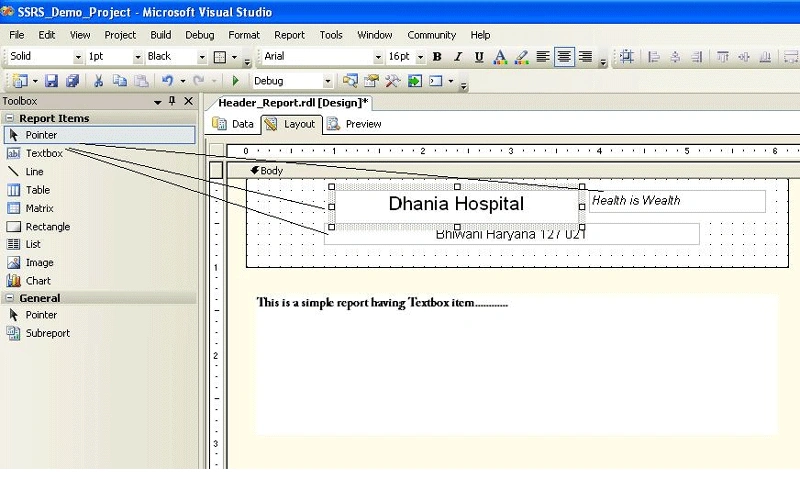
All these 3 section circled in below image.
SSRS Toolbar
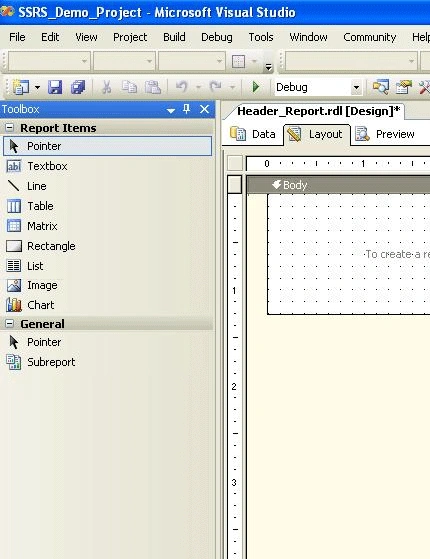
Before moving to design report just we can briefly go through Report Items available in Toolbox.
- Textbox: To add any custom text on report we use textbox.
- Line: Drawing line on report.
- Table: Creating a table having rows & columns, header & footer. We can format table according to our requirement.
- Image: Adding image to report.
- Chart: facilitate to add different type of charts to report.
- Subreport: We can add a report in another one report. Like having Header & Footer report on a report.
Toolbox items shown in below image:-
Now I dragged 3 textboxes on report & put text 'Dhania Hospital', & 'Health is Wealth', & 'Bhiwani Haryana 127021' respectively.
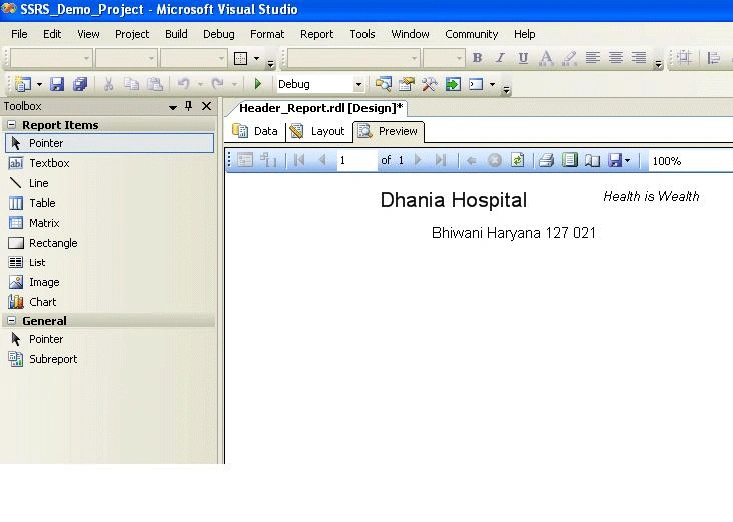
After previewing report in Preview tab, report will appear as shown below.
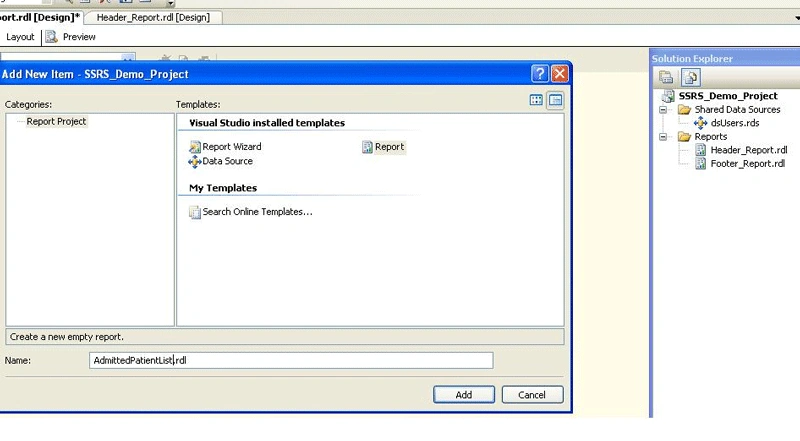
After finishing Header_Report, now we are creating new report AdmittedPatientList.
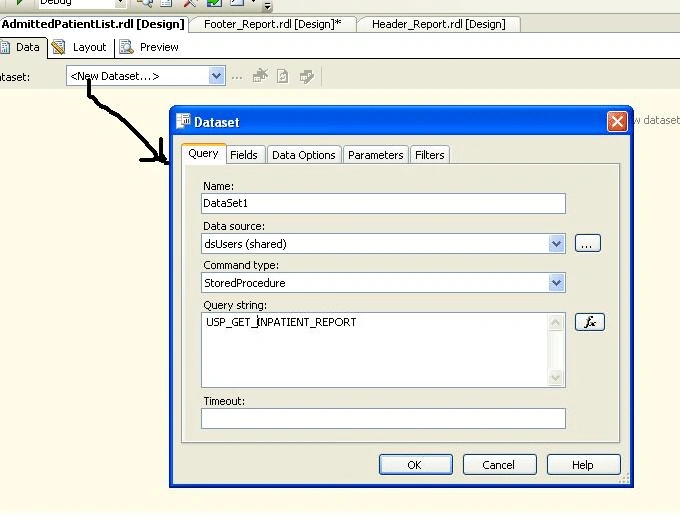
After adding new report, move to Data section of report. Select <New Data Set>. A new window Dataset will be opened. Here choose Command type [store proc or text query] we need to use to fetch data from database. Here in this report stored procedure USP_GET_INPATIENT_REPORT.
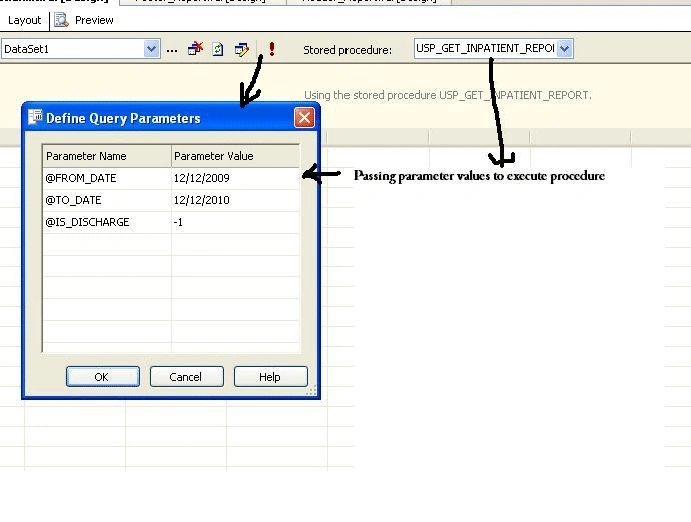
After adding dataset, click on Run button to execute command to get data. Define Query Parameters window opened where we need to pass values to procedure parameters[@FROM_DATE,@TO_DATE etc.]
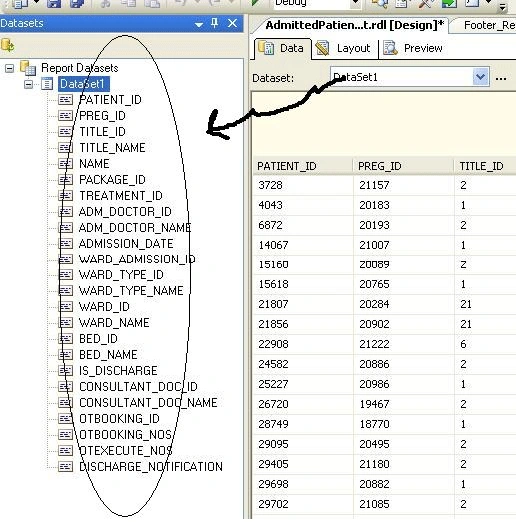
After execution of command, data shown in below panel & Report Datasets occupied with data fields we have in USP_GET_INPATIENT_REPORT procedure.
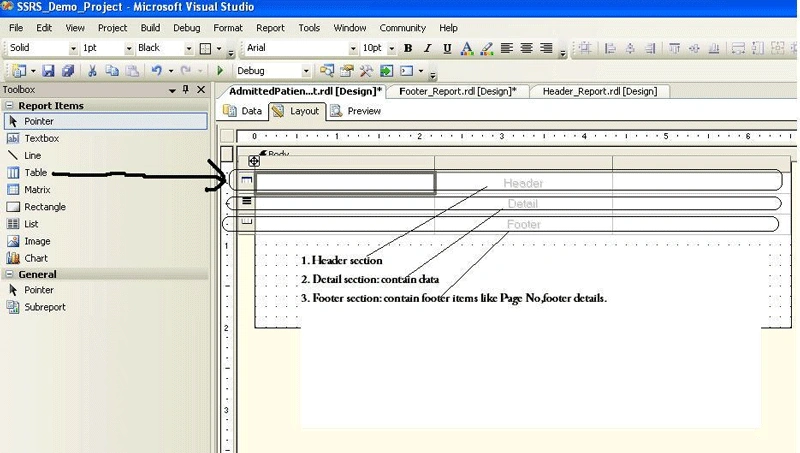
After adding dataset to report, now we move to design report. Move to Layout section of report & drag a table on it. As we drag a table we get 3 sections in it:-
- Header: here we put data that need to be shown header of report. We can have more than one row in header just by clicking on Header row & add new row.
- Details: this is the part of table where we drag data fields from dataset panel.
- Footer: here we add items we need to show in footer of report.
SSRS Subreport
In this report I am adding subreport item to add Header in report. Sub report Header_Report that we created previously chosen in Subreport property.
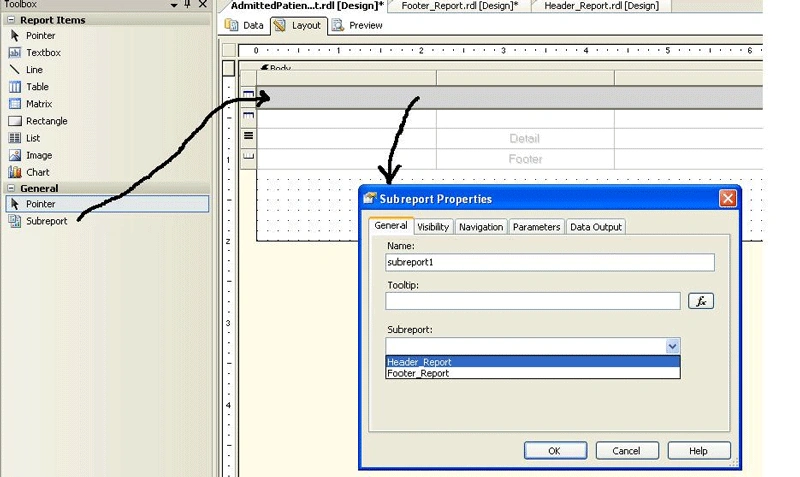
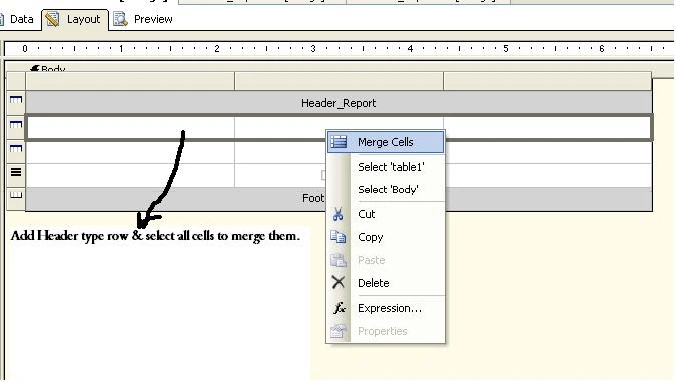
Now we are adding 2 more rows in header section of report by just right clicking on left most of header column.
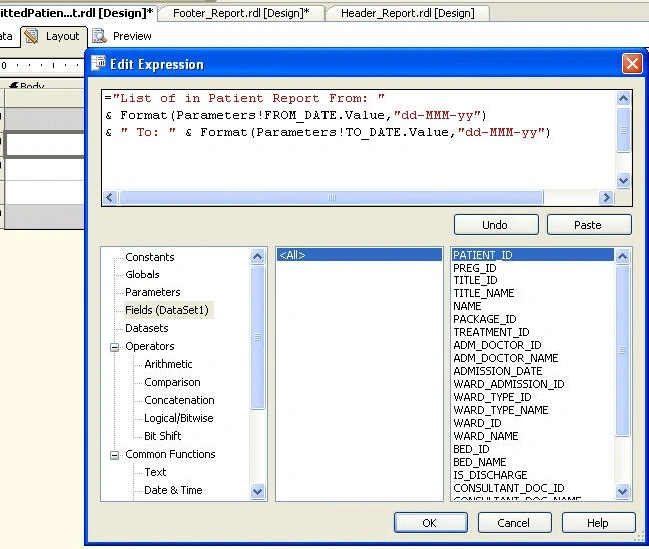
Report designer provide Expression Window to help developer to use different formula, functions, operations. We can directly drag any data field like patient name, address etc from Dataset window or just right click on any row cell & select EXPRESSION option.
EXPRESSION Window has been shown in below image
By default table have 3 columns only so we can add more columns as requirements by right click to header of a column & option to add column in left or right of selected column.
We can merge no of columns to accommodate more space required for a field. For example in our current report we have to merge all columns in header section to put text 'List of in patient from X Date to Y Date'.
New row added in header section to put name of column name like S.No, Patient Name etc. To format text of cell just right click on cell & select PROPERTY. Here in property window we can set font size, font type etc.
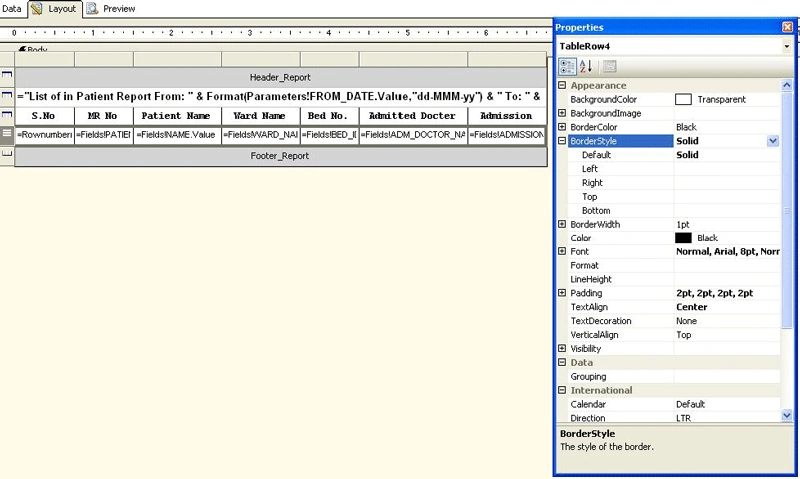
Row Formatting: To format a row we need to open
property window of a row by just selecting row & right clicking it & go to
Property option.
In property window we can set border font, type, back color, text alignment,
padding etc.
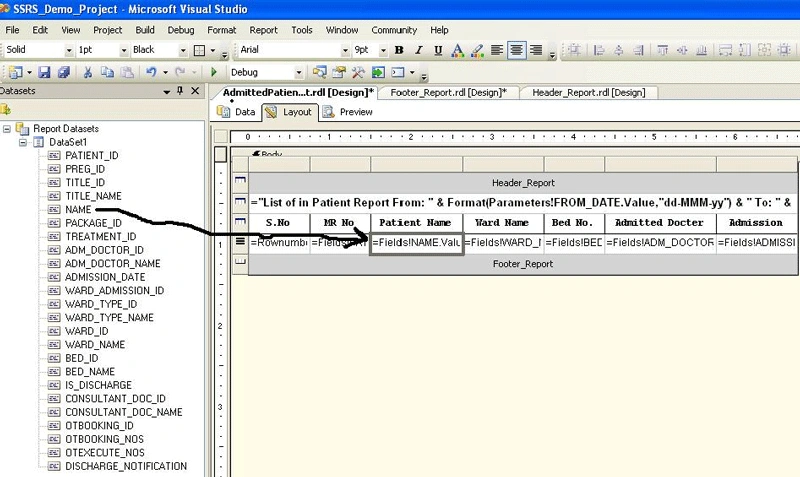
Now we dragging data fields like patient name, address in detail section of table just below their corresponding headers like patient name address. It is shown in below image.
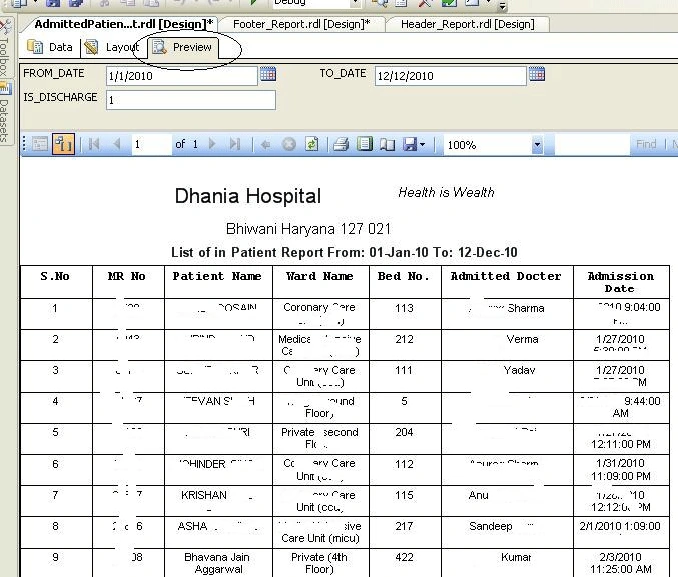
Now report is ready to use. Move to Preview panel of report & pass required parameters [FROM_DATE, TO_DATE etc] of report.
Publish SSRS Report on Report Server After creation of report we need to publish it
on report server so it could be available to end user. To publish report on sever we need to set
credential of report server. Go to property of Solution explorer as shown below
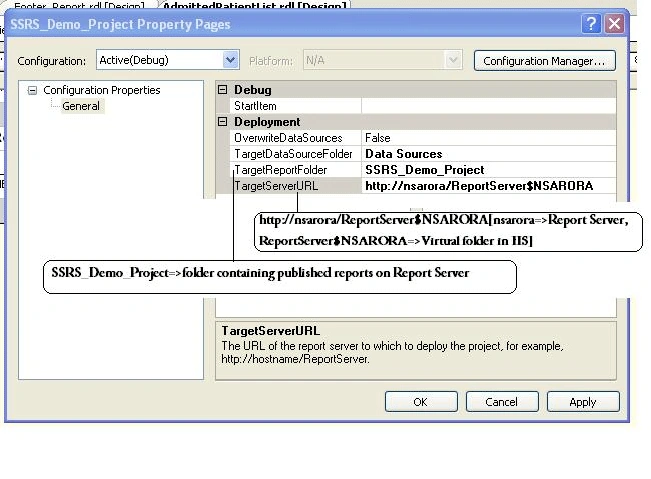
image. In Property window set 'TargetServerURL' field
with Report-Server [i.e. NSARORA] and report virtual folder [i.e.
ReportServer$NSARORA]. Field 'TargetReportFolder' contain folder name
in report server where published reports saved. In detail it is shown in below
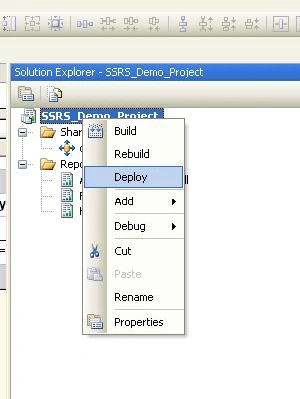
image. After making setting for report server
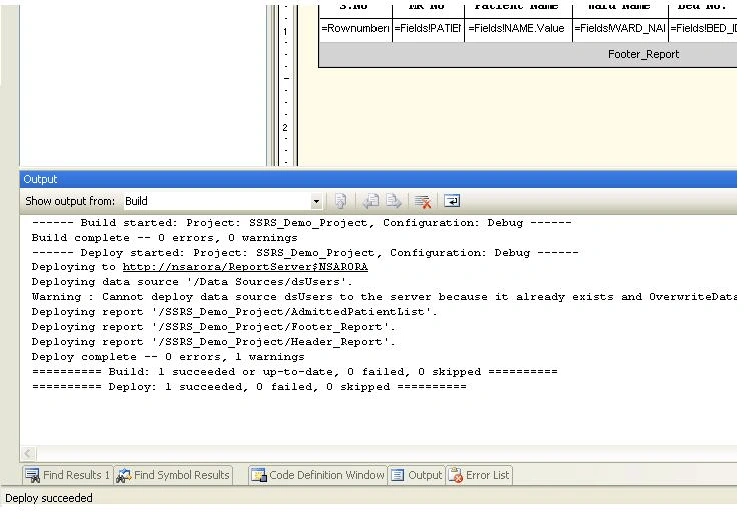
credential now we can deploy reports on server. As deployment of report starts output window
shows the deployment.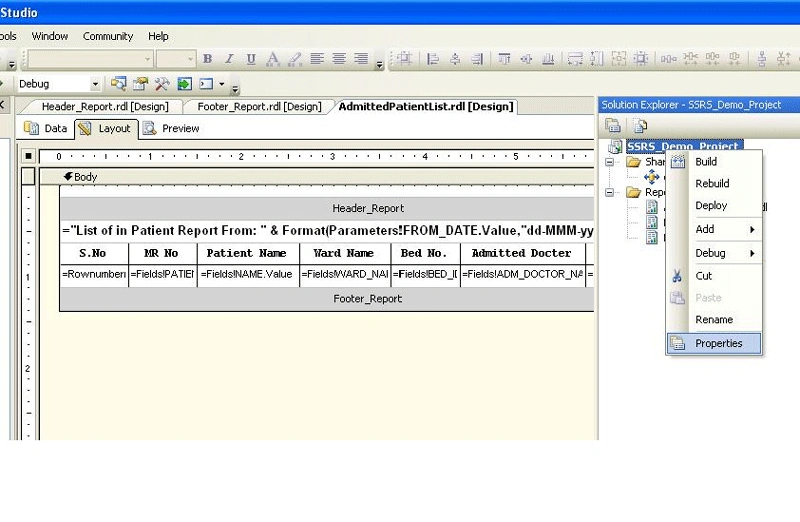
sujith monyPosted Mar 7, 2012, 4:44 PM
Hi When i try this example i got this error The attempt to connect to the report server failed.Check your connection information and that the report server is a compatible version ( Microsoft.REportingService.Designer)