

In this article we will be seeing how to add web reference in Visual studio
2010.
I have created a console application to access the _vti_bin/excelservice.asmx
web service. To do that I need to add the web reference, here we will be seeing
how to add the web reference.
To add the web reference do the following steps:
- Go to the console application, right click
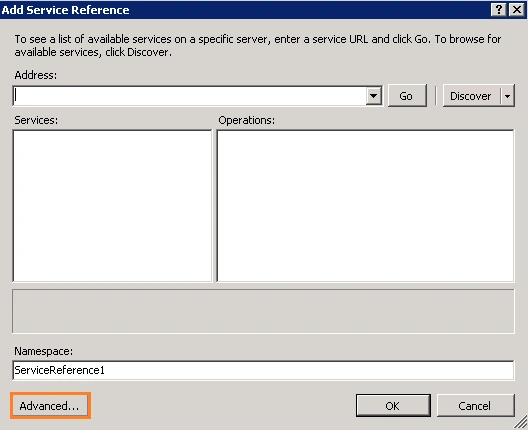
on the References folder and click on "Add Service reference".

- Click on "Advanced".
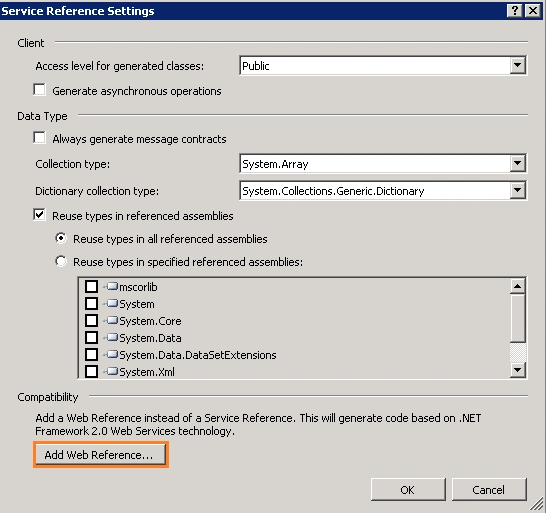
- Click on "Add Web Reference".
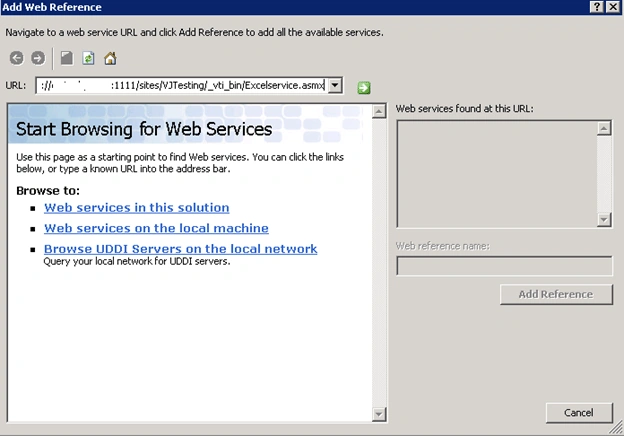
- Enter the URL of the web service (For
example http://<servername>/_vti_bin/excelservice.asmx) and click on Enter.
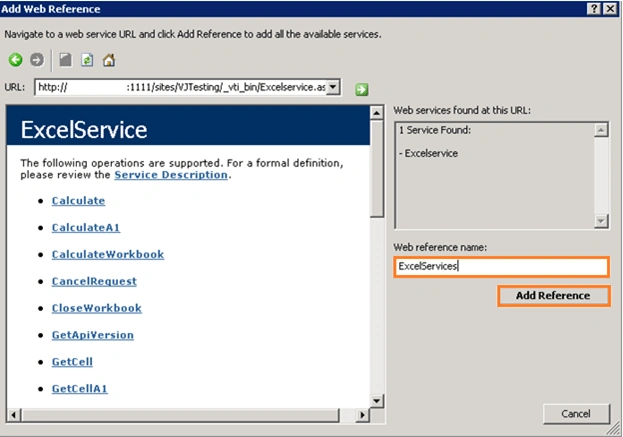
- Change the web reference name if you wish
and click on "Add Reference".
- You could see the web reference added to
your solution as shown in the following.
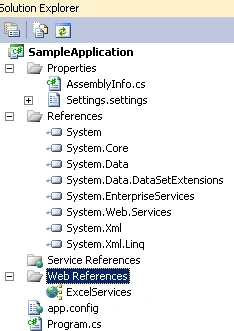
- For more information on difference between
the web reference and service reference refer the following URL
http://andrewtokeley.net/archive/2008/07/10/the-difference-between-ldquoadd-web-referencerdquo-and-ldquoadd-service-referencerdquo.aspx
.
Kumaresh RajalingamPosted Mar 24, 2016, 9:58 AM
Nice one sir
Syed AliPosted Mar 29, 2014, 3:56 AM
nice
Anil KumarPosted Oct 22, 2012, 12:47 AM
good one
Prasenjit PaulPosted Sep 19, 2012, 4:56 AM
Thanks a lot.I have been looking for this