

In this article we will be seeing how to configure a crawl schedule for
enterprise search content source in SharePoint 2010 using C#.
In the Search service application, you can schedule a full or incremental crawl
of a content source. There are four types of Schedules:
- DailySchedule - Used to specify the number of days between crawls.
- WeeklySchedule - Used to specify the number of weeks between crawls.
- MonthlyDateSchedule - Used to specify the days of the month and months of the year when the crawl should occur.
- MonthlyDayOfWeekSchedule - Used to specify the days of the month, the weeks of the month, and the months of the year when the crawl should occur.
Through UI:
- Go to Central Administration => Application Management => Manage service applications => Search Service Application.
- In the Navigation go to Crawling => Content Sources.
- You could be able to see the content sources.
- I am going to edit the content source "Local SharePoint sites" and schedule the crawl.
- Go to ECB menu of Local SharePoint
Sites =>Edit.
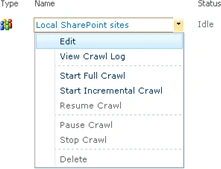
- You could see "Crawl schedule section"
where you could schedule the Full Crawl and Incremental Crawl.

Powershell script:
- Open SharePoint 2010 Management Shell as an administrator.
- Run the following script.
$ssaName="Search Service Application"
$context=[Microsoft.Office.Server.Search.Administration.SearchContext]::GetContext($ssaName)
$daily=New-Object Microsoft.Office.Server.Search.Administration.DailySchedule($context)
$daily.BeginDay="25"
$daily.BeginMonth = "1"
$daily.BeginYear = "2010"
$daily.StartHour = "2"
$daily.StartMinute = "30"
$daily.DaysInterval = "1"
$weekly=New-Object Microsoft.Office.Server.Search.Administration.WeeklySchedule($context)
$weekly.BeginDay="25"
$weekly.BeginMonth = "1"
$weekly.BeginYear = "2010"
$weekly.StartHour = "23"
$weekly.StartMinute = "15"
$weekly.WeeksInterval = "1"
$contentsource = Get-SPEnterpriseSearchCrawlContentSource -SearchApplication $ssaName -Identity "Local SharePoint Sites"
$contentsource.IncrementalCrawlSchedule=$daily
$contentsource.FullCrawlSchedule=$weekly
$contentsource.Update()
- You could see the Full Crawl and
Incremental Crawl has been scheduled successfully which is also reflected in
the UI.

Join the conversation! Your thoughts help the community grow.