

Introduction:
In SharePoint 2010 the terms or keywords added to the Managed Metadata or Enterprise Keywords columns in a library can be made available as keywords for social tagging. To do this we need to enable an option in the library settings, which will be available in Enterprise Metadata and Keyword Settings. In this article we will be seeing how to enable this option for the SharePoint document library.
Enable Metadata Publishing:
Steps Involved:
- Go to Library Settings =>Permissions and Management => Enterprise Metadata and Keywords Settings.
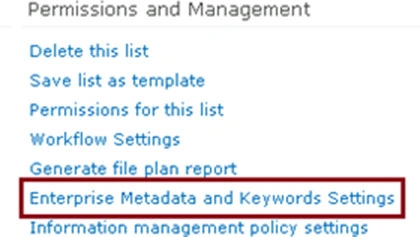
- Enable "Save metadata on this list as social tags".

- Click on Ok.
Keywords added to the Enterprise Keywords column available for social tagging:
- Enable Enterprise keywords for Shared Documents.
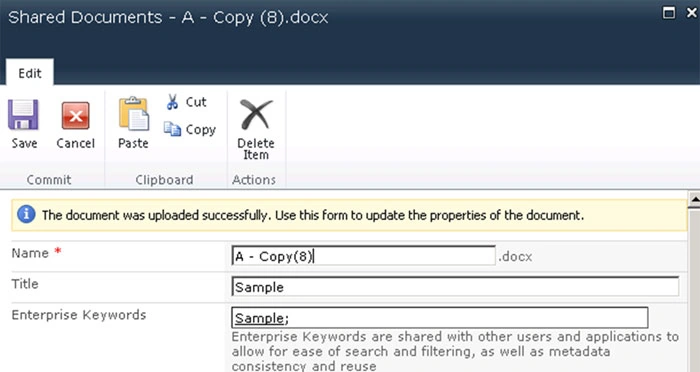
- Add a document to the Shared Documents and enter the keyword for the document as shown in the following.
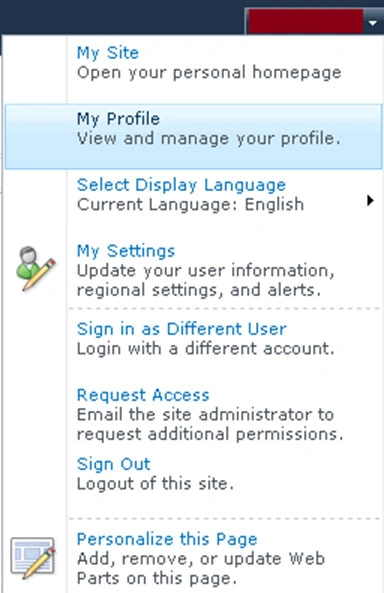
- Click on the drop down available in the login credential => Go to My Profile.
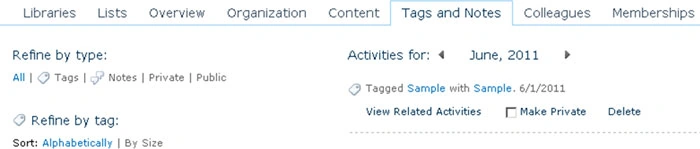
- Go to "Tags and Notes" tab, you could see the keyword available for social tagging as shown in the following.
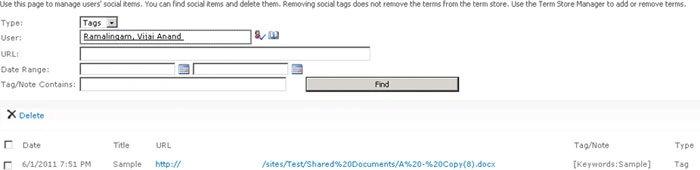
- You could also see the social tags in "Manage Social Tags and Notes" section.
- Go to Central Administration => Application Management => User Profile Service application => My Site Settings =>Manage Social Tags and Notes.

- Select Tags from the drop down menu, enter the user name and click on Find.
- You could be able to see the tags created by the user.
Terms added to the Managed Metadata column available for social tagging:
- Create a Managed Metadata column for Shared Documents.
- Add a new document to the document library and select the terms for the document.
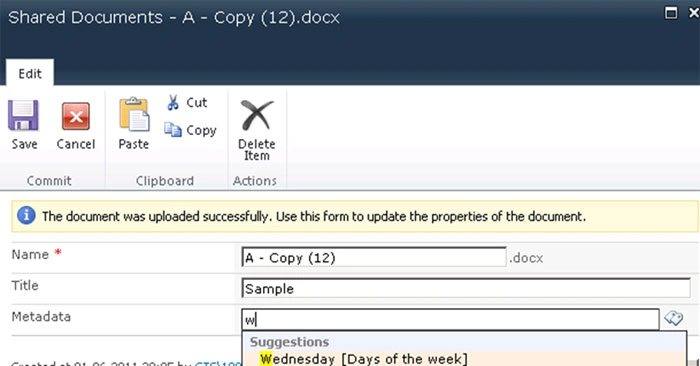
- Go to "Tags and Notes" tab in the users my profile, you could be able to see the term available for social tagging.

Tracy SPosted Jan 16, 2013, 3:02 PM
Hi Vijai, I'm unable to achieve the behavior you've described above within my SharePoint 2010 environment. I've created a global term set, added it as a Managed Metadata column to my document library and enabled both Enterprise Keyword and MetaData publishing within the document library. However, when I add values to either the Managed MetaData column or the Enterprise Keyword column of the library, those values are not reflected as social tags within MyProfile Activities or the documents relevant Tag Cloud. Can you advise on how you were able to achieve that behavior? Thanks!