

In this article we will be seeing how to create Scopes in a SharePoint 2010
Enterprise Search Service Application using PowerShell.
Automating the Scopes creation in SharePoint 2010
We can create Scopes in a SharePoint 2010 Enterprise Search Service Application
from Central Administration.
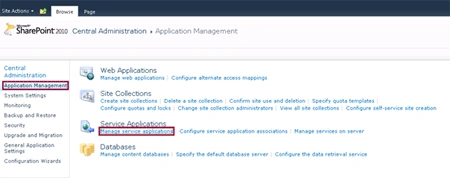
Go to Central Administration => Application Management => Manage Service
Applications => Enterprise Search Service Application.
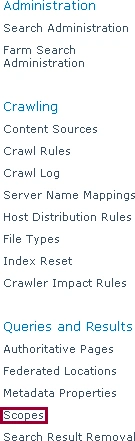
On the Quick Launch Menu, go to Queries and Results then click on Scopes.
You should be able to see the Scopes. By clicking on New Scope link we can create
a new Scope.
Another way is we can create the
Search Scopes
in SharePoint 2010 using SharePoint Object Model.
Here we will be seeing about automating the Scopes creation using a powershell
script.
Steps Involved:
- Create the input XML file which contains the inputs for Scope creation.
- Create ps1 file which contains the script for scope creation.
CreateScopes.xml
<?xml
version="1.0"
encoding="utf-8"
?>
<Scopes>
<SSAName>EnterPrise
Search Service Application</SSAName>
<Scope
Name="Sample1"
Description="Sample1
Scope" />
<Scope
Name="Sample2"
Description="Sample2
Scope" />
<Scope
Name="Sample3"
Description="Sample3
Scope" />
</Scopes>
CreateScopes.ps1
#----------------Get
the xml file---------------------------------------------------------------
[xml]$xmlData=Get-Content "C:\Users\Desktop\ContentSources\CreateScopes.xml"
#----------------Create New Scope function---------------------------------------------
Function
CreateNewScope()
{
$ssa=Get-SPEnterPriseSearchServiceApplication
-Identity
$xmlData.SSAName
$scopeCollection=Get-SPEnterpriseSearchQueryScope
-SearchApplication
$ssa
$xmlData.Scopes.Scope
|
ForEach-Object
{
$newScopeName=$_.Name
$newScopeDescription=$_.Description
$scope=Get-SPEnterpriseSearchQueryScope
-Identity
$newScopeName
-SearchApplication
$ssa
if($scope
-eq
$null)
{
write-host
-f
Magenta
Creating
scope
$_.scope
New-SPEnterpriseSearchQueryScope -Name
$newScopeName
-Description
$newScopeDescription
-SearchApplication
$ssa
-DisplayInAdminUI
$true
write-host
-f
Green
$newscope.Name
is
created
successfully
}
else
{
write-host
-f
yellow
$newScopeName
scope
already
exists
write-host
-f
yellow
Deleting
$newScopeName
scope
Remove-SPEnterpriseSearchQueryScope -Identity
$newScopeName
-SearchApplication
$ssa
-confirm:0
write-host
-f
green
$newScopeName
scope
is
deleted
successfully
write-host
-f
Magenta
Creating
$newScopeName
scope
New-SPEnterpriseSearchQueryScope -Name
$newScopeName
-Description
$newScopeDescription
-SearchApplication
$ssa
-DisplayInAdminUI
$true
write-host
-f
green
$newScopeName
scope
is
successfully
created
}
}
}
#----------------Calling
the function---------------------------------------------
CreateNewScope
Run the Script:
-
Go to Start.
-
Click on All Programs.
-
Click on Microsoft SharePoint 2010 Products and then click on SharePoint 2010 Management Shell.
-
Run the C:\Users\Desktop\ContentSources\CreateScopes.ps1
Output: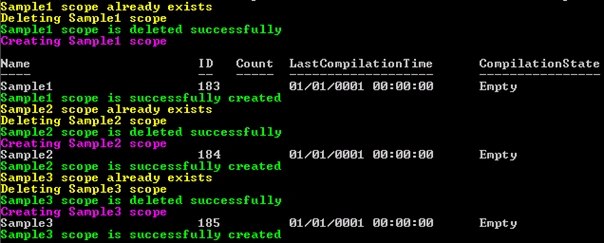
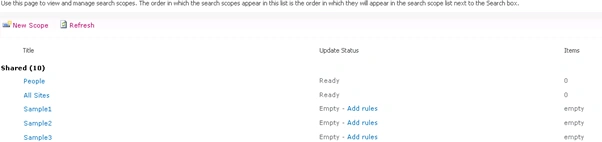
And in the Central Administration you could see the newly added Scopes as shown
in the following
Join the conversation! Your thoughts help the community grow.