

In this article we will be seeing how to create a custom master page in
SharePoint 2010 using Visual Studio 2010.
Steps Involved:
- Open Visual Studio 2010.
- Go to File => New => Project.
- Select Empty SharePoint Project from the
installed template SharePoint 2010.
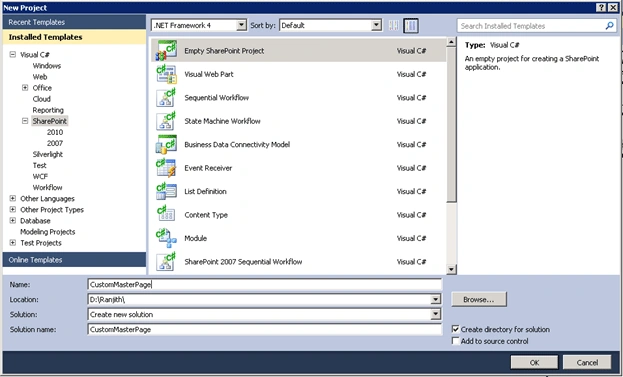
- Enter the Name.
- Click Ok.
- Enter the local site that you want to use it for debugging.
- Select "Deploy as a sandbox solution".
- Click Finish.
- Right click on the solution and click on "Add a new item".
- Select the Module template from the
installed templates.
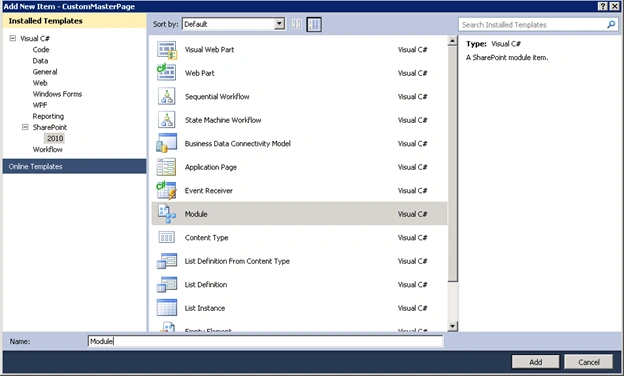
- Enter the name and click ok.
- Rename the Sample.txt to Sample.master.
- Replace the code with the following code
snippet.
<?xml version="1.0" encoding="utf-8"?>
<Elements xmlns="http://schemas.microsoft.com/sharepoint/">
<Module Name="Module" List="116" Url="_catalogs/masterpage">
<File Path="Module\Sample.master" Url="Module/Sample.master" Type="GhostableInLibrary" IgnoreIfAlreadyExists="false" />
</Module>
</Elements>
- Go to the SharePoint Designer.
- Open some existing site in the SharePoint Designer 2010.
- Go to Navigation => Site Objects =>Master Pages.
- Make a copy of v4.master.
- Do some modifications in the copy of v4.master and copy the code.
- Paste the code in the Sample.master.
Publish the master page:
- Go to Site Actions => Site Settings =>Galleries => Master pages and page layouts => Module =>Sample.master.
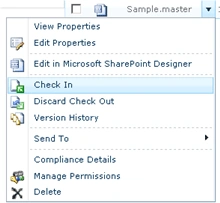
- Go to the ECB menu, click on "Check in".
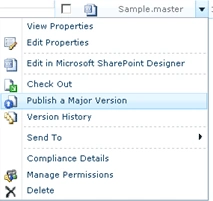
- Go to the ECB menu, click on "Publish a
major version".
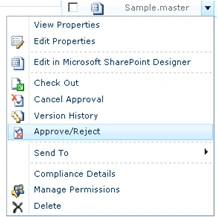
- Go to the ECB menu, click on
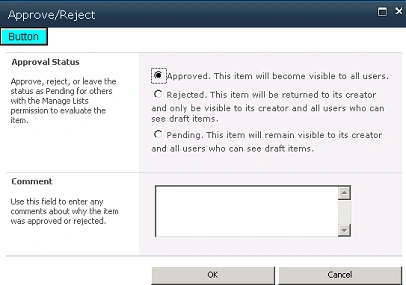
"Approve/Reject".
- Select the "Approved" option. Click on Ok.
Change the master page of the SharePoint site with the custom master page
- Go to the SharePoint Site => Site Actions => Site Settings => Site Collection Administration => Site Collection Features.
- Activate the following feature "SharePoint
Server Publishing Infrastructure".

- Go to Site Actions => Site Settings =>Site Actions => Manage Site Features.
- Activate the following feature "SharePoint
Server Publishing".

- Go to Site Actions => Site Settings => Look and feel => Master Page.
- Select the custom master page as shown in
the following.
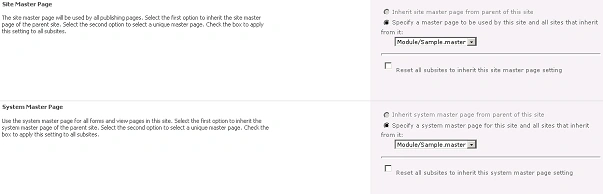
- Click Ok.
Kumaresh RajalingamPosted Mar 24, 2016, 9:59 AM
Nice one sir
Do Quoc hungPosted Feb 23, 2012, 11:35 PM
http://mstechsharing.blogspot.com/2012/02/custom-master-page-and-page-layout.html i have an article with step by step. Thanks.
h vPosted Apr 7, 2011, 2:46 AM
Hi, this article is very useful to me, i'm little bit new in sharepoint.. We take custom master page in this add custom webpart (with custom property) but in we cant edit webpart which in master page so i take one page for custom property and now i want to assign this to master page webpart property but i dont know how to get master page webpart instance and assign my page value to master page web part property?? Is this possible???? If yes than HOW?? And No than any alternate way to solve my ISSUE......
howell shanPosted Apr 4, 2011, 10:36 PM
Why can i not find Module =>Sample.master under Site Actions => Site Settings =>Galleries => Master pages and page layouts? i just follow the steps you mentioned