

Introduction:
In this article we will be seeing how to create a custom timer job in SharePoint 2010 using Visual Studio 2010. A timer job runs in a specific Windows service for SharePoint Server and performs infrastructure tasks for the Timer service, such as clearing the timer job history and recycling the Timer service; and tasks for Web applications, such as sending e-mail alerts. A timer job contains a definition of the service to run and specifies how frequently the service is started. The SharePoint 2010 Timer service (SPTimerv4) runs timer jobs.
In this article we will be performing the following steps
- Creating a custom timer job.
- Deploying the timer job.
- Registering the timer job
- Managing configuration data for timer jobs.
Solution Overview:
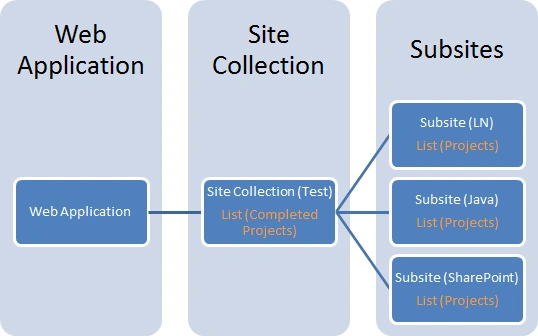
I have a web application => Site Collection =>3 Subsites as shown in the above diagram. Each subsite has a custom list – "Projects" which has the following columns and values
LN subsite:

Java subsite:

SharePoint subsite:

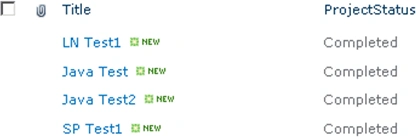
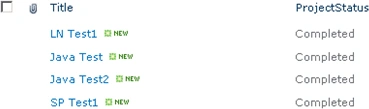
"Test" site collection has a list called "Completed Projects" which will have all the completed projects from all the subsites as shown in the following.
Custom Timer Job:
A SharePoint 2010 timer job can be associated with either a SharePoint Web application or a SharePoint service application. In this example, the timer job class is named "CompletedProjectsJob" and targets the Web application scope. To create a custom timer job do the following steps:
Steps Involved:
- Open Visual Studio 2010.
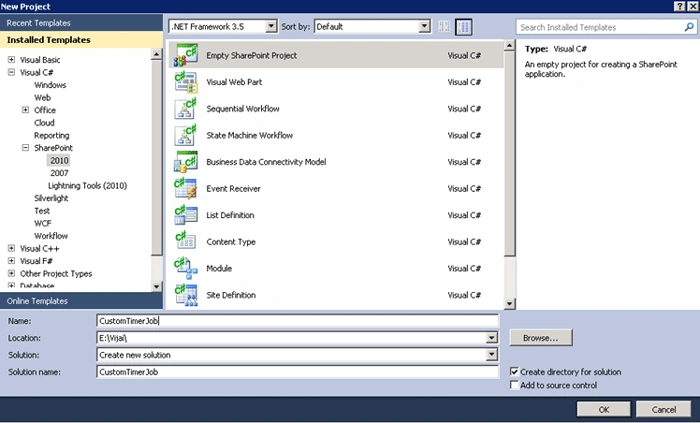
- Go to File => New => Project.
- Select "Empty SharePoint Project" template from the installed templates.
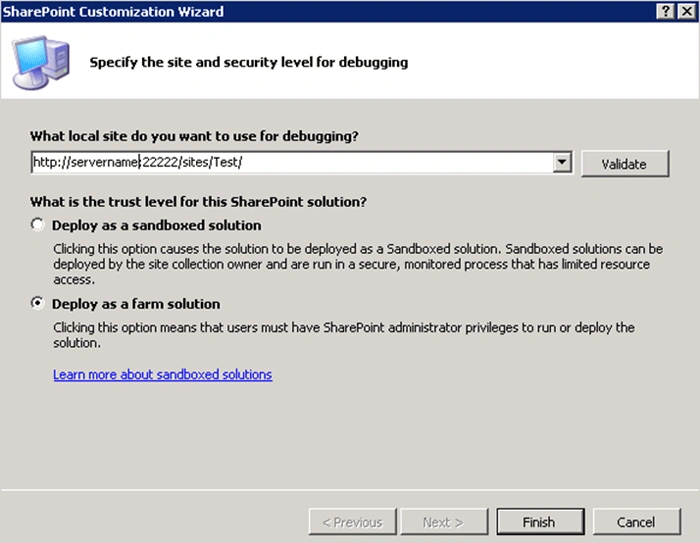
- In the "SharePoint Customization Wizard" enter the local site url for debugging and select "Deploy as a farm solution".
- Right click on the solution and click on "Add new item".
- Select "Class" template from the installed templates and enter the name as "CompletedProjectsJob.cs".
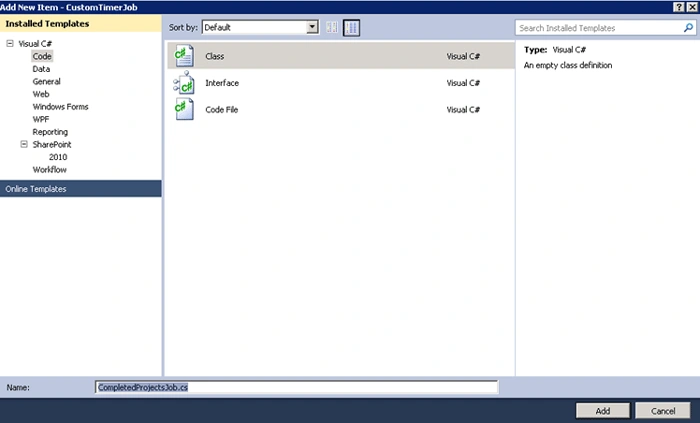
- Click on Add.
Timer Job Class Requirements:
- The class must be public.
- It must implement the SPJobDefinition class.
Public class CompletedProjectsJob : SPJobDefinition
{
........
} - It must have a default constructor.
Public CompletedProjectsJob() : base() { }
- The timer job is scoped at the web application level, so it must define a constructor that accepts an argument of type SPWebApplication.
public CompletedProjectsJob(SPWebApplication webApplication)
: base(jobName, webApplication, null, SPJobLockType.Job)
{
Title = "Completed Projects Job";
}
CompletedProjectsJob.cs
Replace CompletedProjectsJob.cs with the following code.
using
System;
using System.Collections.Generic;
using System.Linq;
using System.Text;
using Microsoft.SharePoint;
using Microsoft.SharePoint.Administration;
using System.Data;
using System.IO;
namespace CustomTimerJob
{
public class CompletedProjectsJob : SPJobDefinition
{
public const string jobName = "CompletedProjectsJob";
public CompletedProjectsJob() : base() { }
public CompletedProjectsJob(SPWebApplication webApplication)
: base(jobName, webApplication, null, SPJobLockType.Job)
{
Title = "Completed Projects Job";
}
public override void Execute(Guid targetInstanceId)
{
SPWebApplication webApp = this.Parent as SPWebApplication;
SPWeb web = webApp.Sites["/sites/test"].RootWeb;
SPList list = web.Lists.TryGetList("Completed Projects");
SPListItem items;
bool flag = true;
SPListItemCollection itemColl = list.Items;
var query = new SPSiteDataQuery();
query.Lists = "<Lists BaseType='0' />";
query.ViewFields = "<FieldRef Name='Title' Nullable='TRUE' />" +
"<FieldRef Name='ProjectStatus' Nullable='TRUE' />" +
"<FieldRef Name='ProjectID' Nullable='TRUE' />" +
"<FieldRef Name='FileRef' Nullable='TRUE' />";
query.Query = "<Where>" +
"<Eq>" +
"<FieldRef Name='ProjectStatus' />" +
"<Value Type='Choice'>Completed</Value>" +
"</Eq>" +
"</Where>";
query.Webs = "<Webs Scope='SiteCollection' />";
DataTable dt = web.GetSiteData(query);
foreach (DataRow row in dt.Rows)
{
items = list.Items.Add();
if (itemColl.Count != 0)
{
foreach (SPListItem item in itemColl)
{
if (item["ProjectID"].ToString() == row["ProjectID"].ToString())
{
flag = false;
break;
}
else
{
flag = true;
}
}
if (flag == true)
{
items["Title"] = row["Title"].ToString();
items["ProjectStatus"] = row["ProjectStatus"].ToString();
items["ProjectID"] = row["ProjectID"];
items.Update();
list.Update();
}
}
else
{
items["Title"] = row["Title"].ToString();
items["ProjectStatus"] = row["ProjectStatus"].ToString();
items["ProjectID"] = row["ProjectID"];
items.Update();
list.Update();
}
}
}
}
}
using System.Collections.Generic;
using System.Linq;
using System.Text;
using Microsoft.SharePoint;
using Microsoft.SharePoint.Administration;
using System.Data;
using System.IO;
namespace CustomTimerJob
{
public class CompletedProjectsJob : SPJobDefinition
{
public const string jobName = "CompletedProjectsJob";
public CompletedProjectsJob() : base() { }
public CompletedProjectsJob(SPWebApplication webApplication)
: base(jobName, webApplication, null, SPJobLockType.Job)
{
Title = "Completed Projects Job";
}
public override void Execute(Guid targetInstanceId)
{
SPWebApplication webApp = this.Parent as SPWebApplication;
SPWeb web = webApp.Sites["/sites/test"].RootWeb;
SPList list = web.Lists.TryGetList("Completed Projects");
SPListItem items;
bool flag = true;
SPListItemCollection itemColl = list.Items;
var query = new SPSiteDataQuery();
query.Lists = "<Lists BaseType='0' />";
query.ViewFields = "<FieldRef Name='Title' Nullable='TRUE' />" +
"<FieldRef Name='ProjectStatus' Nullable='TRUE' />" +
"<FieldRef Name='ProjectID' Nullable='TRUE' />" +
"<FieldRef Name='FileRef' Nullable='TRUE' />";
query.Query = "<Where>" +
"<Eq>" +
"<FieldRef Name='ProjectStatus' />" +
"<Value Type='Choice'>Completed</Value>" +
"</Eq>" +
"</Where>";
query.Webs = "<Webs Scope='SiteCollection' />";
DataTable dt = web.GetSiteData(query);
foreach (DataRow row in dt.Rows)
{
items = list.Items.Add();
if (itemColl.Count != 0)
{
foreach (SPListItem item in itemColl)
{
if (item["ProjectID"].ToString() == row["ProjectID"].ToString())
{
flag = false;
break;
}
else
{
flag = true;
}
}
if (flag == true)
{
items["Title"] = row["Title"].ToString();
items["ProjectStatus"] = row["ProjectStatus"].ToString();
items["ProjectID"] = row["ProjectID"];
items.Update();
list.Update();
}
}
else
{
items["Title"] = row["Title"].ToString();
items["ProjectStatus"] = row["ProjectStatus"].ToString();
items["ProjectID"] = row["ProjectID"];
items.Update();
list.Update();
}
}
}
}
}
Registering the timer job:
- To register a timer job, create a feature and use the event receiver to register the timer job.
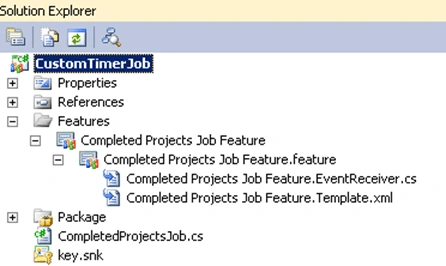
- Right click on the Features folder and click on "Add Feature".
- Change the feature name as "Completed Projects Job Feature".
- Change the scope to "Web Application".
- Right click on "Completed Projects Job Feature" and click on "Add Event Receiver".
- My solution looks like the following.
- Replace "Completed Projects Job Feature.EventReceiver.cs" with the following code.
using System;
using System.Runtime.InteropServices;
using System.Security.Permissions;
using Microsoft.SharePoint;
using Microsoft.SharePoint.Security;
using Microsoft.SharePoint.Administration;
namespace CustomTimerJob.Features.Completed_Projects_Job_Feature
{
[Guid("a19d07a5-bb92-4e5f-8086-b6eee82e9cb2")]
public class Completed_Projects_Job_FeatureEventReceiver : SPFeatureReceiver
{
public override void FeatureActivated(SPFeatureReceiverProperties properties)
{
SPWebApplication webApp = properties.Feature.Parent as SPWebApplication;
DeleteJob(webApp.JobDefinitions);
CompletedProjectsJob tasksTimerJob = new CompletedProjectsJob(webApp);
SPMinuteSchedule schedule = new SPMinuteSchedule();
schedule.BeginSecond = 0;
schedule.EndSecond = 59;
schedule.Interval = 1;
tasksTimerJob.Schedule = schedule;
tasksTimerJob.Update();
}
public override void FeatureDeactivating(SPFeatureReceiverProperties properties)
{
SPWebApplication webApp = properties.Feature.Parent as SPWebApplication;
DeleteJob(webApp.JobDefinitions);
}
private void DeleteJob(SPJobDefinitionCollection jobs)
{
foreach (SPJobDefinition job in jobs)
{
if (job.Name.Equals(CompletedProjectsJob.jobName,
StringComparison.OrdinalIgnoreCase))
{
job.Delete();
}
}
}
}
} - Build the solution.
- Deploy the solution.
- Go to the site collection and check the "Completed Projects" list.
- You could see the items as shown in the following.
Kumaresh RajalingamPosted Mar 24, 2016, 9:59 AM
Nice one sir
Vithal WadjePosted Sep 24, 2014, 11:03 AM
super keep it up
webley sharepointPosted May 4, 2012, 11:58 AM
Thanks for sharing, this was most helpful. But Im somewhere stuck when to execute the custom job through this Web Application - Root Site Collection - Subsite A - Subsite A1 - TargetList Any idea? Thanks. R2C3
Jimmy JosPosted Dec 7, 2011, 1:54 PM
Hi, Thank you very much for the crisp article. Do we have an option to execute a custom timer job at a specific point of time. I believe we could configure to initiate the job at a specific time, however it gets queued for execution and not execute at that point of time. Please can you let me know your thoughts on the same. Also when you compare a windows service with the SPS timer jobs, which option would be recommended and why? (anything other than Central administration & management, SPS topology awareness) Thanks in advance, Jimz.