SIGN UP MEMBER LOGIN:    
ARTICLE

Export or Import SSL Certificates in windows server using Microsoft Management Console

Posted by Vijai Anand Articles | Windows 8 in C# July 28, 2011
In this article we will be seeing how to export or import SSL certificates in windows server using Microsoft Management Console.
Reader Level:

Export an SSL certificate from windows server.

Steps Involved:

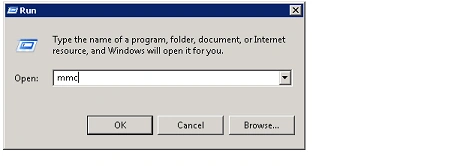
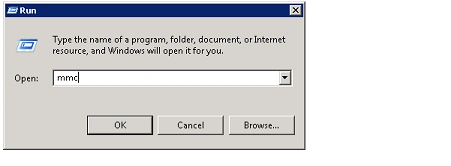
  1. Go to Start => Run => Type MMC and then click on Ok.

    Run MMC
  2. In Microsoft Management Console, Click on the File menu and then click on Add\Remove Snap-in...

    Add/remove snap in mmc
  3. In the Add or Remove Snap-ins wizard, select Certificates from the available snap-ins and then click on Add.
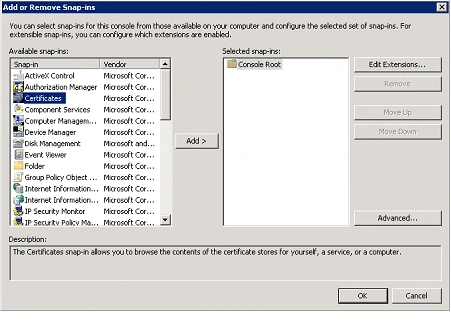
    certificate in mmc
  4. Select My user account and click on Finish.

    select my user in mmc
  5. Certificate will be added and click on Ok.
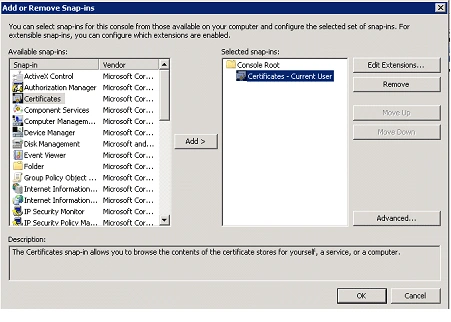
    certificate added n mmc
  6. In the left pane expand Certificates, and then expand Personal.

  7. Click on Certificates folder.

  8. Right click on the certificate, click on All Tasks and then click on Export.
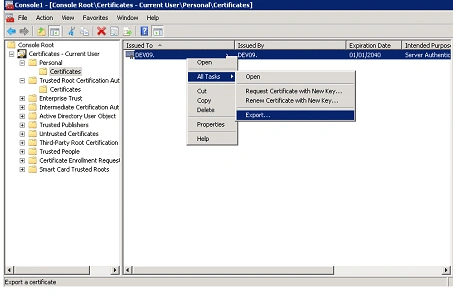
    export the certificate in mmc
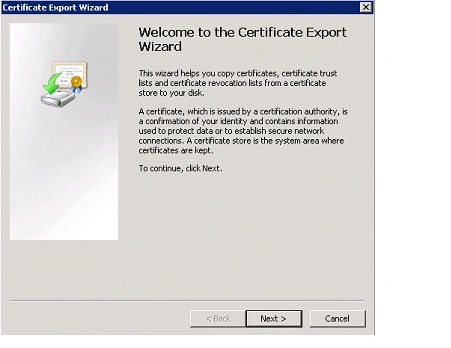
  9. Certificate Export Wizard will pop up, click on Next.

    certificate expot wizart

  10. In the Export File Format select DER encoded binary X.509 (.CER) format.
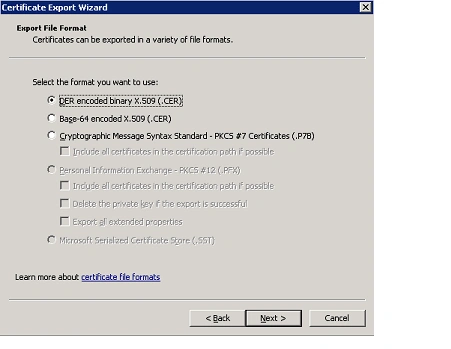
    DER encoded binary in mmc

  11. Click on Next.

  12. In the File to Export click on browse, select the location and enter the Name.
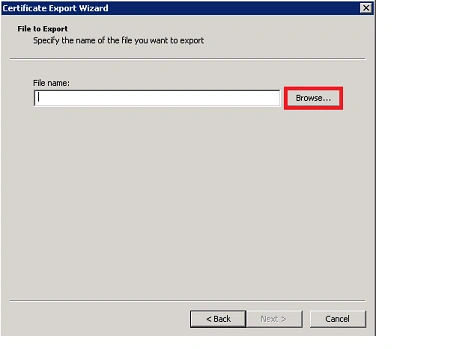
    eexpot the file in mmc

  13. Click on Save, the certificate will be saved.

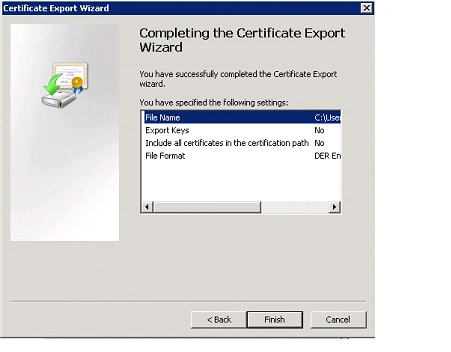
  14. In the Certificate Export Wizard, click on Finish.

    Certificate Export Wizard in mmc

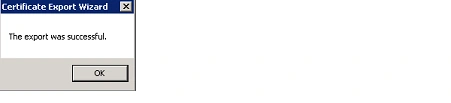
  15. You will be getting the following pop up, click on Ok.

    export successful in mmc

  16. The certificate is exported successfully.

    certificate in mmc

Import an SSL certificate to the windows server:

Steps Involved:

  1. Go to Start => Run => Type MMC and then click on Ok.

    open mmc
  2. In Microsoft Management Console, Click on the File menu and then click on Add\Remove Snap-in...
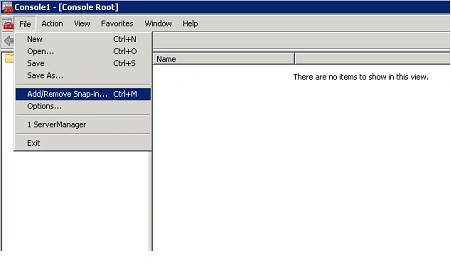
    Add\Remove Snap in mmc

  3. In the Add or Remove Snap-ins wizard, select Certificates from the available snap-ins and then click on Add.
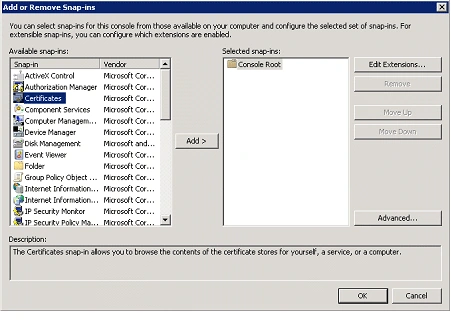
    Add Certificates in mmc

  4. Select My user account and click on Finish.
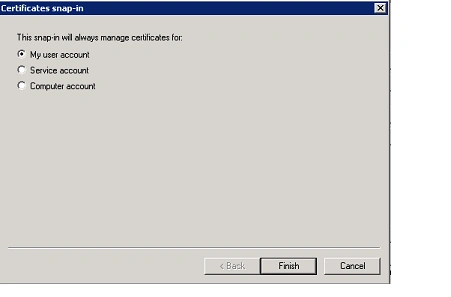
    My account in mmc

  5. Certificate will be added and click on Ok.
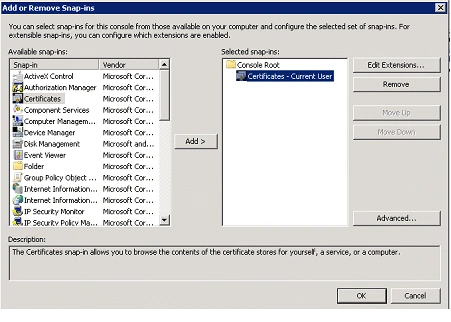
    Certificate added in mmc

  6. In the left pane expand Certificates, right click on the Personal folder, click on All Tasks and then click on Import.
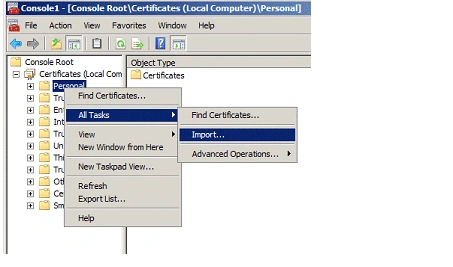
    import task in mmc

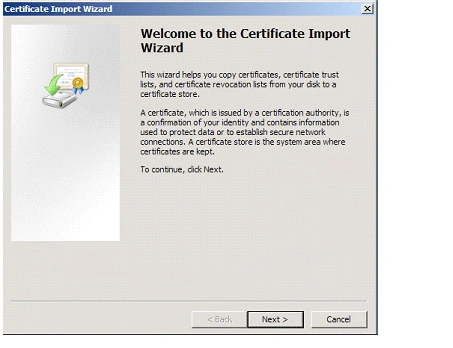
  7. Certificate Import Wizard will pop up, click on Next.

    import wizard pop up in mmc

  8. Click on Browse and select the certificate to be imported.
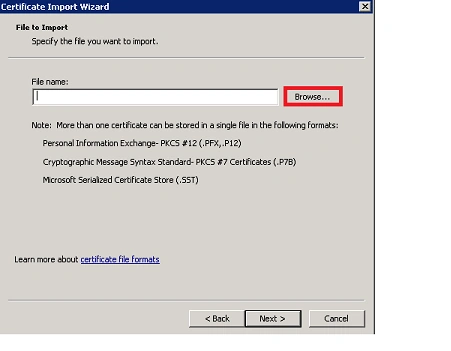
    select certificate in mmc

  9. Click on Next.

  10. Select where the certificated should be stored.
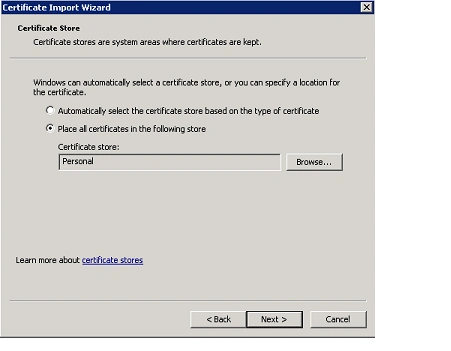
    select path for certificate in mmc

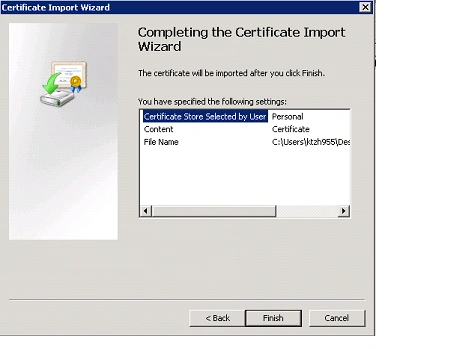
  11. Click on Finish.

    complete the import wizard in mmc

  12. You will be getting the following pop up, click on Ok.

    successful pop up in mmc

Login to add your contents and source code to this article
share this article :
post comment
 

Thank you..:-)

Posted by Vijai Anand Jul 28, 2011

Useful Article

Posted by Shalini Juneja Jul 28, 2011

Thank You..:-)

Posted by Vijai Anand Jul 28, 2011

Good work. Vijai

Posted by Rohatash Kumar Jul 28, 2011
Become a Sponsor
PREMIUM SPONSORS
  • Finally – a virtual platform that delivers next-generation Windows Server 2008 Hyper-V virtualization technology from a managed hosting partner you can truly depend on. Visit www.maximumasp.com/max for a FREE 30 day trial. Hurry offer ends soon. Climb aboard the MaxV platform and take advantage of High Availability, Intelligent Monitoring, Recurrent Backups, and Scalability – with no hassle or hidden fees. As a managed hosting partner focused solely on Microsoft technologies since 2000, MaximumASP is uniquely qualified to provide the superior support that our business is built on. Unparalleled expertise with Microsoft technologies lead to working directly with Microsoft as first to offer IIS 7 and SQL 2008 betas in a hosted environment; partnering in the Go Live Program for Hyper-V; and product co-launches built on WS 2008 with Hyper-V technology.
    Finally – a virtual platform that delivers next-generation Windows Server 2008 Hyper-V virtualization technology from a managed hosting partner you can truly depend on. Visit www.maximumasp.com/max for a FREE 30 day trial. Hurry offer ends soon. Climb aboard the MaxV platform and take advantage of High Availability, Intelligent Monitoring, Recurrent Backups, and Scalability – with no hassle or hidden fees. As a managed hosting partner focused solely on Microsoft technologies since 2000, MaximumASP is uniquely qualified to provide the superior support that our business is built on. Unparalleled expertise with Microsoft technologies lead to working directly with Microsoft as first to offer IIS 7 and SQL 2008 betas in a hosted environment; partnering in the Go Live Program for Hyper-V; and product co-launches built on WS 2008 with Hyper-V technology.
Nevron Gauge for SharePoint
Become a Sponsor