

In this article we will be seeing how to show external data in Microsoft Word
2010.
Introduction:
Content controls in Microsoft Word provide a User Interface that is used for
user input and printing. For more information on Content Controls in Microsoft Word
2010 please refer
http://msdn.microsoft.com/en-us/library/bb157891.aspx. These Content
Controls can be used in Microsoft Word 2010 to expose the external data in
the document. Here we will be seeing how to expose the external data in the word
document.
I have a document library called Shared Documents in my SharePoint site. I have
added an External Data column named Employee Name which includes some additional
fields Designation, Location, EmpId and Department. I am going to add these
external data column into the word document so that the values will be
automatically populated based on the external data columns in the word document.
Steps Involved:
- Open the SharePoint Site (http://servername10:10736/sites/ect).
- Click on Shared Documents in the Quick Launch bar.
- Shared Documents has the following columns

- In the ribbon interface go to Library Tools, click on Documents tab.
- Click on New Document button in the New
group.
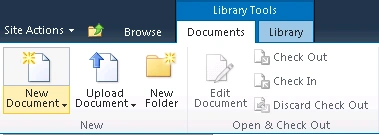
- A new word document will be opened.
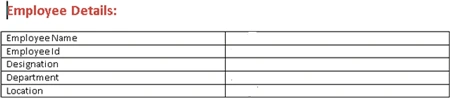
- I have created a sample table which
contains the information as shown in figure
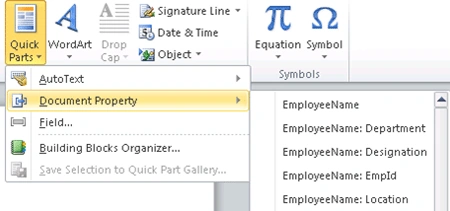
- Go to Insert tab, Click on Quick Parts.
- Click on Document Property, you could be
able to see all the columns as shown in figure.
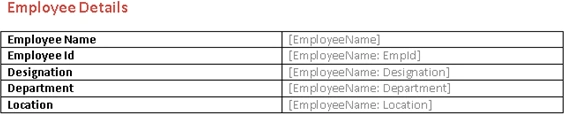
- Drag and drop the columns into the table as
shown in figure
- Save the document.
- A new document will be added to the document library.
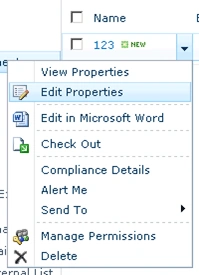
- Select the document, click on Edit
Properties in the ECB menu.
- Add the value to the external data column
"Employee Name".
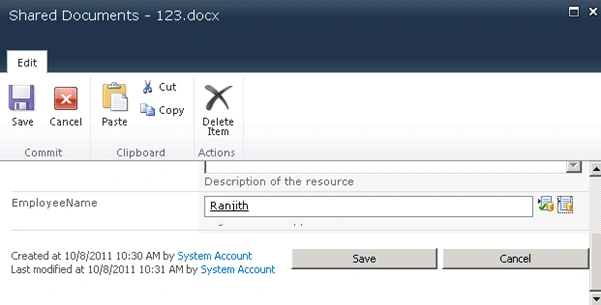
- Click on Save.

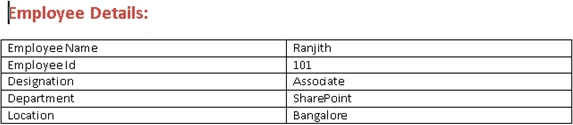
- Select the document, click on Edit in Microsoft Word in the ECB menu.
- Values for the external data columns will
be automatically updated in the word document as shown in the below figure.
Conclusion:
Thus in this article we have seen how to show external data in Microsoft Word
2010.
Join the conversation! Your thoughts help the community grow.