

Word Automation Services is a new feature available in SharePoint 2010. It supports converting Word documents to other formats. Here we are going to convert the word document into pdf document. In the API for Word Automation Services there are different ways to convert documents including AddFile(), AddFolder() and AddLibrary() methods. Here we will be using AddFolder() method to convert the word document. You need to specify two folders inputFolder (where the word documents are present) and the outputFolder (where the converted pdf files should be created).
This article describes the following steps to show how to call the Word Automation Services to convert a document:
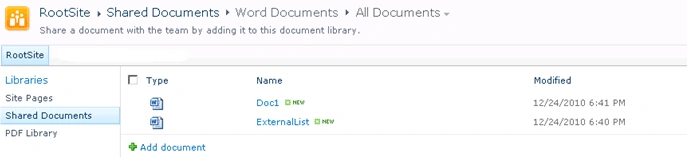
- Add a word document to the SharePoint Shared Documents.
- Create a console Application.
- Add a reference to the Microsoft.Office.Word.Server assembly.
Add a word document in the Shared Documents:
Create a console application:
- Open Visual Studio 2010.
- Go to File => New => Project.
- Select the Console Application template and enter the Name.
- Click Ok.
- Add a reference to the Microsoft.Office.Word.Server assembly (C:\Program Files\Common Files\Microsoft Shared\Web Server Extensions\14\ISAPI\ Microsoft.Office.Word.Server.dll)
- Open Program.cs file and replace the code with the following.
using System;
using System.Collections.Generic;
using System.Linq;
using System.Text;
using Microsoft.Office.Word.Server.Conversions;
using Microsoft.SharePoint;
namespace Test
{
static class Program
{
static void Main(string[] args)
{
using (SPSite spSite = new SPSite( "http://servername:4040/"))
{
using(SPWeb web=spSite.OpenWeb())
{
SPFolder inputFolder=web.GetFolder("Shared Documents/Word Documents");
SPFolder outputFolder = web.GetFolder("Shared Documents/PDF Documents");
//Defines a collection of settings for all conversions within a single conversion job.
ConversionJobSettings jobSettings=new ConversionJobSettings();
jobSettings.OutputFormat = SaveFormat.PDF;
//Represents a collection of file conversions (of single files or entire libraries) that share a common set of conversion properties and are logically tracked as a single unit.
ConversionJob pdfConversion = new ConversionJob("Word Automation Services", jobSettings);
// Set the credentials to use when running the conversion job.
pdfConversion.UserToken = spSite.UserToken;
pdfConversion.AddFolder(inputFolder, outputFolder, false);
pdfConversion.Start();
}
}
}
}
}
-
Build the solution and hit F5.
-
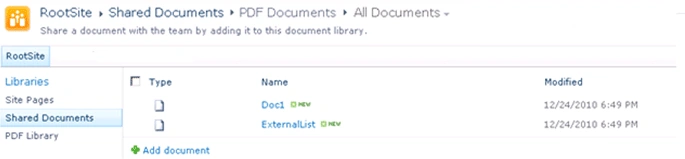
Go to the Shared Documents => PDF Documents folder; pdf files are successfully created.
zarfishan zahidPosted Nov 1, 2012, 12:52 AM
you can use online document converter like Saaspose.Word (http://saaspose.com/api/words) it can not only convert your docx file to pdf but also to many other formats and offers you alot of other features also.
Ginny CrandallPosted Apr 20, 2011, 3:31 PM
Thanks so much for this great tutorial of how to convert <a href="http://www.ecrion.com/landingpage/docxtopdf.aspx">docx to pdf</a>. I can't wait to get home and try it out! Thanks again.
Dhaval MevadaPosted Jan 28, 2011, 8:19 AM
Hi , i follow ur article step by step, but unfortunately i got error : "The server did not provide a meaningful reply; this might be caused by a contract mismatch, a premature session shutdown or an internal server error." Can u help me!!!!!