

We will be creating a custom button in the edit form user interface using CustomAction element.
CustomAction:
It is used to define an extension to the user interface, such as a button on a toolbar or a link on a site settings page.
Location for the Edit Form:
CommandUI.Ribbon.EditForm
Steps Involved:
I. Open Visual Studio 2010.
ii. Go to File => New =>Project.
iii. Select Empty SharePoint project template from the installed template SharePoint => 2010.
iv. Enter the Name and click OK.
v. Check the option "Deploy as a Sandbox solution".
vi. Click Ok.
vii. Right click on the solution and select "Add a new item".
viii. Select Empty Element template, enter the Name and click Ok.
ix. In the Elements.xml replace the code with the following.
<?xml version="1.0" encoding="utf-8"?>
<Elements xmlns="http://schemas.microsoft.com/sharepoint/">
<CustomAction Id="EditFormCustomization"
Location="CommandUI.Ribbon.EditForm"
RegistrationId="101"
RegistrationType="List"
Title="Edit Form Ribbon Customization">
<CommandUIExtension>
<CommandUIDefinitions>
<CommandUIDefinition Location="Ribbon.DocLibListForm.Edit.Actions.Controls._children">
<Button Id="EditFormButtonTest"
Command="EditFormButtonCommand"
Description="My custom button in edit form"
LabelText="My custom button"
Image32by32="/_layouts/images/homepagetopzoneimage.jpg"
TemplateAlias="o2"
Sequence="91"/>
</CommandUIDefinition>
</CommandUIDefinitions>
<CommandUIHandlers>
<CommandUIHandler Command="EditFormButtonCommand" CommandAction="javascript:alert('My custom button in Edit Form!');" />
</CommandUIHandlers>
</CommandUIExtension>
</CustomAction>
</Elements>
x. Go to the SharePoint site where you have deployed your solution.
xi. Go to Shared Documents and edit an item.
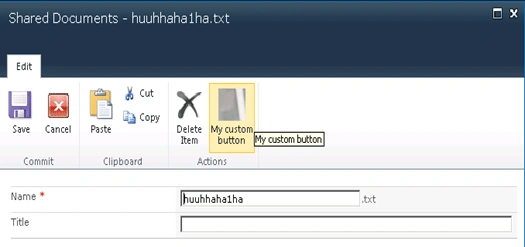
xii. In the edit form you will see My Custom Button in the Ribbon User Interface.
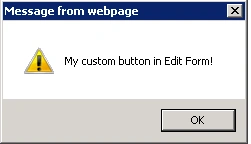
xiii. Click on the button and you will see an alert message.
Jamal McCoyPosted Jan 29, 2011, 11:52 AM
Hello Vijai, is the solution deployment level affecting this functionality? I am using this example code which is very similar to yours but deployed in farm level and using a custom list definition (with id 10001 for this example) <CustomAction Id="DocumentExchange" Location="CommandUI.Ribbon.EditForm" Title="element title" RegistrationType="List" RegistrationId="10001"> <CommandUIExtension> <CommandUIDefinitions> <CommandUIDefinition Location="Ribbon.DocLibListForm.Edit.Actions.Controls._children"> <Button Id="ExchangeDocumentButton" Sequence="1" Command="ExchangeDocument" LabelText="label text" Image32by32="/_layouts/images/myIcon.png" TemplateAlias="o2" /> </CommandUIDefinition> </CommandUIDefinitions> <CommandUIHandlers> <CommandUIHandler Command="ExchangeDocument" CommandAction="javascript:alert('Alert message');" /> </CommandUIHandlers> </CommandUIExtension> </CustomAction> Thank you very much in advance!
Deepak PatelPosted Dec 13, 2010, 6:22 PM
HNNKL