
ARTICLE

How to create External List in SharePoint 2010

Posted by Vijai Anand Articles | SharePoint 2010 December 12, 2010
In this article we will be seeing how to create an external list in SharePoint 2010 through UI.
Reader Level:


In this article we will be seeing how to create an external list in SharePoint 2010 through UI.

Steps Involved:

1. Open the SharePoint Site.

2. Go to Site Actions => More Options.
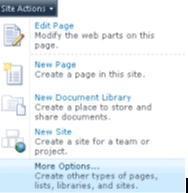
                               ExtShare1.gif

3. On the Create Wizard, from the Installed Templates Select List.

4. In the List Type select External List and click Create.
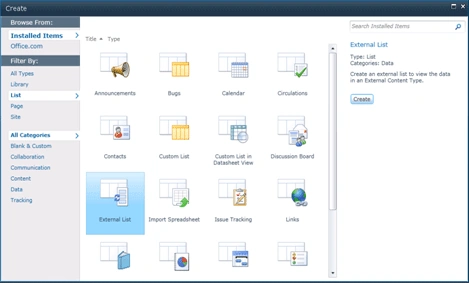
                               ExtShare2.gif

5. Enter the Name as External List and choose the External Content Type as shown below (You can check the following link http://www.c-sharpcorner.com/UploadFile/anavijai/4268/ for creating the external content type).
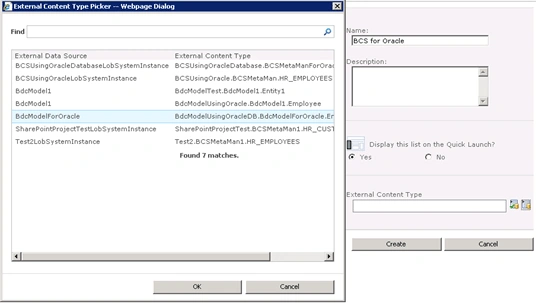


                      ExtShare3.gif

6. Click OK.

7. External List is successfully.
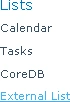


                                             ExtShare4.gif

8. Click on External List, you could see the items (If you get "Access denied by Business data Connectivity" error check this http://www.c-sharpcorner.com/UploadFile/anavijai/4252/ to resolve the error).



                        ExtShare5.gif

Login to add your contents and source code to this article
post comment
     
COMMENT USING
PREMIUM SPONSORS
DynamicPDF™ product line allows you to dynamically generate PDF documents, merge PDF documents and add new content to existing PDF documents from within your applications.
Join a Chapter
SPONSORED BY
  • PDF reports have never been easier to create. With our included WYSIWYG Designer, you can layout your reports, set up your data source and let DynamicPDF ReportWriter do the rest.