

In this article we will be seeing how to create a Visual Web Part using Sandbox
solution in SharePoint 2010.
Generally when you try to create a Visual web part you won't be seeing an option
to deploy as a sandbox solution, this is because standard Visual Web Part is not
supported in the sandbox environment. Visual Web Parts effectively host an ASCX
user control within the Web Part control and ASCX file is deployed to the _controltemplates
virtual directory in the physical file system. You cannot use a sandbox solution
to deploy a visual web part using visual studio 2010 Visual Web Part project
template because sandbox solution does not allow deploying files in the 14 hive.
Visual web part can be created using sandbox solution by installing the Visual
Studio 2010 SharePoint Power Tools (http://visualstudiogallery.msdn.microsoft.com/8e602a8c-6714-4549-9e95-f3700344b0d9/).
Download Visual Studio 2010 SharePoint Power Tools and install the tool.
Create a visual web part:
- Open Visual Studio 2010.
- Create an Empty SharePoint solution.
- Right click the solution and add a new item.
- You could see a new template called
"Visual Web Part (Sandboxed)".
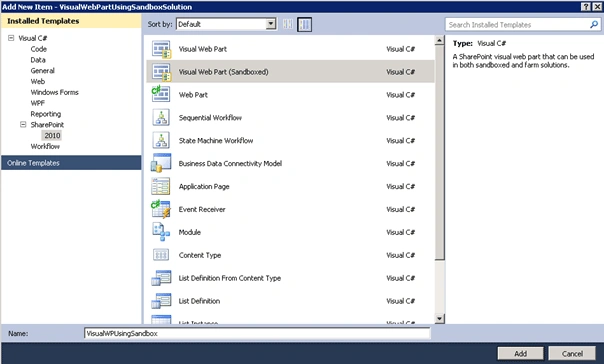
- Select the template, enter the name and click on Add.
- The solution looks like the following.
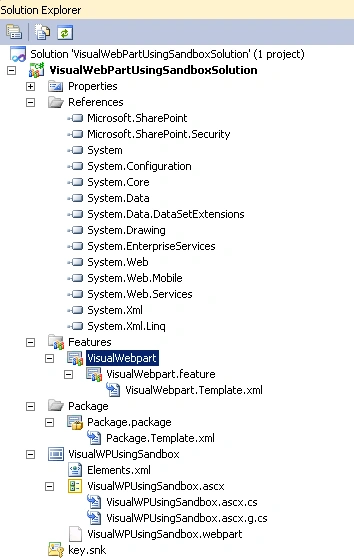
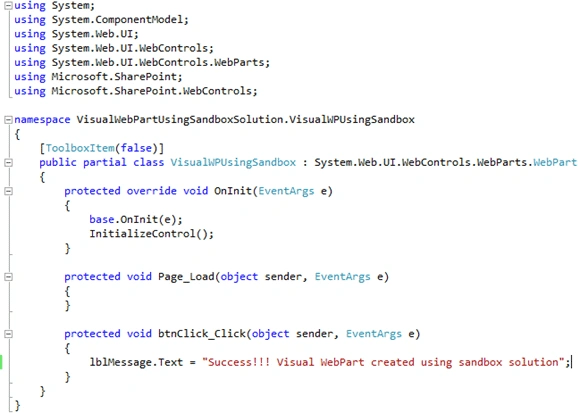
- I have added a button and a label.
- .Cs file looks like the following.
- Build and deploy the solution.
- Go to the SharePoint site and add the
visual web part.
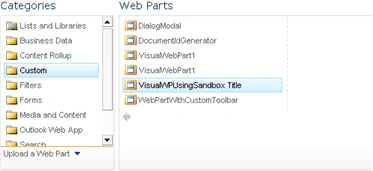
• You could see the web part is added successfully.

chamikaeditedPosted Oct 1, 2012, 1:44 AMEdited Oct 1, 2012, 1:45 AM
this is not working correctly for office 365 sandbox solution. webpart is there, when adding it will crash the firefox.any help??
Sreekanth ReddyeditedPosted May 3, 2011, 10:37 AMEdited Dec 5, 2012, 2:20 PM
5/3/2011 10:37:58 AM
Ankit GandhiPosted May 2, 2011, 3:38 AM
Hi Vijai, its nice article, here i have one question that how to give permissions to the user for the visual webpart in sharepoint foundation 2010? Thanks & Regards, Ankit