

In this article we will be seeing how to delete a file type from the content
index in SharePoint 2010.
Using Central Administration:
- Go to Central Administration => Application Management => Manage Service Applications => Search Service Application.
- In the navigation, go to Crawling => File Types.
- Select the file type, click on ECB Menu
=> Delete.

Using Visual Studio 2010:
- Open Visual Studio 2010.
- Go to File => New => Project.
- Select Console Application from the installed templates.
- Enter the Name and click Ok.
- Add the following references.
o Microsoft.SharePoint.dll
o Microsoft.Office.Server.dll
o Microsoft.Office.Server.Search.dll
- Add the following namespaces.
o using Microsoft.Office.Server.Search.Administration;
o using Microsoft.Office.Server;
o using Microsoft.SharePoint;
- Replace the code with the following.
// search service application name
string ssaName = "Search Service Application";
SearchContext context = SearchContext.GetContext(ssaName);
Content ssaContent = new Content(context);
// Get the list of file extensions
ExtensionCollection extensionColl = ssaContent.ExtensionList;
// Get the file extension
Extension ext=extensionColl["ascx"];
// Delete the file extension
ext.Delete();foreach (Extension extension in extensionColl)
{
// Display the file extension name
Console.WriteLine(extension.FileExtension.ToString());
}
- Build the solution.
- Hit F5.
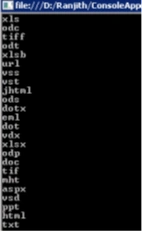
- File type of extension ascx is deleted and
display all the file extensions as shown in the following.
Using Powershell:
- Run SharePoint 2010 Management Shell as an administrator.
- Add the following script to create a new
file type to the content index.
$ssaName="Search Service Application"
$context=[Microsoft.Office.Server.Search.Administration.SearchContext]::GetContext($ssaName)
$ssaContent=New-Object Microsoft.Office.Server.Search.Administration.Content($context)
$ssaContent.ExtensionList.Create("ascx")

Join the conversation! Your thoughts help the community grow.