

In this article we will be seeing how to deploy application page using sandbox
solution in SharePoint 2010.
In SharePoint 2010 using sandbox solution you cannot deploy application pages to
the SharePoint root on the server file system, typically within the _layouts
virtual directory. In this we will be seeing how to manage the deployment of
application pages using sandbox solution in SharePoint 2010.In sandbox solution
the deployment must target the content database.
Steps Involved:
- Open Visual Studio 2010.
- Create Empty SharePoint Project.
- Right click on the solution and add a new item.
- Select the "Module" template from the installed templates.
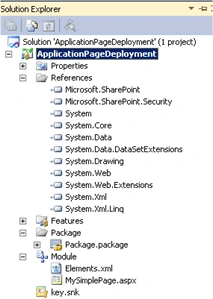
- Solution looks like the following.
- Delete the Sample.txt from Solution
explorer.
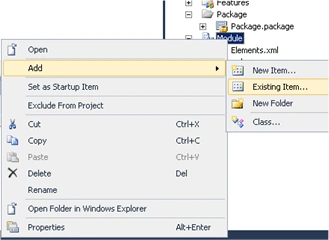
- In Solution Explorer, right-click the
Module node, point to Add, and then click Existing Item.
- Browse to the file or files you want to deploy, and then click Add.
- I have added the application page MySimplePage.aspx.
- Replace the Elements.xml with the following.
- In the Module element, add a Url attribute
to specify the destination for the files. In this example, I am going to
deploy application page in the "Share Documents", so a value of "Shared
Documents" is specified.

- Add a Type="GhostableInLibrary" attribute value. This indicates that the file will be stored in the document library.
- Build and deploy the solution.
- Go to the SharePoint site => Shared
Documents => You could see the application page is deployed successfully
using sandbox solution.

Join the conversation! Your thoughts help the community grow.