

In this article we will be seeing how to import the BDC model to the BDC
Metadata Store. Importing a BDC model is a primary way to add it to the BDC
Metadata Store, and its related external content types and external systems,
into a metadata store. All external content types in a model are automatically
activated when you import the model.
In this article we will be seeing the following
- Import BDC model to the BDC Metadata Store using Central Administration.
- Import BDC model to the BDC Metadata Store using Powershell.
Import BDC model to the BDC Metadata Store using Central Administration:
- Go to Central Administration => Application Management => Manage Service Applications => Business Data Connectivity Service Application.
- In the BDC models group of the ribbon,
click Import.
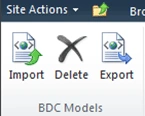
- On the Import BDC model page, in the BDC
Model section, click Browse to find the BDC model or resource file.
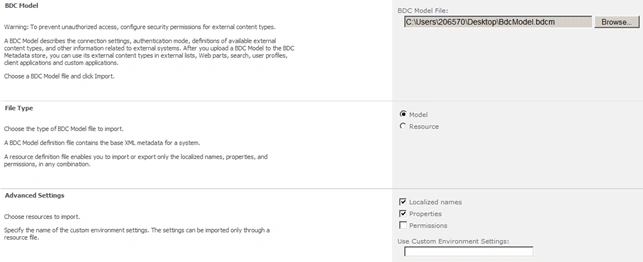
- In the File Type section, select the type of BDC model file to import: Model or Resource.
- Click on Import button.
- BDC model will be validated.

- BDC model is successfully added to the BDC
metadata store.

- Click on Ok.
- In the ribbon interface, go to View tab.
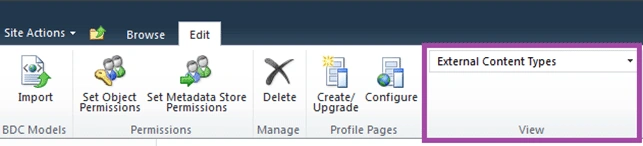
- In the drop down select BDC Models.

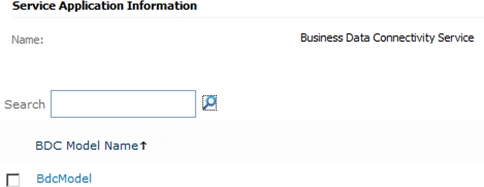
- You could be able to see the imported BDC
Model as shown in the following
Import BDC model to the BDC Metadata Store using Powershell:
- Go to Start => All Programs => Microsoft SharePoint 2010 products => SharePoint 2010 Management Shell.
- Run as an administrator.
- Run the following script.
$MetadataStore = Get-SPBusinessDataCatalogMetadataObject -BdcObjectType "Catalog" -ServiceContext "http://serverName:1111/hr/MP/"
Import-SPBusinessDataCatalogModel -Path "C:\Users\222222\Desktop\BdcModel.bdcm" -Identity $MetadataStore
Join the conversation! Your thoughts help the community grow.