

SharePoint 2010 introduces a new concept called Content Type Hubs. It's a way to make content types available centrally and be reusable in the Farm. This is a huge improvement from SharePoint 2007 both in terms of management of content types and the overall flexibility that comes with it. In SharePoint 2007 there is no way to manage Content type centrally. SharePoint 2010 has provided out-of-the-box support for sharing Content Types across the farm level. First, we need to create a content type in a site collection and we have to publish that. We will be seeing how to do that in this article.
How to publish Content-Type
First, select a site collection as a place to host your content types. You will define your content types to share across, this site collection. You can create a new site collection or use an existing one. Once you have a site collection in your hand, create a content type and for this discussion let's name it CentralizedCT. Given below are the following steps to be followed to create a new content type that has to be published.
Steps Involved
1. Go to the site collection where you want to host your content Type.
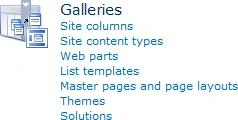
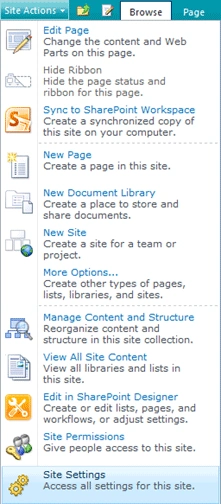
2. Go to Site Actions -> Site Settings -> Galleries ->Site Content Types.
3. In the top right you can see Create, click Create.

4. Enter the name of the content type as CentralizedCT as shown in the below figure.
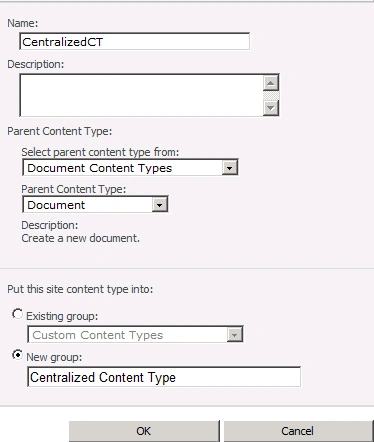
5. Click OK to create a new content type named CentralizedCT.
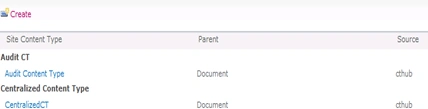
6. Go to Site Content Type Information and click Add from New Site Column.
7. Enter the name for the column as an Employee ID as shown in the below figure.
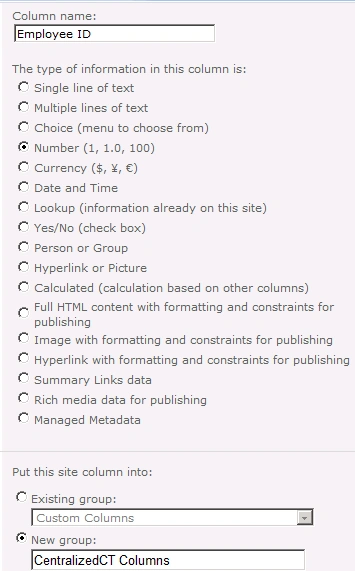
8. A new field has been added to the content type.
Activate the feature to enable content publishing in the site collection
The site collection, which will host content types for publishing, is known as the content type hub. To enable your site collection to be a content-type hub you need to activate a feature known as "Content Type Syndication Hub".
Steps Involved
1. Go to Site Actions -> Site Settings -> Site Collection Administration -> Site Collection Features.

2. Activate the feature Content Type Syndication Hub.

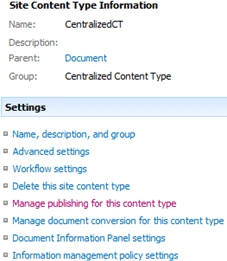
3. Once you have activated this feature, you will find an option "Manage Publishing for this content type" in your content type setting page as shown below.
Bind the content type hub with a metadata service
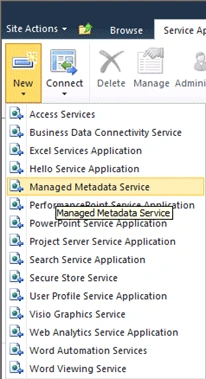
1. Go to the Central Administration->Application Management->Manage Service Applications.

2. In the Ribbon click on New to create a new Metadata Service.
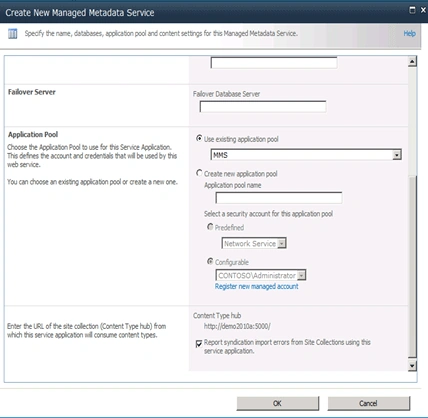
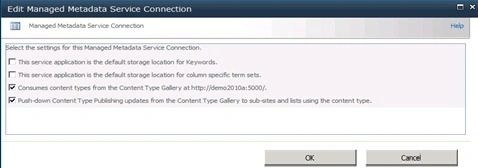
3. Enter the Name, Database Name, and Database Server Name and there's an option for Content Type Hub here put the URL of the site collection you have selected/created (for example, http://demo2010a:5000/). Now your metadata service is ready.
4. Configure Metadata Connection: To configure metadata connection, go to metadata service connection properties and ensure that the connection consumes the content type hub as shown below.
Publishing the Content-Type
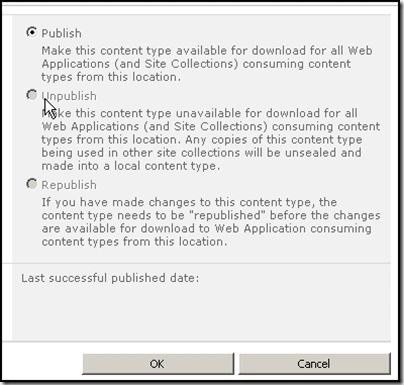
Now you go back to the site collection (which is used as the content type hub) and go to the content type settings page. Here on this page, you will get the option "Manage publishing for this content type" option. Now click on the link "Manage Publishing for this content type" Ensure the 'publish' option is selected and then click OK as shown below.
To use published content types from a different web application or site collection, you need to associate the metadata connection with the web application.
Thus we have successfully published the content type which can be used by other web applications or even other farms.
Gowtham RajamanickamPosted Apr 12, 2016, 2:19 AM
Good One, Thanks for sharing
suresh pydiPosted Apr 17, 2013, 12:22 AM
Nice post. Here is one more post on content type hub and publishing contemt types in sharepoint 2013 http://sureshpydi.blogspot.in/2013/04/sharepoint-201-content-type-publishing.html