

Business Connectivity Services (BCS) is a new service introduced with SharePoint 2010 to allow SharePoint sites to connect to and manipulate external data. SharePoint 2007 had a similar facility in the form of Business Data Catalog (BDC) which made external data available within it's site. However, a major problem with BDC was the difficulty in creating solutions as there was no support in the 2007 designer. Most BDC solutions were simply for accessing external data; manipulating external data sources was extremely difficult.
With SharePoint 2010, BCS ships with out-of-box features such as solutions, services, and tools which make connecting to external data an easy task. Whether you want to retrieve Outlook contacts in a list offline or edit the contents of your document file or share your excel sheet online or reuse data from dynamic InfoPath forms or just update your business presentation, BCS enables deep content sharing, editing and integration in SharePoint 2010 with SharePoint Designer and Visual Studio tools. In this article, we are going to create a model for the BDC service that returns information from an Oracle database. You will then create an external list in SharePoint by using this model.
Steps Involved:
- Oracle Database.
- Create Business Data Connectivity Model.
- Modify the default Entity from the BDC Model.
- Read Operations.
- Configure Business Data Connectivity access rights.
- Creating External List.
- Testing.
1. Oracle Database:
Table Name: hr.employeedetails
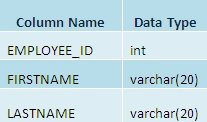
Note:
In the above table EMPLOYEE_ID is the Primary Key.
2. Create Business Data Connectivity Model:
- Start Visual Studio 2010.
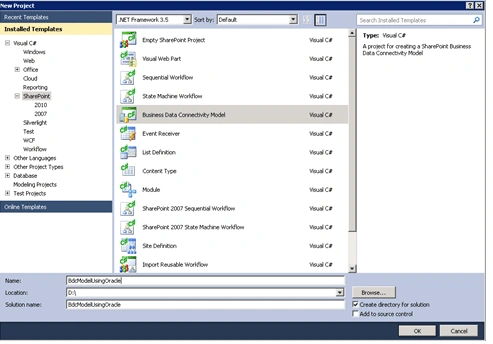
- Open the New Project dialog box, expand the SharePoint node under the language that you want to use, and then click 2010.
- In the Templates pane, select Business Data Connectivity Model. Name the project BdcModelUsingOracle, and then click OK.
- The SharePoint Customization Wizard appears. This wizard enables you to select the site that you will use to debug the project and the trust level of the solution.
- Click Finish to accept the default local SharePoint site and default trust level of the solution.
3. Modify the default Entity from the BDC Model:
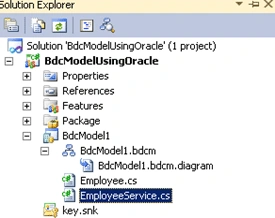
- In Solution Explorer, expand the BdcModel1 node, you could find Entity1.cs and Entity1Service.cs.
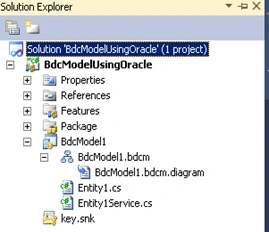
- Rename Entity1.cs as Employee.cs.
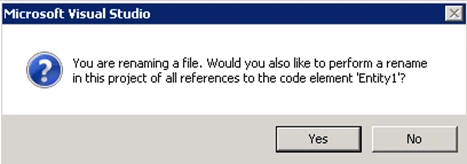
- Click Yes in the above pop up.
- Replace the code in the Employee.cs as shown below.
using System;using System.Collections.Generic;
using System.Linq;
using System.Text;
namespace BdcModelUsingOracle.BdcModel1
{
public partial class Employee
{
public int Employee_ID { get; set; }
public string FirstName { get; set; }
public string LastName { get; set; }
}}
- The Business Data Connectivity model file opens in the BDC designer.
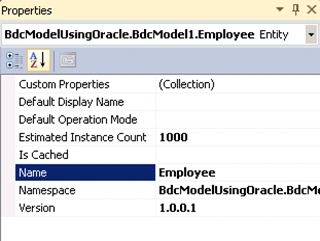
- In the designer, right-click Entity1, and then click Properties.
- Set the Name property to Employee.
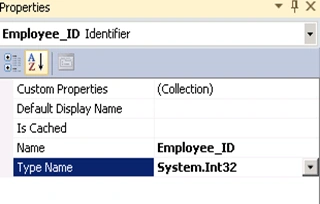
- Right-click Identifier1 and then click properties.
- Set the Name property to Employee_ID and Type Name to System.Int32.
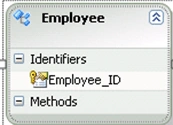
- Delete the default methods ReadList and ReadItem.
- The BDC designer will look as shown below.
- Solution Explorer will look as shown below.
4. Read Operations:
- ReadItem (Specific Finder Method).
- ReadList (Finder Method).
ReadItem (Specific Finder Method):
- On the BDC designer, select the Employee entity.
- On the View menu, click Other Windows, and then click BDC Method Details and it will look as shown below.
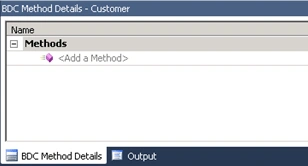
- In the BDC Method Details window, from the Add a Method drop-down list, select Create Specific Finder Method.
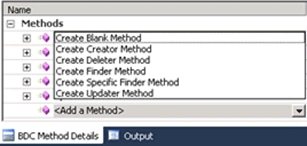
Visual Studio adds the following elements to the model. These elements appear in the BDC Method Details window as shown in the figure below.
• A method named ReadItem.
• An input parameter for the method.
• A return parameter for the method.
• A type descriptor for each parameter.
• A method instance for the method.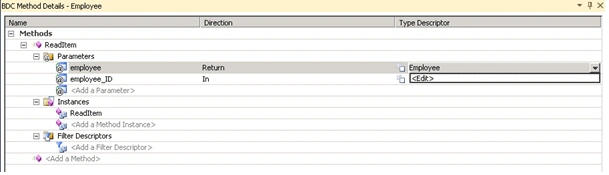
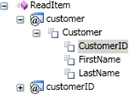
- In the BDC Method Details window, click the drop-down list that appears for the Employee Type Descriptor, and then click Edit as shown in the figure above.
The BDC Explorer opens. The BDC Explorer provides a hierarchical view of the model as shown in the figure below.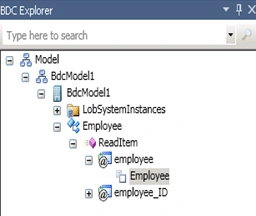
- In the Properties window, click the drop-down list that appears next to the Type Name property, click the Current Project tab, and then select Employee.
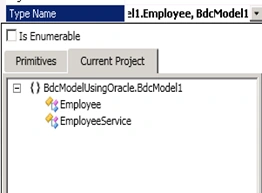
- In the BDC Explorer, right-click the Employee, and then click Add Type Descriptor.
A new type descriptor named TypeDescriptor1 appears in the BDC Explorer.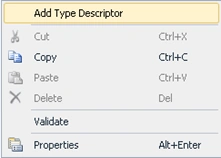
- In the Properties window, set the Name property to Employee_ID.
- Click the drop-down list next to the Type Name property, and then select Int32.
- Click the drop-down list next to the Identifier property, and then select Employee_ID.
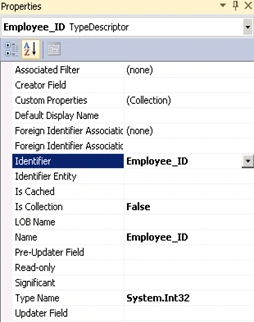
- Repeat step 6 to create a type descriptor for each of the following fields.
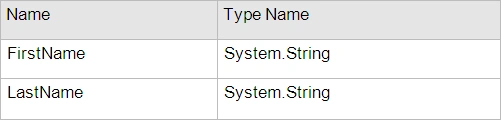
- In the BDC designer, on the Employee entity, double-click the ReadItem method.
The EmployeeService.cs service code file opens in Code Editor.
- Add the reference System.Data.OracleClient.dll.
- In the EmployeeService class, replace the ReadItem method with the following code. This code performs the following tasks:
• Retrieves a record from Employee table.
• Returns an Employee entity to the BDC service.
public static Employee ReadItem(int employee_ID)
{
Employee employees = new Employee();
string connectionString = "Data Source=orcl;Persist Security Info=True;" +
"User ID=system;Password=password-1;Unicode=True";
using (OracleConnection connection = new OracleConnection())
{
connection.ConnectionString = connectionString;
connection.Open();
OracleCommand command = connection.CreateCommand();
string sql = "SELECT * FROM hr.employeedetails where employee_id=" + employee_ID;
command.CommandText = sql;
OracleDataReader reader = command.ExecuteReader();
while (reader.Read())
{
employees.Employee_ID = employee_ID;
employees.FirstName = Convert.ToString(reader["FirstName"]);
employees.LastName = Convert.ToString(reader["LastName"]);
}
}
return employees;
}
ReadList (Finder Method):
- In the BDC Method Details window, from the Add a Method drop-down list, select Create Finder Method.
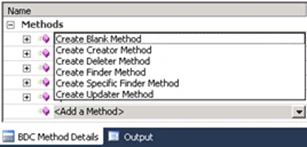
- The Type Descriptors of the return parameter have already been defined with the same structure as we just built above. This is because when creating a new method, BDC designer will search the possible Type Descriptors defined in the other methods of this entity and copy them to the newly created methods.
In the EmployeeService class, replace the code with the code shown below.
public static IEnumerable<Employee> ReadList()
{
List<Employee> employees = new List<Employee>();
string connectionString = "Data Source=orcl;Persist Security Info=True;" +
"User ID=system;Password=password-1;Unicode=True";
using (OracleConnection connection = new OracleConnection())
{
connection.ConnectionString = connectionString;
connection.Open();
OracleCommand command = connection.CreateCommand();
string sql = "SELECT * FROM hr.employeedetails";
command.CommandText = sql;
OracleDataReader reader = command.ExecuteReader();
while (reader.Read())
{
Employee employee = new Employee();
employee.Employee_ID = Convert.ToInt32(reader["Employee_ID"]);
employee.FirstName = Convert.ToString(reader["FirstName"]);
employee.LastName = Convert.ToString(reader["LastName"]);
employees.Add(employee);
}
}
return employees;
}
- Build the solution and deploy it.
5. Configure Business Data Connectivity access rights:
- Go to Central Administration -> Application Management -> Manage Service Applications.
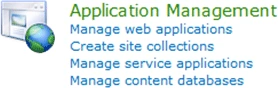
- Click on Business Data Connectivity Service.

- In the top Ribbon click on Manage.
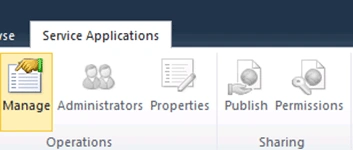
- In Service Application Information check the External Content Type Employee.
- And in the top Ribbon click the Site Object Permissions.
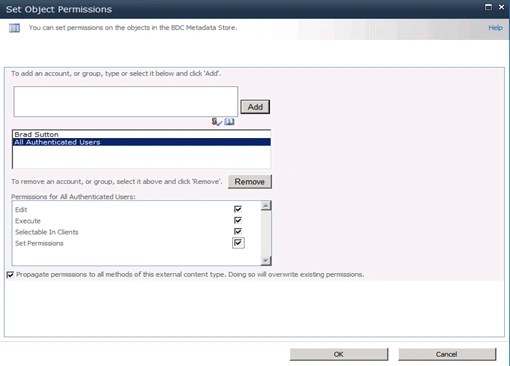
- Site Object Permissions wizard will pop up add the account (Group or Users) and assign the permissions.
6. Creating External List:
- Open the SharePoint Site.
- Go to Site Actions => More Options.
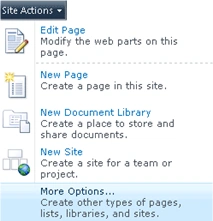
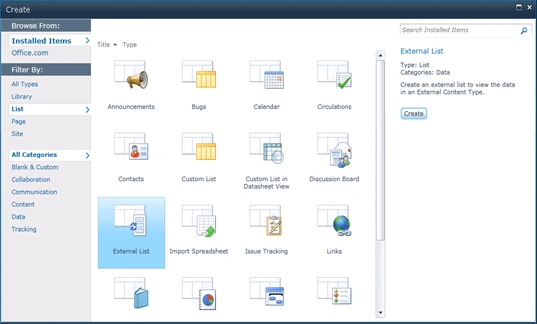
- On the Create Wizard, from the Installed Templates Select List.
- In the List Type select External List and click Create.
- Enter the Name as BCS for Oracle and choose the External Content Type as shown below.
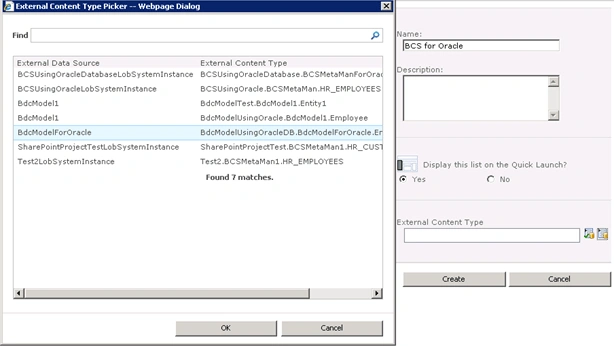
- Click OK.
- External List is created displaying the items from the Oracle data.

7. Testing:
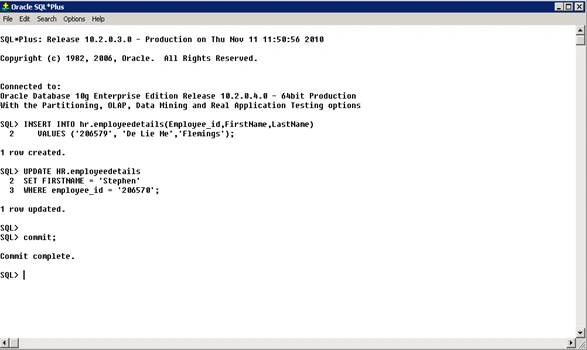
We have created Read operations using BDC model and if any update is done in the Oracle database it will be reflected in the external list that we have created in the SharePoint 2010. Open the Oracle SQL * Plus. I am going to update and insert data as shown below.
Go to the SharePoint site and open the list BCS for Oracle. The items will be updated as shown below.

Summary:
Thus we have created a model for the BDC service that returns information from a Oracle database and performs Read operations.
Kumaresh RajalingamPosted Mar 24, 2016, 9:59 AM
Nice one sir
ZAIBI MedPosted Aug 28, 2013, 1:28 AM
very nice job, i followed the tuto step by step, and it is simple and clean, but when i tried, i get the same error mentioned in "Zsombor Varsanyi" 's comment, plz i'll be thankful if you tell me how to resolve this error
Zsombor VarsanyiPosted Jan 30, 2013, 7:32 AM
Thanks, very helpful. However, after doing all parts of this guide, i'm getting the following error: MethodInstance with Name 'ReadList' on Entity (External Content Type) with Name 'Employee' in Namespace 'BdcModelUsingOracle.BdcModel1' failed unexpectedly. The failure occurred in method 'ReadList' defined in class 'BdcModelUsingOracle.BdcModel1.EmployeeService' with the message 'System.Data.OracleClient requires Oracle client software version 8.1.7 or greater.'. Can cause this error the fact that the oracle server is on a remote server? Thanks in advance,
Veena BatakurkiPosted Mar 22, 2012, 10:30 AM
Great article. I am following the exact steps. I solution deploys succesfully but when i add external list there is no data comming form oracle. I displays as empty list. There is no error message anywhere. PS: i am using BDC Model from Visual Studio(no Meta man) Any idea what could be the issue. Thanks, Veena
Kd 009Posted Jan 30, 2012, 11:32 PM
do u have sample code for delete and update functions.
Lyne BelangerPosted Apr 4, 2011, 4:29 PM
Hi, I followed your instructions and when the call to the GetContact method is made, I get the following message: Microsoft.BusinessData.Infrastructure.BdcException: The shim execution failed unexpectedly - Assembly was requested for LobSystem with Name 'OracleBDCModel', but this assembly was not returned I can see my OracleBDCModel in Central Admin's BDC Models. Any idea? Thanks! Lyne
Andy BulliventPosted Mar 23, 2011, 12:59 PM
Brilliant article, thanks, but I am having difficulty in getting it to work properly. I get a warning on compilation: Assembly generation -- Referenced assembly 'System.Data.OracleClient.dll' targets a different processor Assembly generation -- Referenced assembly 'System.Data.dll' targets a different processor This produces the following exception message when trying to look at my External list: 'Attempt to load Oracle client libraries threw BadImageFormatException. This problem will occur when running in 64 bit mode with the 32 bit Oracle client components installed' I've tried targeting x64 specifically, this doesn't work. Any help would be great!! Thanks, Andy
Rob LattaPosted Mar 9, 2011, 9:49 AM
Thanks that article's great though I had problems deploying it but managed to resolve that with help from the following article http://weblogs.asp.net/jan/archive/2010/05/07/sharepoint-2010-bdc-model-deployment-issue-the-default-web-application-could-not-be-determined.aspx The only issue I have now is that the credentials are hard coded, is it possible to retrieve credentials from the Secure Store Service, I'm going to be setting up a lot of these lists and if the password needs changing it will be a real mission to go through all the solutions that I've built canging the code and redeploying. Thanks, Rob
Phil NymanPosted Feb 28, 2011, 6:14 PM
Other SharePoint-Oracle BCS integration solutions have required Metaman and the Oracle 10g client/drivers on the SharePoint server. They weren't mentioned in your article, so is it true that, esp. for the 10g client, that they are not needed? Regards, Phil