

In this article we will be seeing how to modify User Profile Properties in
SharePoint 2010 using PowerShell.
Modify User Profile Properties in SharePoint 2010
We can to modify User Profile Properties in SharePoint 2010 from Central
Administration.
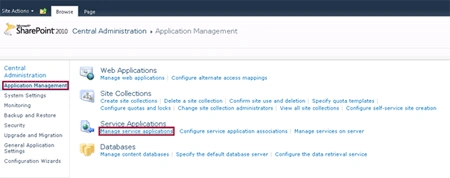
Go to Central Administration => Application Management => Manage Service Applications => User Profile Service Application.
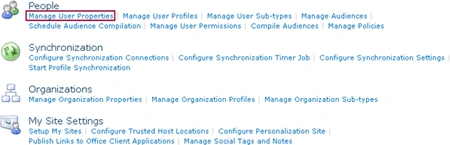
Click on Manage User Properties
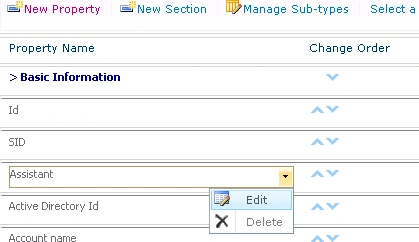
Select the property and then click on Edit to modify the property.
Automation: Modify User Profile Properties in SharePoint 2010 using
PowerShell
Here we will be seeing how to modify the following User Profile Properties in
SharePoint 2010 using PowerShell.
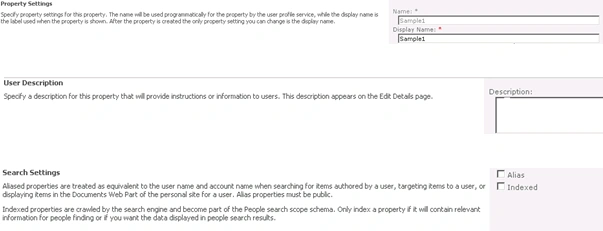
Steps Involved:
- Create the input XML file which contains the inputs for modifying User Profile properties.
- Create ps1 file which contains the script for modifying User Profile properties.
ModifyUserProfileProperties.xml
<?xml
version="1.0"
encoding="utf-8"
?>
<ModifyUserProfileProperties>
<URL>http://serverName:8080/</URL>
<Property
Name="Sample1"
DisplayName="Sample1
Modified"
Description="Sample1
custom user property modified"
IsSearchable="$true"
IsAlias="$false"></Property>
<Property
Name="Sample2"
DisplayName="Sample2
Modified"
Description="Sample1
custom user property modified"
IsSearchable="$true"
IsAlias="$false"></Property>
<Property
Name="Sample3"
DisplayName="Sample3
Modified"
Description="Sample1
custom user property modified"
IsSearchable="$true"
IsAlias="$false"></Property>
</ModifyUserProfileProperties>
ModifyUserProfileProperties.ps1
#----------------Get
the xml file---------------------------------------------------------------
[xml]$xmlData=Get-Content "C:\Users\Desktop\ContentSources\ModifyUserProfileProperties.xml"
#----------------Modify
the User Profile properties---------------------------------------------
function
ModifyUserProfileProperties()
{
$site
=
Get-SPSite
$xmlData.ModifyUserProfileProperties.URL
$context
=
Get-SPServiceContext($site)
$psm
=
[Microsoft.Office.Server.UserProfiles.ProfileSubTypeManager]::Get($context)
$ps
=
$psm.GetProfileSubtype([Microsoft.Office.Server.UserProfiles.ProfileSubtypeManager]::GetDefaultProfileName([Microsoft.Office.Server.UserProfiles.ProfileType]::User))
$pspm
=
$ps.Properties
$xmlData.ModifyUserProfileProperties.Property
|
ForEach-Object{
$property
=
$pspm.GetPropertyByName($_.Name)
if($property
-ne
$null)
{
$DisplayName=$_.DisplayName
$Description=$_.Description
$IsSearchable=$_.IsSearchable
$IsAlias=$_.IsAlias
$property.CoreProperty.DisplayName=$DisplayName
$property.CoreProperty.Description=$Description
$property.CoreProperty.IsSearchable
=
$IsSearchable
$property.CoreProperty.IsAlias
=
$IsAlias
$property.CoreProperty.Commit();
$property.Commit()
write-host
-f
green
$_.Name
property
is
modified
successfully
}
else
{
write-host
-f
yellow
$_.Name
property
does
not
exists
}
}
}
#----------------Calling the function---------------------------------------------
ModifyUserProfileProperties
Run the Script:
-
Go to Start.
-
Click on All Programs.
-
Click on Microsoft SharePoint 2010 Products and then click on SharePoint 2010 Management Shell.
-
Run the C:\Users\Desktop\ContentSources\ModifyUserProfileProperties.ps1
Output:

And in the Central Administration you could see the property modified .
Gowtham RajamanickamPosted Apr 12, 2016, 1:21 AM
Good One, Thanks for sharing
Ben AkhigbePosted May 21, 2014, 11:09 AM
Hi Vijai, I am currently working on MySites in SharePoint 2013. I need help in creating a webpart that displays missing user profile properties on the user's MySite page and prompting them to update these properties.
Ben AkhigbePosted May 21, 2014, 11:07 AM
hi Vijai,