

In this article we will be seeing how to add a site collection link to the global
breadcrumb navigation (Navigate Up button  )
in SharePoint 2010.
)
in SharePoint 2010.
Portal Site Collection:
A Portal Site Collection is used to link from one site collection to another site
collection. The Portal site will be added to the Navigate Up (global breadcrumb
navigation).
Configure Portal Site Collection:
- Open SharePoint 2010 site collection.
- Go to Site Actions, click on Site
Settings.
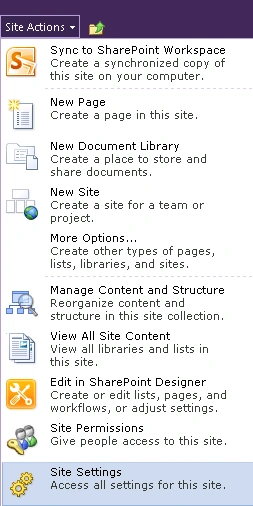
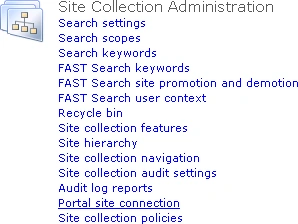
- Go to Site Collection Administration and
then click on Portal site connection as shown in the following.
- In the Portal Web Address, add the address
of the site collection to which we need to link.

- Enter the Portal Name, which will be displayed in the global breadcrumb navigation (Navigate Up).
- Click on Ok.
- Click on Navigate Up, you will be able to
see a new link added as shown in the following.
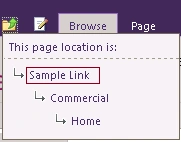
- When you click on the Sample Link, you will
be redirected to the corresponding portal site that we mentioned in the
Portal Web Address.
Join the conversation! Your thoughts help the community grow.