

In this article we will be seeing how to add a heading or link and how to delete
the heading or link from the SharePoint publishing site quick launch.
I have a site collection with the SharePoint Server Publishing Infrastructure
feature enabled on the site collection and sites with the SharePoint Server
Publishing site feature activated.
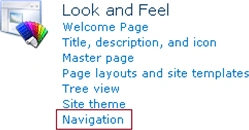
Go to Site Actions => Site Settings => Look and Feel => Navigation =>
Navigation Editing and Sorting.
In the Navigation Editing and Sorting you could see the following options.
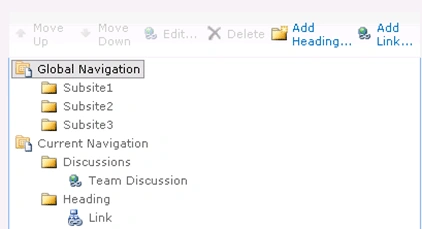
Programmatically Add or Delete Heading and Link:
using
(SPSite siteCollection =
new SPSite("http://servername:1111/sites/sample"))
{
using (SPWeb
web = siteCollection.RootWeb)
{
PublishingWeb
publishingWeb = PublishingWeb.GetPublishingWeb(web);
SPNavigationNodeCollection
nodeColl=publishingWeb.Navigation.CurrentNavigationNodes;
//
Create or Delete heading and link
}
}
####################################################################################
//
Create a new heading
SPNavigationNode newHeading = SPNavigationSiteMapNode.CreateSPNavigationNode("Heading", "", NodeTypes.Heading, nodeColl);
// Create a new link
SPNavigationNode newLink = SPNavigationSiteMapNode.CreateSPNavigationNode("Link", "", NodeTypes.AuthoredLinkToWeb, newHeading.Children);
//Delete a heading or link
int
count=nodeColl.Count;
while (count != 0)
{
if (nodeColl[count - 1].Title ==
"MyHeading")
{
nodeColl[count - 1].Delete();
}
count--;
}
Dinesh BeniwalPosted Apr 25, 2011, 5:02 AM
Useful article Vijai...your articles are very helpful for sharepoint developers...