

In this article we will be seeing how to manage the Quick Launch Navigation in
SharePoint 2010 using PowerShell and SharePoint Object Model.
Get all the Headings and Links from the Quick Launch:
Using C#:
using
(SPSite site = new
SPSite("http://serverName:1111/sites/SPSiteDataQuery/"))
{
using (SPWeb
web = site.RootWeb)
{
SPNavigationNodeCollection
nodeColl = web.Navigation.QuickLaunch;
foreach (SPNavigationNode
heading in nodeColl)
{
Console.WriteLine(heading.Title.ToString());
foreach (SPNavigationNode links
in heading.Children)
{
Console.WriteLine("-"
+ links.Title.ToString());
}
}
Console.ReadLine();
}
}
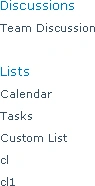
Output:
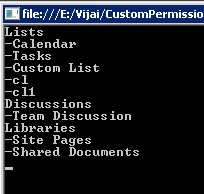
Using PowerShell:
$siteURL="http://serverName:1111/sites/SPSiteDataQuery/"
$site=Get-SPSite $siteURL
$web=$site.RootWeb
$navigationNodeColl=$web.Navigation.QuickLaunch
foreach($heading in $navigationNodeColl)
{
write-host -f Green $heading.Title
foreach($links in $heading.Children)
{
write-host -f Yellow $links.Title
}
}
Output:
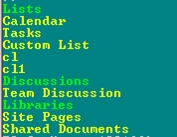
Move the Headings in the Quick Launch:
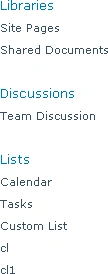
In this we will be seeing how to move the headings in the Quick Launch
Navigation. Initially Quick Luanch Navigation looks like the following.
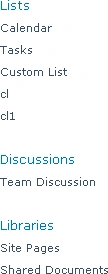
MoveToLast and MoveToFirst Methods:
using
(SPSite site = new
SPSite("http://serverName:1111/sites/SPSiteDataQuery/"))
{
using (SPWeb
web = site.RootWeb)
{
SPNavigationNodeCollection
nodeColl = web.Navigation.QuickLaunch;
foreach (SPNavigationNode
heading in nodeColl)
{
if (heading.Title.ToString() ==
"Libraries")
{
heading.MoveToLast(nodeColl);
}
if (heading.Title.ToString() == "Lists")|
{
heading.MoveToFirst(nodeColl);
}
}
}
}
Move Method:
using
(SPSite site = new
SPSite("http://serverName:1111/sites/SPSiteDataQuery/"))
{
using (SPWeb
web = site.RootWeb)
{
SPNavigationNodeCollection
nodeColl = web.Navigation.QuickLaunch;
SPNavigationNode heading
= nodeColl[0];
heading.Move(nodeColl, nodeColl[1]);
}
}
KarenPosted Jun 27, 2012, 4:44 PM
Is it possible to move a link between parent headers? What I have is for example Lists -Custom List 1 -Custom List 2 -Calendar Libraries -Shared Documents What I want to do is create a header with no URL, I figured that part out, and then move list under the new headers. So I end up with soemthing like this. Resources -Custom List 2 Company Data -Custom List 1 -Canlendar Libraries -Shared Documents How can I do that.