

Here is Part 1
In this article we will be seeing how to add or remove the heading and links
from the Quick Launch Navigation in SharePoint 2010.
Add a new custom heading to the Quick Launch Navigation
SPNavigationNode class accepts the following properties when we are creating a
new heading.
- Display Name(Required)
- URL(Required)
- External Link [True/False] (optional) – Specifies whether the link is internal (item in SharePoint) or external (another website)
SPNavigationNodeCollection
nodeColl = web.Navigation.QuickLaunch;
SPNavigationNode
heading1 = new
SPNavigationNode("My Articles","");
nodeColl.AddAsFirst(heading1);
SPNavigationNode
heading2 = new
SPNavigationNode("My Blogs",
"");
nodeColl.AddAsLast(heading2);
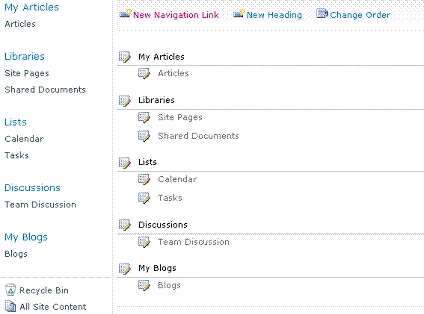
Add a new Navigation Links to the custom heading in the Quick Launch
Navigation
SPNavigationNodeCollection
nodeColl = web.Navigation.QuickLaunch;
foreach (SPNavigationNode
heading in nodeColl)
{
if (heading.Title ==
"My Articles")
{
SPNavigationNode
link1 = new
SPNavigationNode("Articles",
"http://www.csharpcorner.com/",
true);
heading.Children.AddAsFirst(link1);
}
if (heading.Title ==
"My Blogs")
{
SPList list =
web.Lists.TryGetList("Blogs");
SPNavigationNode
link2 = web.Navigation.GetNodeByUrl(list.DefaultViewUrl);
if (link2 !=
null)
{
link2 = new
SPNavigationNode(list.Title,
list.DefaultViewUrl);
heading.Children.AddAsFirst(link2);
}
}
}
How to delete the link from the Quick Launch:
Using C#
using
(SPSite site = new
SPSite("http://serverName:1111/sites/SPSiteDataQuery/"))
{
using (SPWeb
web = site.RootWeb)
{
SPNavigationNodeCollection
nodeColl = web.Navigation.QuickLaunch;
foreach (SPNavigationNode
heading in nodeColl)
{
foreach (SPNavigationNode links
in heading.Children)
{
if (links.Title ==
"cl1")
{
links.Delete();
}
}
}
}
}
Using PowerShell
$webURL="http://serverName:1111/sites/SPSiteDataQuery/"
$web=Get-SPWeb $webURL
$navigationNodeColl=$web.Navigation.QuickLaunch
$heading = $navigationNodeColl | where { $_.Title -eq "Libraries" }
$link = $heading.Children | where { $_.Title -eq "Shared Documents" }
$link.Delete()
How to delete the heading from the Quick Launch:
Using C#
SPNavigationNodeCollection
nodeColl = web.Navigation.QuickLaunch;
foreach (SPNavigationNode
heading in nodeColl)
{
if (heading.Title == "Libraries")
{
heading.Delete();
}
}
Using PowerShell
$webURL="http://serverName:1111/sites/SPSiteDataQuery/"
$web=Get-SPWeb $webURL
$navigationNodeColl=$web.Navigation.QuickLaunch
$heading = $navigationNodeColl | where { $_.Title -eq "Libraries" }
$heading.Delete()
Join the conversation! Your thoughts help the community grow.