

Silverlight Bing Map Control in SharePoint 2010
In this article we will be seeing how to use Silverlight Bing map control in
SharePoint 2010.
Bing Map Developer Account:
- Open
https://www.bingmapsportal.com/.
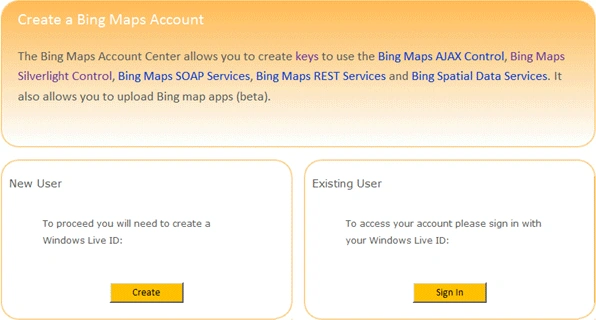
- Go to New User section and click on
Create.
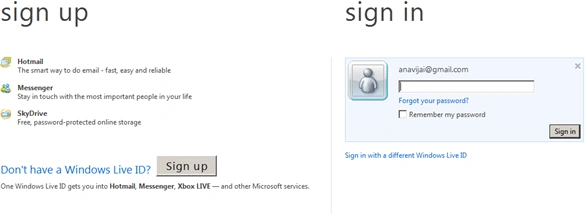
- Sign in using Windows Live ID.
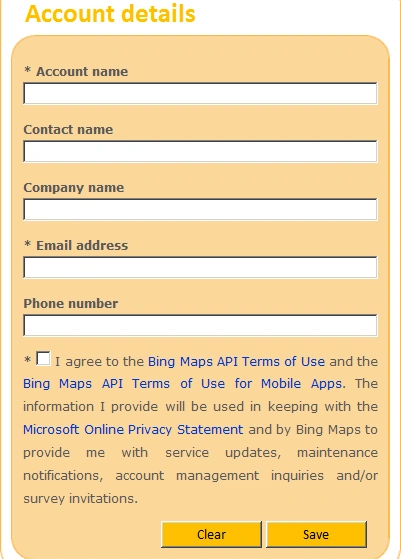
- Enter the account details and click on
Save.
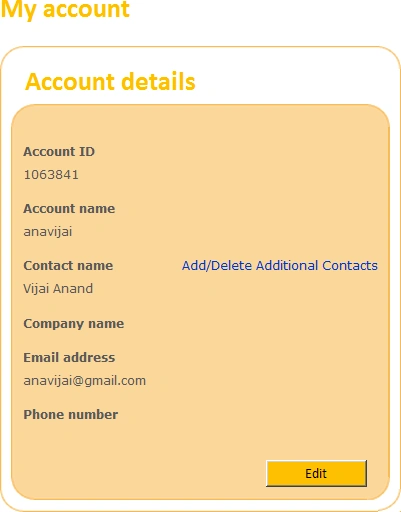
- Bing Map Developer account will be created
successfully.
Bing Maps Key:
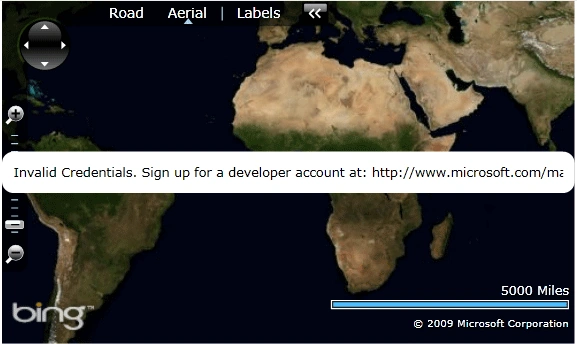
Bing Maps Key should be created to authenticate your Bing Maps application as
described in the SDK for the Bing Maps API we are using. If you run the program
without providing the valid Bind Maps Key then the map appears in the browser
with a message that you have invalid credential appears.
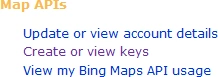
• Select Create or view keys in the Tasks left-hand menu MAP APIs.
• In the Create key box on the My keys page, provide the following information
for the application that will use the Bing Maps key:
- Application name Required. The name of the application.
- Application URL Required. The URL of the application.
- Application Type Required. The scenario
for your application. Select the application type that best represents the
application that will use this key.
The following are general descriptions of these types.
Application Type
Description
Broadcast
Application is used for public or internal-facing television, movies or similar.
Developer
Application does not exceed 125,000 sessions or 500,000 transactions within a 12 month period.
Education
Application is used for public use by schools, including faculty, staff and students.
Evaluation/Trial
Application is used for public or internal use during a 90 day evaluation period.
Mobile
Application is used for publically available and installable applications on mobile handsets.
Not-for-profit
Application is used by a tax-exempt organization.
Enterprise
This option is available to licensed enterprise accounts only.
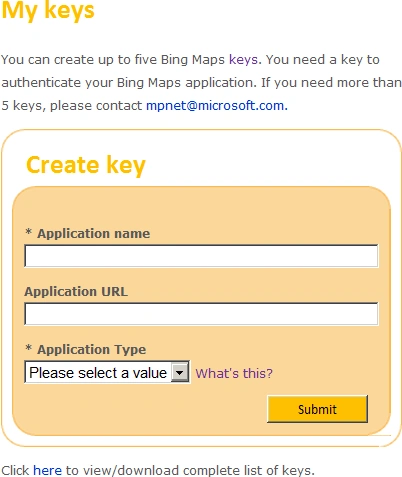
• Click Create key and the new key displays in the list of available keys.
• Refer for more information:
http://msdn.microsoft.com/en-us/library/ff428642.aspx
Bing Maps Silverlight Control:
Download the Bing Maps Silverlight Control
http://www.microsoft.com/downloads/en/details.aspx. This download includes the
Bing Maps Silverlight Control assemblies and an offline version of the Bing Maps
Silverlight Control SDK.
Create Silverlight application:
- Open Visual Studio 2010.
- Go to File => New => Project.
- Select Silverlight Application from the
installed templates Silverlight.
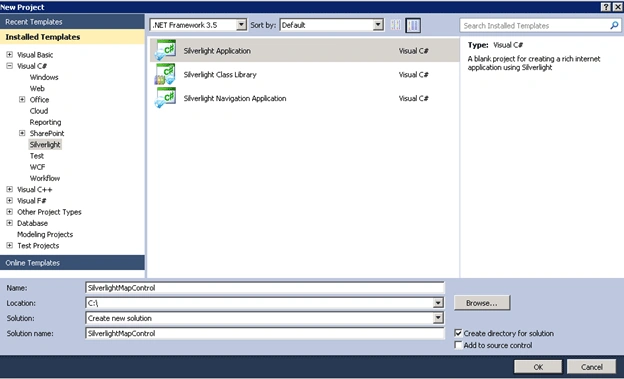
- Enter the Name and click on Ok.
- In the New Silverlight Application wizard check the "Host the Silverlight Application in a new Web site".
- Click OK.
- Go to C:\Program Files (x86)\Bing Maps Silverlight Control\V1\Libraries\ (Check the path where you have installed Bing Maps Silverlight Control).
- Add the following assemblies to the
project.
o Microsoft.Maps.MapControl.Common.dll
o Microsoft.Maps.MapControl.dll
- Replace MainPage.xaml with the following
code
<UserControl x:Class="SilverlightMapControl.MainPage"
xmlns="http://schemas.microsoft.com/winfx/2006/xaml/presentation"
xmlns:x="http://schemas.microsoft.com/winfx/2006/xaml"
xmlns:d="http://schemas.microsoft.com/expression/blend/2008"
xmlns:mc="http://schemas.openxmlformats.org/markup-compatibility/2006"
xmlns:map="clr-namespace:Microsoft.Maps.MapControl;assembly=Microsoft.Maps.MapControl"
mc:Ignorable="d"
d:DesignHeight="300" d:DesignWidth="400">
<Grid x:Name="LayoutRoot" Background="White">
<map:Map CredentialsProvider="AvlbQD5CwBygUC98qmXz7r_lKco_VV0QAAIPV-frlHrdGsMf4DkoSJOJ9qrw8Hv8" Mode="Aerial" />
</Grid>
</UserControl>
- Build the solution.
Deploying in SharePoint site:
- Upload the xap file in the SharePoint Site => Shared Documents.
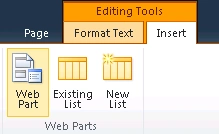
- Go to Site Actions => Edit Page => Editing
Tools => Insert => Web Part.
- Go to Categories => Media and Content =>
Silverlight Web Part => Click on Add.
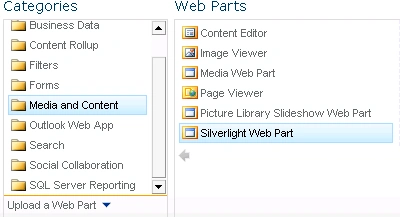
- In the URL give the path of the xap file
~site/Sample/Shared%20Documents/ SilverlightMapControl.xap
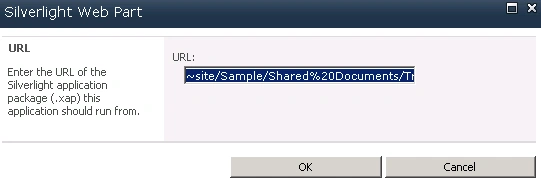
- Click on Ok.
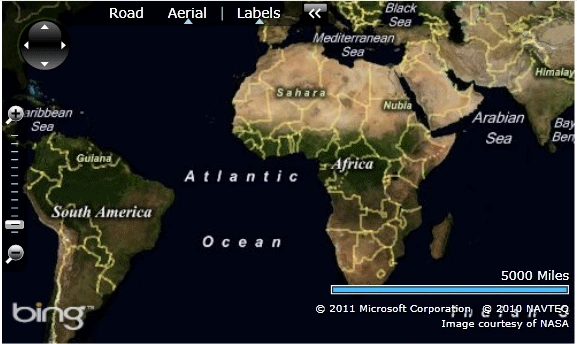
Output:
With Valid Bing Map Key:
Without Valid Bing Map Key:
Former memberPosted May 1, 2011, 1:21 AM
Nice article Vijay ... I was just looking for this Thanks for sharing