

In this article, I will show you how to use an ASP.NET 2.0 GridView control to Select, update, and delete data in a SQL database.
We will use SQL Client data provider to provide database connectivity.
Before you can use any classes related to SQL Client data adapter, we need to import the SqlClient namespace in your application by using the following using statement.
- using System.Data.SqlClient;
Next, we need to define the database connection string.
The below is my connection string which is stored in web.config file. You can change this connection string according to your SQL server database setting. I am storing my database file in App_Data folder. If you want use my database file then attach that file.
- <appSettings>
- <add key="connect" value="Initial Catalog=Data; Data Source=DHARMENDRA\SQLSERVER2005; uid=sa; pwd=wintellect" />
- </appSettings>
The following code snippet shows how to connect to a database and create other database access related objects.
- SqlDataAdapter da;
- SqlConnection con;
- DataSet ds = new DataSet();
- SqlCommand cmd = new SqlCommand();
This function is use to fetch data from the StudentRecord table, fills data in a DataTable object and find it to a GridView control using the DataSource property. In the end, the code calls the GridView.DataBind method to apply the binding.
- public void BindData() {
- con = new SqlConnection(ConfigurationSettings.AppSettings["connect"]);
- cmd.CommandText = "Select * from StudentRecord";
- cmd.Connection = con;
- da = new SqlDataAdapter(cmd);
- da.Fill(ds);
- con.Open();
- cmd.ExecuteNonQuery();
- GridView1.DataSource = ds;
- GridView1.DataBind();
- con.Close();
- }
Now on the page load method, we call the FillStudentRecordGrid method.
- protected void Page_Load(object sender, EventArgs e) {
- if (!Page.IsPostBack) {
- BindData();
- }
- }
Now, next step is to set the GridView control settings.
The ASP.NET code for the DataView control. In this code below code, you see database table columns binding with the bound fields and formatting is provided using the template fields. If you are using my database, just copy and paste the code or use the attached application. If you are using your database, you need to replace column binding with your database table columns.
- <%@ Page Language="C#" AutoEventWireup="true" CodeFile="TextGridview.aspx.cs" Inherits="sapnamalik_TextGridview" %>
- <!DOCTYPE html PUBLIC "-//W3C//DTD XHTML 1.0 Transitional//EN" "http://www.w3.org/TR/xhtml1/DTD/xhtml1-transitional.dtd">
- <html xmlns="http://www.w3.org/1999/xhtml">
- <head runat="server">
- <title>Untitled Page</title>
- </head>
- <body>
- <form id="form1" runat="server">
- <div>
- <asp:GridView ID="GridView1" runat="server" PageSize="3" AutoGenerateColumns="false" AllowPaging="true" BackColor="White" BorderColor="#CC9966" BorderStyle="None" BorderWidth="1px" CellPadding="4" OnRowEditing="GridView1_RowEditing" OnRowUpdating="GridView1_RowUpdating" OnPageIndexChanging="GridView1_PageIndexChanging" OnRowCancelingEdit="GridView1_RowCancelingEdit" OnRowDeleting="GridView1_RowDeleting">
- <FooterStyle BackColor="#FFFFCC" ForeColor="#330099" />
- <RowStyle BackColor="White" ForeColor="#330099" />
- <SelectedRowStyle BackColor="#FFCC66" Font-Bold="True" ForeColor="#663399" />
- <PagerStyle BackColor="#FFFFCC" ForeColor="#330099" HorizontalAlign="Center" />
- <HeaderStyle BackColor="#990000" Font-Bold="True" ForeColor="#FFFFCC" />
- <Columns>
- <asp:TemplateField HeaderText="StId">
- <ItemTemplate>
- <asp:Label ID="lblstid" runat="server" Text='<%#Eval ("stId")%>'></asp:Label>
- </ItemTemplate>
- </asp:TemplateField>
- <asp:TemplateField HeaderText="Name">
- <ItemTemplate>
- <asp:TextBox ID="txtName" runat="server" Text='<%#Eval("name")%>'> </asp:TextBox>
- </ItemTemplate>
- </asp:TemplateField>
- <asp:TemplateField HeaderText="ClassName">
- <ItemTemplate>
- <asp:TextBox ID="txtClassName" runat="server" Text='<%#Eval ("Classname") %>'></asp:TextBox>
- </ItemTemplate>
- </asp:TemplateField>
- <asp:TemplateField HeaderText="RollNo">
- <ItemTemplate>
- <asp:TextBox ID="txtRollNo" runat="server" Text='<%#Eval ("rollno")%>'> </asp:TextBox>
- </ItemTemplate>
- </asp:TemplateField>
- <asp:TemplateField HeaderText="EmailId">
- <ItemTemplate>
- <asp:TextBox ID="txtEmailId" runat="server" Text='<%#Eval ("emailId")%>'> </asp:TextBox>
- </ItemTemplate>
- </asp:TemplateField>
- <asp:TemplateField HeaderText="Edit" ShowHeader="false">
- <EditItemTemplate>
- <asp:LinkButton ID="lnkbtnUpdate" runat="server" CausesValidation="true" Text="Update" CommandName="Update"></asp:LinkButton>
- <asp:LinkButton ID="lnkbtnCancel" runat="server" CausesValidation="false" Text="Cancel" CommandName="Cancel"></asp:LinkButton>
- </EditItemTemplate <ItemTemplate>
- <asp:LinkButton ID="btnEdit" runat="server" CausesValidation="false" CommandName="Edit" Text="Edit"></asp:LinkButton>
- </ItemTemplate>
- </asp:TemplateField>
- <asp:CommandField HeaderText="Delete" ShowDeleteButton="true" ShowHeader="true" />
- <asp:CommandField HeaderText="Select" ShowSelectButton="true" ShowHeader="true" /> </Columns>
- </asp:GridView <table>
- <tr>
- <td>
- <asp:Label ID="lblName" runat="server" Text="Name"></asp:Label>
- <asp:TextBox ID="txtName" runat="server"></asp:TextBox>
- </td>
- <td>
- <asp:Label ID="lblClassName" runat="server" Text="ClassName"></asp:Label>
- <asp:TextBox ID="txtClassName" runat="server"></asp:TextBox>
- </td>
- <td>
- <asp:Label ID="lblRollNo" runat="server" Text="RollNo"></asp:Label>
- <asp:TextBox ID="txtRollNo" runat="server"></asp:TextBox>
- </td>
- <td>
- <asp:Label ID="lblEmailId" runat="server" Text="EmailId"></asp:Label>
- <asp:TextBox ID="txtEmailId" runat="server"></asp:TextBox>
- </td>
- <td>
- <asp:Label ID="lblTotalRecord" runat="server" Text="TotalRecord"></asp:Label>
- <asp:TextBox ID="txtTotalRecord" runat="server"></asp:TextBox>
- </td>
- </tr>
- <tr>
- <td>
- <asp:Button ID="Submit" runat="server" Text="Submit" OnClick="Submit_Click1" />
- <asp:Button ID="Reset" runat="server" Text="Reset" OnClick="Reset_Click1" /> </td>
- </tr>
- </table>
- </div>
- </form>
- </body>
- </html>
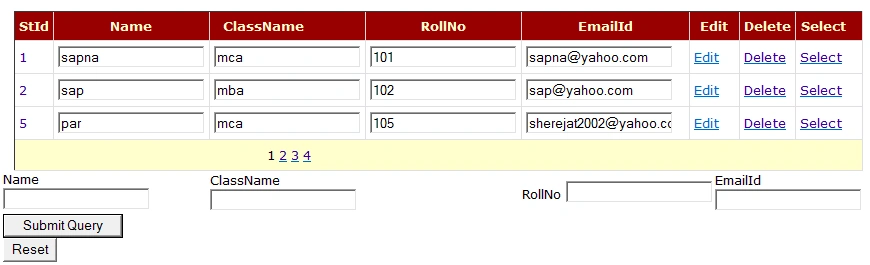
Now build and run the application. The results looks like following.
Figure 1.
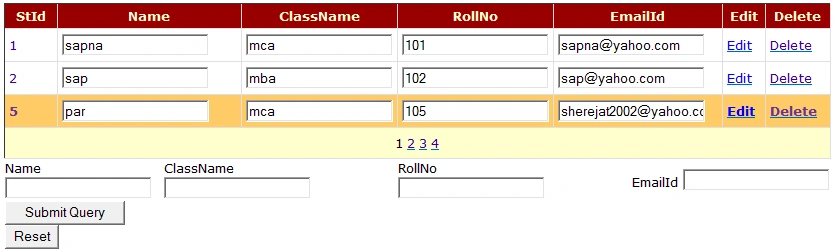
Select command is used to select a particular row on select LinkButton click
- <asp:CommandField HeaderText="Select" ShowSelectButton="True" ShowHeader="True" />
Result looks like this on the select link.
Figure 2.
This event is used for paging. As you can see from the code below, we simply set a new page index and rebind the data.
- protected void GridView1_PageIndexChanging(object sender, GridViewPageEventArgs e) {
- GridView1.PageIndex = e.NewPageIndex;
- BindData();
- }
This event shows how to delete a row on delete LinkButton click.
- protected void GridView1_RowDeleting(object sender, GridViewDeleteEventArgs e) {
- con = new SqlConnection(ConfigurationSettings.AppSettings["connect"]);
- cmd.Connection = con;
- Label lbldeleteID = (Label) GridView1.Rows[e.RowIndex].FindControl("lblstId");
- cmd.CommandText = "Delete from StudentRecord where StId='" + lbldeleteID.Text + "'";
- con.Open();
- cmd.ExecuteNonQuery();
- con.Close();
- BindData();
- }
This event is used to show a row in editable mode.
- protected void GridView1_RowEditing(object sender, GridViewEditEventArgs e) {
- GridView1.EditIndex = e.NewEditIndex;
- BindData();
- }
This event will update information in database.
- protected void GridView1_RowUpdating(object sender, GridViewUpdateEventArgs e) {
- con = new SqlConnection(ConfigurationSettings.AppSettings["connect"]);
- Label lblstid = (Label) GridView1.Rows[e.RowIndex].FindControl("lblstId");
- TextBox txtname = (TextBox) GridView1.Rows[e.RowIndex].FindControl("txtName");
- TextBox txtclassname = (TextBox) GridView1.Rows[e.RowIndex].FindControl("txtClassName");
- TextBox txtrollno = (TextBox) GridView1.Rows[e.RowIndex].FindControl("txtRollNo");
- TextBox txtemailid = (TextBox) GridView1.Rows[e.RowIndex].FindControl("txtEmailId");
- cmd.Connection = con;
- cmd.CommandText = "Update StudentRecord set Name='" + txtname.Text + "',ClassName='" + txtclassname.Text + "',RollNo='" + txtrollno.Text + "',EmailId='" + txtemailid.Text + "' where StId='" + lblstid.Text + "'";
- cmd.Connection.Open();
- cmd.ExecuteNonQuery();
- GridView1.EditIndex = -1;
- BindData();
- con.Close();
- }
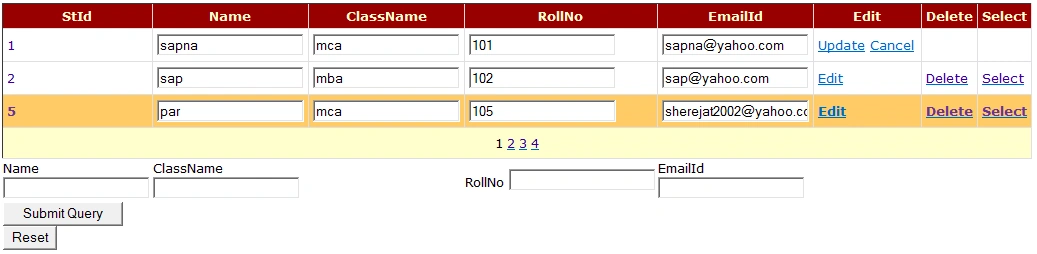
Result will look like this
Figure 3.
This event is used to cancel editable model.
- protected void GridView1_RowCancelingEdit(object sender, GridViewCancelEditEventArgs e) {
- GridView1.EditIndex = -1;
- BindData();
- }
Ramendra kumar vermaPosted Feb 2, 2018, 12:33 PM
I want dropdown control find label
Prem SahaniPosted Jun 8, 2017, 4:56 AM
Thanks bro great and easy way explained, really this is helpful for me
Gajendra SinghPosted Aug 26, 2016, 4:55 AM
Thanks easily code given
Sandeep KumarPosted Jan 27, 2015, 12:22 AM
how can i download this code?
Anurag SarkarPosted Jul 17, 2013, 4:14 AM
THANX
anil babueditedPosted Nov 29, 2012, 7:56 AMEdited Nov 29, 2012, 7:57 AM
Nice Thank you, Can you Me same funtionality display two tables data(Not for all columns Soma columns only) in a single Gridview And also perform Update delete operations, any methos plz help me the complete simple example
anuj chaudharyPosted Jun 25, 2012, 6:00 AM
Great and nice article
anuj chaudharyPosted Jun 25, 2012, 6:00 AM
GREAT AND NICE ARTICAL SAPNAAAAAAAAAAAAAA GGGGGGGGGGGGGG
anuj chaudharyPosted Jun 25, 2012, 6:00 AM
GREAT AND NICE ARTICAL SAPNAAAAAAAAAAAAAA GGGGGGGGGGGGGG
anuj chaudharyPosted Jun 25, 2012, 6:00 AM
GREAT AND NICE ARTICAL SAPNAAAAAAAAAAAAAA GGGGGGGGGGGGGG
anuj chaudharyPosted Jun 25, 2012, 6:00 AM
GREAT AND NICE ARTICAL SAPNAAAAAAAAAAAAAA GGGGGGGGGGGGGG
Mir IshaqPosted Jan 20, 2012, 10:24 AM
I want my Grid View Cells should look like textboxes only after clicking the update button. Please update the solution.
jaheena jamalPosted Mar 17, 2011, 2:45 AM
Hai Sapna, This is very very good article. Thankyou So much to write this informative article. This is very helpful to me and people like as a beginner in this field. I invite more article from you like this informative topics. Thanks a lot Jaheena
saifullah khanPosted Nov 3, 2010, 2:53 AM
200/100
B M SuchitraPosted Jun 8, 2010, 10:01 PM
Hi.. thanks 4 d gr8 code... i have a prob in my project.. i am not able to retrieve images 4m sql 2005 and display it in gridview.. can u plzz help me
Maria MaakePosted Sep 10, 2009, 7:57 AM
Hi Raj, i've downloaded the zip files and getting this error, am sure it has to do my database connection, please help as I'm not experienced in databases An error has occurred while establishing a connection to the server. When connecting to SQL Server 2005, this failure may be caused by the fact that under the default settings SQL Server does not allow remote connections. (provider: Named Pipes Provider, error: 40 - Could not open a connection to SQL Server)
Rahul Kumar SaxenaPosted Aug 10, 2009, 12:33 AM
Nice to see such usefull content from ur side...keep it up ANJU
Former memberPosted Aug 7, 2009, 4:38 AM
Good article. It is really informative and adhering to a baic language . I would appreciate more , if you would attach source code as well. Thank you :)