

Here we use two Stack Panels. One is the containing panel and the other is the dropping panel.

There are four items in the lower panel. We can drag and drop or a single click can also move objects from one panel to the other.
Now let us see how the code can be:
XAML
In the designer we have
The Visual tree of control is as in the figure below. The scroll bar can be used as the requirements and number of items in the Item slider.
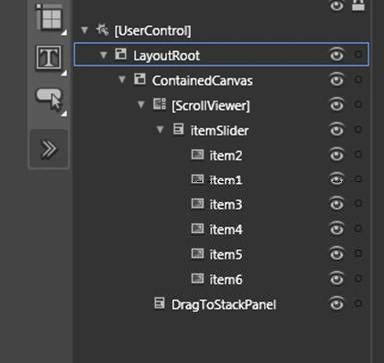
The code is:
<Canvas x:Name="LayoutRoot" Background="White" Height="534" Margin="0,0,-200,0"
<Canvas x:Name="ContainedCanvas" Background="#FFC7F2F6" Height="476" Width="832"
<StackPanel x:Name="itemSlider" RenderTransformOrigin="0.5,0.5" Orientation="Horizontal"
HorizontalAlignment="Left">
<StackPanel.RenderTransform>
<TransformGroup>
<ScaleTransform/>
<SkewTransform/>
<RotateTransform/>
<TranslateTransform/>
</TransformGroup>
</StackPanel.RenderTransform>
<Image Source="images/Creek.jpg" Stretch="Fill" x:Name="item2" HorizontalAlignment="Left"
Tag="draggable"
VerticalAlignment="Top"d:LayoutOverrides="HorizontalMargin"/>
<Image HorizontalAlignment="Left" x:Name="item1" Source="images/Autumn-Leaves.jpg" Stretch="Fill" Tag="draggable" VerticalAlignment="Top"/>
<Image Source="Images/Desert-Landscape.jpg" Stretch="Fill" x:Name="item3" Margin="10,0,0,0"
HorizontalAlignment="Left" Tag="draggable"VerticalAlignment="Top"/>
<Image Source="images/Forest-Flowers.jpg" Stretch="Fill" x:Name="item4" Margin="10,0,0,0"
HorizontalAlignment="Left" Tag="draggable"VerticalAlignment="Top"/>
</StackPanel>
<StackPanel x:Name="DragToStackPanel" HorizontalAlignment="Left" Background="#FFEED6D6"
Height="300" Width="830" Orientation="Horizontal"/>
</Canvas>
</Canvas>
Now you have the look of the application.
Next is the real interesting part the code behind that makes the whole thing possible.
Note: Please note that all the draggable controls are tagged as "draggable"
Code Behind
The methods to be noted in each event
| Event | Method | Functionality | Return |
| MouseLeftButtonDown | CaptureMouse | Sets mouse capture to a System.Windows.UIElement. | Returns true if the object has mouse capture; otherwise, returns false. |
| MouseMove | No specific method of the UI element related to this event but keeps track of the position of the mouse | ||
| MouseLeftButtonUp | ReleaseMouseCapture | Removes mouse capture from a System.Windows.UIElement. | After this call, typically no object holds mouse capture. |
Now let us see each event in detail.
MouseLeftButtonDown
public void objFrameworkElement_MouseLeftButtonDown(object sender, MouseButtonEventArgs e)
{
//Start Drag
FrameworkElement objFrameworkElement = (FrameworkElement)sender;
objFrameworkElement.CaptureMouse();
// Set the starting point for the drag
StartingDragPoint = e.GetPosition(objFrameworkElement);
// Remove the element from it's control and move it to the parent
// if it's Tag contains the words [draggable]
if (objFrameworkElement.Tag.ToString().Contains("draggable"))
{
ContainingParent = objFrameworkElement.Parent as Panel;
ContainingParent.Children.Remove(objFrameworkElement);
this.LayoutRoot.Children.Add(objFrameworkElement);
UpdateElementPosition(objFrameworkElement, e.GetPosition(this.LayoutRoot));
}
objFrameworkElement.MouseMove += new MouseEventHandler(objFrameworkElement_MouseMove);
objFrameworkElement.MouseLeftButtonUp += new MouseButtonEventHandler(objFrameworkElement_MouseLeftButtonUp);
}
MouseMove
void objFrameworkElement_MouseMove(object sender, MouseEventArgs e)
{
FrameworkElement objFrameworkElement = (FrameworkElement)sender;
Canvas objCanvas = (Canvas)objFrameworkElement.Parent;
Point Point = e.GetPosition(objCanvas);
UpdateElementPosition(objFrameworkElement, Point);
}
Update-element-position method
private void UpdateElementPosition(FrameworkElement objFrameworkElement, Point Point)
{
Canvas.SetLeft(objFrameworkElement, Point.X - StartingDragPoint.X);
Canvas.SetTop(objFrameworkElement, Point.Y - StartingDragPoint.Y); }
MouseLeftButtonUp
void objFrameworkElement_MouseLeftButtonUp(object sender, MouseButtonEventArgs e)
{
//Stop Drag
FrameworkElement objFrameworkElement = (FrameworkElement)sender;
objFrameworkElement.ReleaseMouseCapture();
objFrameworkElement.Width=300;
objFrameworkElement.Height=300;
objFrameworkElement.MouseMove -=
new MouseEventHandler(objFrameworkElement_MouseMove);
objFrameworkElement.MouseLeftButtonUp -=
new MouseButtonEventHandler(objFrameworkElement_MouseLeftButtonUp);
// If it is an element marked [draggable]
// try to drop it on a panel stored in the colPanels collection
if (objFrameworkElement.Tag.ToString().Contains("draggable"))
{
if (ContainingParent == itemSlider)
{
DraggedToParent = DragToStackPanel;
objFrameworkElement.Width = 300;
objFrameworkElement.Height = 300;
}
else
{
DraggedToParent = itemSlider;
objFrameworkElement.Width = 200;
objFrameworkElement.Height = 150;
}
// Grab the position of the element being dragged in relation to it's position on the
// main canvas and it's position in relation to the panel it may be dropped on
Point mousePos1 = e.GetPosition(DraggedToParent);
Point mousePos2 = e.GetPosition(objFrameworkElement);
// Remove the element from the main canvas
this.LayoutRoot.Children.Remove(objFrameworkElement);
DraggedToParent.Children.Add(objFrameworkElement);
Canvas.SetLeft(objFrameworkElement, mousePos1.X - mousePos2.X);
Canvas.SetTop(objFrameworkElement, mousePos1.Y - mousePos2.Y);
}
}
By implementing these we can achieve the dragging of a UI element into a different panel.
Happy Coding!
Reema BegumPosted Sep 15, 2021, 8:11 AM
Not able to extract zip file .. Any suggestion on this ?
Alex SilvaPosted May 16, 2013, 1:49 PM
unable to extract as zip file is corrupted
gowthami KPosted Jul 30, 2012, 5:49 AM
Hi, Im new to C# and Silverlight. how will i declare ContainingParent and DraggedToParent in the above code.this throws error saying - it doesnot exist in the current context.Plz help Thanx
gowthami KPosted Jul 30, 2012, 5:49 AM
Hi, Im new to C# and Silverlight. how will i declare ContainingParent and DraggedToParent in the above code.this throws error saying - it doesnot exist in the current context.Plz help Thanx
Mateo yeyePosted Oct 20, 2010, 6:15 PM
Hey, I wanted to download the zip file but it is currupted. Could you upload it again? Thanks
sen ethPosted Oct 12, 2010, 10:12 AM
unable to extract as zip file is corrupted
Bashar BelbeisieditedPosted Oct 8, 2009, 2:59 PMEdited Oct 8, 2009, 3:09 PM
what i need is to add a line or fade element between two elements to show the position that i'll drop to. Here is the class using System; using System.Collections.Generic; using System.Linq; using System.Windows; using System.Windows.Controls; using System.Windows.Documents; using System.Windows.Input; using System.Windows.Media; using System.Windows.Media.Animation; using System.Windows.Shapes; using System.Windows.Controls.Primitives; using System.Diagnostics; ////////////////////////////////////////////////////////////////// // // //This code is provided As-Is and confers no rights. // // // ////////////////////////////////////////////////////////////////// namespace DragDropApplication { //This class allows UIElements to be dragged around and to be dropped into another Panel. //Elements which need to able to be dragged should be registered as draggable by calling the //RegisterDraggable method. Panels which are to have elements dragged into them should be //registered as drop targets by calling RegisterDropTarget. //As it stands, there are a number of limitations with this implementation: //1. The logic does not take into account RenderTransforms applied to either elements or Panels. //2. If multiple drop target panels overlap at a point where an element is dropped, the DragDropManager // will drop the element into the first Panel it finds, which may or may not be the Panel which is // rendered above the others. //3. Most Controls will be unusable while they are registered as draggable, since the // MouseLeftButtonDown event handler removes the element from the tree and re-adds it. Controls // should be unregistered for normal use. //4. All draggable elements must be inside Panels (not UserControls, Broders, ListBoxes, etc). //All of the above limitations could be fixed reasonably easily with modifications to be below code. public class DragDropManager { public delegate void DragComplete(object sender, object target, EventArgs e, bool registerEvent); public event DragComplete DragSuccessful; //A list of Panels which can have elements dragged into them private List<Panel> dropTargets = new List<Panel>(); //This Canvas is used to hold elements while they are being dragged. private Canvas topCanvas; //This is the point on the element by which it is being dragged private Point grabPoint; //if the element is not dragged into a valid drop target, then it is //placed back to where it was originally. These variables are required //to restore the element to its previous location. private double backupCanvasLeft, backupCanvasTop; private int backupChildIndex; private Panel backupParent; public DragDropManager(Canvas topCanvas) { this.topCanvas = topCanvas; } public void RegisterDraggable(UIElement element) { element.MouseLeftButtonDown += ElementMouseLeftButtonDown; } public void UnRegisterDraggable(UIElement element) { element.MouseLeftButtonDown -= ElementMouseLeftButtonDown; } public void RegisterDropTarget(Panel panel) { dropTargets.Add(panel); } public void UnRegisterDropTarget(Panel panel) { if (dropTargets.Contains(panel)) { dropTargets.Remove(panel); } } //Start draqgging the element private void ElementMouseLeftButtonDown(object sender, MouseButtonEventArgs e) { FrameworkElement element = sender as FrameworkElement; Panel parent = element.Parent as Panel; if (parent!= null && element.CaptureMouse()) { element.MouseLeftButtonUp += ElementMouseLeftButtonUp; element.MouseMove += ElementMouseMove; backupChildIndex = parent.Children.IndexOf(element); backupCanvasLeft = Canvas.GetLeft(element); backupCanvasTop = Canvas.GetTop(element); backupParent = parent; parent.Children.Remove(element); topCanvas.Children.Add(element); topCanvas.UpdateLayout(); grabPoint.X = element.ActualWidth /2; grabPoint.Y = element.ActualHeight /2; UpdateElementPosition(element, e.GetPosition(topCanvas)); } } private void ElementMouseMove(object sender, MouseEventArgs e) { Point point = e.GetPosition(topCanvas); UpdateElementPosition(sender as FrameworkElement, point); } private void UpdateElementPosition(FrameworkElement element, Point mousePoint) { Canvas.SetLeft(element, mousePoint.X - grabPoint.X); Canvas.SetTop(element, mousePoint.Y - grabPoint.Y); } //End the dragging operation. private void ElementMouseLeftButtonUp(object sender, MouseButtonEventArgs e) { FrameworkElement element = sender as FrameworkElement; element.ReleaseMouseCapture(); element.MouseLeftButtonUp -= ElementMouseLeftButtonUp; element.MouseMove -= ElementMouseMove; //Try to find a Panel to insert the element into. //The following code is the source of limitation #2 listed above. //Instead of checking the ActualWidth and ActualHeight of the Panel, //the UIElement.HitTest method could be used, which can be used to determine //which Panel is above all others at the specified point. //However, this method would require all targets to have a non-null Background set; //the hit-test works against the visuals in the tree. bool foundTargetPanel = false; int index = 0; while (index < dropTargets.Count && !foundTargetPanel) { Panel panel = dropTargets[index]; //Get the moue position relative to the Panel: Point mousePos = e.GetPosition(panel); if (mousePos.X >= 0 && mousePos.Y >= 0 && mousePos.X <= panel.ActualWidth && mousePos.Y <= panel.ActualHeight) { topCanvas.Children.Remove(element); AddElementToPanel(element, panel, mousePos); foundTargetPanel = true; DragSuccessful(element, panel, new EventArgs(), false); } index++; } //if valid drop target Panel is not found, restore the element to its original location if (!foundTargetPanel) { topCanvas.Children.Remove(element); Canvas.SetLeft(element, backupCanvasLeft); Canvas.SetTop(element, backupCanvasTop); backupParent.Children.Insert(backupChildIndex, element); } } private void AddElementToPanel(FrameworkElement element, Panel panel, Point point) { if (panel is StackPanel) { AddElementToStackPanel(element, panel as StackPanel, point); } else if (panel is Grid) { AddElementToGrid(element, panel as Grid, point); } else if (panel is Canvas) { AddElementToCanvas(element, panel as Canvas, point); } else { panel.Children.Add(element); } } private void AddElementToCanvas(FrameworkElement element, Canvas canvas, Point point) { Canvas.SetLeft(element, point.X - grabPoint.X); Canvas.SetTop(element, point.Y - grabPoint.Y); canvas.Children.Add(element); } private void AddElementToGrid(FrameworkElement element, Grid grid, Point point) { //Determine the correct Row and Column to insert the element into. int column = 0; int row = 0; double y = 0; double x = 0; while (column < grid.ColumnDefinitions.Count) { x += grid.ColumnDefinitions[column].ActualWidth; if (x > point.X) { break; } column++; } while (row < grid.RowDefinitions.Count) { y += grid.RowDefinitions[row].ActualHeight; if (y > point.Y) { break; } row++; } grid.Children.Add(element); Grid.SetColumn(element, column); Grid.SetRow(element, row); } private void AddElementToStackPanel(FrameworkElement element, StackPanel stackPanel, Point point) { //Determine the correct index to insert the element into the StackPanel int index = 0; if (stackPanel.Orientation == Orientation.Vertical) { double y = 0; while (index < stackPanel.Children.Count) { var child = stackPanel.Children[index]; var slot = LayoutInformation.GetLayoutSlot(child as FrameworkElement); y = slot.Bottom - (child as FrameworkElement).Margin.Bottom; if (y > point.Y) { break; } index++; } } else { double x = 0; while (index < stackPanel.Children.Count) { var child = stackPanel.Children[index]; var slot = LayoutInformation.GetLayoutSlot(child as FrameworkElement); x = slot.Right - (child as FrameworkElement).Margin.Right; if (x > point.X) { break; } index++; } } stackPanel.Children.Insert(index, element); } private void AddElementToStackPanel2(FrameworkElement element, StackPanel stackPanel, Point point) { //Determine the correct index to insert the element into the StackPanel int index = 0; if (stackPanel.Orientation == Orientation.Vertical) { double y = 0; while (index < stackPanel.Children.Count-1) { var child = stackPanel.Children[index]; var slot = LayoutInformation.GetLayoutSlot(child as FrameworkElement); y = slot.Bottom - (child as FrameworkElement).Margin.Bottom; if (y > point.Y) { break; } index++; } } else { double x = 0; while (index < stackPanel.Children.Count) { var child = stackPanel.Children[index]; var slot = LayoutInformation.GetLayoutSlot(child as FrameworkElement); x = slot.Right - (child as FrameworkElement).Margin.Right; if (x > point.X) { break; } index++; } } //stackPanel.Children.Insert(index, element); } } } thank you so much
Bashar BelbeisiPosted Oct 8, 2009, 11:43 AM
on mousemove how can i mark the dropping place while dragging before dropping to show where am gonna drop the item?