

Introduction
For the past few years, the image sliders, slide-shows, and Ad Rotator scripts have become increasingly popular for web pages. There are thousands of these scripts on the Web but is difficult to find one that fit my requirements. I want a script that is flexible enough for me to use it as a Ad Rotator, slide-shows or image rotator with navigation controls and extract the slides information from XML file.
After spending some time researching for it, I found the jQuery based slideshow with navigation controls from
Dynamic Drive and the article reading-xml-with-jquery.
I had put together these finding and a brief tutorial "jQuery
slideshow with XML".
Recently, I decided to encapsulate this into ASP.NET User Controls to increase reusability of code. Now, I can have multiple instances of this control on my page and I can customize the width and height, options to hide or show navigation controls, XML file source, and others setting for each instance. I have put together a step by step tutorial on how I have accomplished this.
Figure 1

Check List
Simple Controls Gallery v1.3
reading-xml-with-jquery
jquery-1.3.2.min.js
Getting Started
Before we begin, make sure to download a copy of the Simple Controls Gallery v1.3 from Dynamic Drive, Reading XML with JQuery and the latest version of
jQuery JavaScript Library. Here is the structure of my project. You are welcome to download this demo.
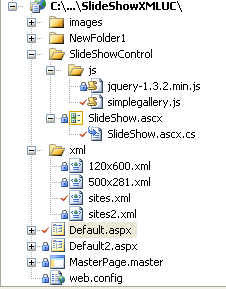
Putting everything together
SlideShow.ascx.cs
First, add a Web User Control to the project and create public properties and methods to allow interaction with the control at design-time or programmatically.
Listing 1
//slide div
    public string WrapperID
    {
        get { return this.ClientID + "Div"; }
    }
The WrapperID will return the unique id of the User Control. Every time we drop an ASP.NET User Control on to a page,
it will automatically include an ID property that uniquely identifies the control. The ID value is the combination of the tagname and a number.
If the tagname of the User Control is "SlideShow", the WrapperID will return SlideShow1Div, SlideShow2Div …SlideShowNDiv.
Listing 2
private int _width =728;
    [DefaultValue(728)]
    public int Width
    {
        set { this._width = value; } get { return this._width; }
    }
    //height of the slide
    private int _height = 95;
    [DefaultValue(95)]
    public int Height
    {
        set { this._height = value; }  get { return this._height; }
    }
Add the Width and Height properties to allow us to adjust the height and width of the div control.
Listing 3
// autoplay true|false
    private bool _autoPlay = true;
    [DefaultValue(true)]
    public bool AutoPlay
    {
        get { return this._autoPlay; }  set { this._autoPlay = value; }
    }

    // Show Navigation Control true|false
    private bool _showNavigation = true;
    [DefaultValue(true)]
    public bool ShowNavigation
    {
        get { return this._showNavigation; } set{ this._showNavigation = value; }
    }

    private int _delay_btw_slide = 10000;
    /// delay between slide in miliseconds
    [DefaultValue(10000)]
    public int Delay_btw_slide
    {
        set { this._delay_btw_slide = value; }   get { return this._delay_btw_slide; }
    }

    private int _fadeDuration = 2000;
    /// transition duration (milliseconds)
    [DefaultValue(2000)]
    public int FadeDuration
    {
        set { this._fadeDuration = value; }  get { return this._fadeDuration; }
    }
    private int _cycles_before_stopping = 99;
    /// cycles befote stopping
    [DefaultValue(99)]
    public int Cycles_before_stopping
    {
        set { this._cycles_before_stopping = value; } get { return this._cycles_before_stopping; }
    }

    // previous button
    private string _btnPrevious = "~/images/previous.gif";
    [Category("Appearance"), Localizable(true)]
    [Description("Previous button"), DefaultValue("~/images/previous.gif"), Bindable(true)]
    [Editor("System.Web.UI.Design.ImageUrlEditor, System.Design, Version=2.0.0.0, Culture=neutral,
	PublicKeyToken=b03f5f7f11d50a3a", typeof(UITypeEditor))]    [UrlProperty]
    public string BtnPrevious
    {
        get { return this._btnPrevious; } set { this._btnPrevious = value;}
    }
    // Next button

    // Play button

// Pause button
AutoPlay - true = start the slide show automatically without pressing the play button and vice versa.
ShowNavigation - true = show the navigation control or false = hide the navigation control
Delay_btw_slide - get or set the delay between each image slide.
FadeDuration - get or set the fade duration between each slide.
Cycles_before_stopping - get or set the number of rotation before stopping the rotation. If we set 99, it will rotate 99 times and stop until we hit the play button again.
BtnPrevious, BtnNext, BtnPlay, BtnPause - get or set the image for previous, next, play and the pause button respectively. These properties accept relative URL or absolute URL path to the button images. Make sure to place the images folder at the root directory of the application if you are using relative URL.
Listing 4
//xml file
    private string _xmlSource = "~/xml/sites.xml";
    [UrlProperty]
    [Bindable(true)]
    [DefaultValue("~/xml/sites.xml")]
    public string XMLSource
    {
        get { return this._xmlSource; } set { this._xmlSource = value; }
    }
//xPath
    private string _xPath = "site";
    [DefaultValue("site")]
    public string xPath
    {
        get { return this._xPath; }  set { this._xPath = value; }
    }
Add a property to get and set the XML source path. The default path is set to ~/xml/sites.xml.
This property accepts relative URL or absolute URL path to the XML file. Make sure to place the XML
folder at the root directory of the application if you are using relative URL. Then add another property, XPATH,
to navigate through elements and attributes in the XML document.
Listing 5
void CreateScript()
    {
        StringBuilder ssScript = new StringBuilder(string.Empty);
        string arrName = "myArray" + this.WrapperID;

        //read XML
        ssScript.Append("var " + arrName+ "= [];");
        ssScript.Append("$(document).ready(function() {");
        ssScript.Append(" $.ajax({");
        ssScript.Append("type: \"GET\",");
        ssScript.Append("url: '" + ResolveUrl(XMLSource) + "',");
        ssScript.Append("cache: true,");
        ssScript.Append("dataType: \"xml\",");
        ssScript.Append("success: function(xml) {");
        ssScript.Append("var count = 0;");
        ssScript.Append("$(xml).find('" + xPath + "').each(function() {");

        ssScript.Append(" var url = $(this).find('url').text();");
        ssScript.Append("var target = $(this).find('target').text();");
        ssScript.Append("var imageURL = $(this).find('imageURL').text();");
        ssScript.Append("var alt = $(this).find('alt').text();");

        ssScript.Append(arrName + "[parseInt(count)] = new Array(imageURL, url, target, alt); ");
        ssScript.Append("count++;");
        ssScript.Append("});");

        //slide-shows
        ssScript.Append(" var mygallery"+this.WrapperID+" = new simpleGallery({");
        ssScript.Append(" wrapperid: '" + this.ClientID + "_" + this.WrapperID + "',");
		//width/height of gallery in pixels. Should reflect dimensions of the images exactly
        ssScript.Append("dimensions: [" + Width.ToString() + ","+ Height.ToString()+"],");
        ssScript.Append("imagearray: "+arrName+","); //array of images
        ssScript.Append("navimages: ['" + ResolveUrl(BtnPrevious) + "', '" + ResolveUrl(BtnPlay) + "', '" + ResolveUrl(BtnNext) + "', '" + ResolveUrl(BtnPause) + "'],");
        ssScript.Append("showpanel: '" + ShowNavigation.ToString().ToLower() + "',");
        ssScript.Append(" autoplay: [" + AutoPlay.ToString().ToLower() + "," + Delay_btw_slide.ToString() + "," + Cycles_before_stopping.ToString() + "],");
		//[auto_play_boolean, delay_btw_slide_millisec, cycles_before_stopping_int]
        ssScript.Append(" persist: true,");
        ssScript.Append(" fadeduration:" + FadeDuration.ToString() + ","); //transition duration (milliseconds)
        ssScript.Append(" oninit: function() {"); //event that fires when gallery has initialized/ ready to run
        ssScript.Append("  },");
        ssScript.Append("  onslide: function(curslide, i) {"); //event that fires after each slide is shown
        //curslide: returns DOM reference to current slide's DIV (ie: try alert(curslide.innerHTML)
        //i: integer reflecting current image within collection being shown (0=1st image, 1=2nd etc)
        ssScript.Append("   }");
        ssScript.Append("  })");
        ssScript.Append("  }");
        ssScript.Append("   });");
        ssScript.Append(" });");

        ClientScriptManager jScript = Page.ClientScript;
        jScript.RegisterClientScriptBlock(this.GetType(), Guid.NewGuid().ToString(), ssScript.ToString(), true);
    }
Then add a method to render the JavaScript programmatically. The main purpose of this JavaScript is to read the slide information
from the XML file into an array and initialize the slide-show properties. The key items of this JavaScript are the array variable,
HTML div control and the slide-shows variable. In order to have multiple instances of the slide-shows on the page, we have to ensure
that the unique ids and name are being assigned to the mentioned key items. We can utilize the WrapperID property to create a unique names
and ids for each instance. Note that ResolveUrl method is being utilized so that the browser can resolve the URL of the images and XML file.
The rest of the code is very straight forward; you can download the original
code from Dynamic
Drive to compare the changes.
Listing 6
void CreateDiv()
    {
        System.Web.UI.HtmlControls.HtmlGenericControl ssDivWrapper = new System.Web.UI.HtmlControls.HtmlGenericControl("div");
        ssDivWrapper.ID = this.WrapperID;
        ssDivWrapper.Style.Add("background", "white none repeat scroll 0% 0%");
        ssDivWrapper.Style.Add(HtmlTextWriterStyle.Overflow, "hidden");
        ssDivWrapper.Style.Add(HtmlTextWriterStyle.Position, "relative");
        ssDivWrapper.Style.Add(HtmlTextWriterStyle.Visibility, "visible");
        ssDivWrapper.Style.Add(" -moz-background-clip", "border");
        ssDivWrapper.Style.Add("-moz-background-origin", "padding");
        ssDivWrapper.Style.Add("-moz-background-inline-policy", "continuous");

        this.Controls.Add(ssDivWrapper);
    }
The CreateDiv method will generate the HTML div on the page dynamically.
Listing 7
//load the javascript
    internal void LoadJScript()
    {
        ClientScriptManager script = Page.ClientScript;
        //prevent duplicate script
        if (!script.IsStartupScriptRegistered(this.GetType(), "JQuerySlideShowJS"))
        {
            script.RegisterClientScriptBlock(this.GetType(), "JQuerySlideShowJS",
            "<!-- Inject Script Filtered -->");
        }

        if (!script.IsStartupScriptRegistered(this.GetType(), "SimpleGalleryJS"))
        {
            script.RegisterClientScriptBlock(this.GetType(), "SimpleGalleryJS",
            "<!-- Inject Script Filtered -->");
        }
    }
The purpose of the LoadJScript method is to load the jquery-1.3.2.min.js and simplegallery.js dynamically with no duplicates. With that being said, if we drag 10 slide-shows controls on to a page, it will only add the JavaScript once on to the ASP.NET page. This will help avoid unnecessarily assembling the client-side script.
simplegallery.js
I'm not going to post the whole contents of this JavaScript here but I'll list the changes that I have made.
- Removed the static image buttons properties from the simpleGallery_navpanel interface since the image buttons will be assigned dynamically through the CreateScript method.
- Modified the script to read the image buttons properties from different interface.
- Added logic to hide and display the navigation control through the ShowNavigation property.
- Added alternate text to the image buttons.
Using the Code
Listing 8
<uc1:SlideShow ID="SlideShow2" runat="server" />
Drag and drop the User Control on to the page. Here is the default setting of the User control.
Figure 3

Listing 9
<uc1:SlideShow ID="SlideShow5" runat="server"
	BtnNext="~/images/nav-arrow-right.gif"
      BtnPrevious="~/images/nav-arrow-left.gif" AutoPlay="false" />
Above is an example on how to set the image buttons and AutoPlay property.
Listing 10
<uc1:SlideShow ID="SlideShow7" runat="server" XPath="site500x281"
	Width="500" Height="281" ShowNavigation="true"
      XMLSource="~/xml/500x281.xml"/>
The above example demonstrates on how to set the width, height of the HTML div control. The control is getting the images information from the 500x821.xml file and selecting the site500x281 nodes. By default, the ShowNavigation attribute is set to true.
Listing 11 - More sample usage
<uc1:SlideShow ID="SlideShow6" runat="server" BtnNext="~/images/nav-arrow-right.gif"
        BtnPrevious="~/images/nav-arrow-left.gif"
		XMLSource="~/xml/120x600.xml" XPath="site120x600"
         Width="120" Height="600" />

<uc1:SlideShow ID="SlideShow1" XPath="site120x60" Width="120" Height="60"
                        ShowNavigation="false"
                        runat="server" XMLSource="~/xml/sites2.xml"  />
Conclusion
If you are not sure of the relative path to the images or XML file, I would suggest using absolute links. Please keep in mind that the links to the XML files have to be in the same domain, no cross-domain calls. Also, try not to place all the images information in one XML file for multiple slide-shows controls. Imagine, if we have a XML file of 50KB in size, 10 slide-shows control on the page and each of them consume the identical XML source. It will cost us 500KB bandwidths and degrade the loading speed. I hope someone will find this tutorial useful and share some thoughts with me on how to make it better.
Tested on IE 6.0/7.0/8.0, Google Chrome and Firefox
References
Control ID Naming in Content Pages
Control..::.ResolveUrl Method
Dynamic Drive
How to: Create Instances of ASP.NET User Controls Programmatically
How to: Set ASP.NET Server Control Properties
Page..::.IsStartupScriptRegistered Method
Reading XML with JQuery
Manish Kumar ChoudharyPosted Jan 14, 2015, 12:37 PM
Nice one...
AltafPosted Dec 1, 2010, 11:57 PM
Kidhar se ye idea latein ho yaar. Thanks
Mahesh ChandPosted Nov 12, 2009, 8:19 PM
Great work. I was looking for one control like this. Thanks a lot.