

It is a very interesting feature in Expression Blend that allows a designer to entertain infinite adventures in the designi and development of the next-generation User Interfaces. Not only is designing easy and simple but also it is wonderfully loaded with many interesting tools and stuff. The most appealing thing in Blend is that you can design things to the extremity you can imagine, even without a background in 3D designing.
So enjoying a beautiful experience of creating a small application of a media player in Blend and that too without coding and all the messy things.
Usually Blend handles .Mp4 format of videos and nearly all formats of audio files that are supported by Windows Media Player.
The Media player I am going to create has the following components:
The artboard is divided into two parts, one with a listbox and the other empty.
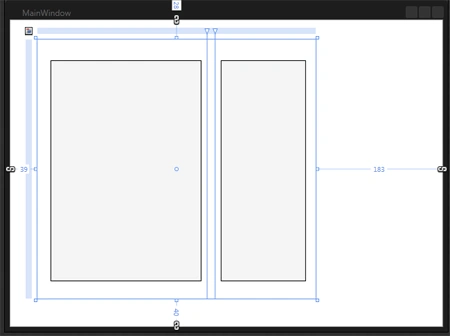
> one listbox with listitems
>a slider control that act as a volume control
>a button that works as stop button
Let's start creating the media player. Use the following instructions.
Step 1 : Add a listbox to the artboard from the tool bar. This listbox acts as control containing playlist of media files. Now right-click on the listbox and select add ListBoxItems. Add as many listboxitems as many media files are available to you to be added to the media player.
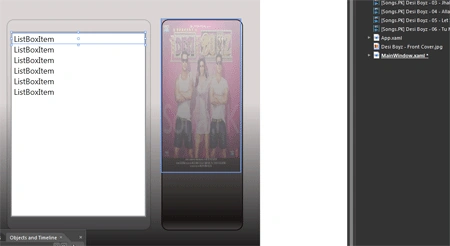
Step 2 : Now add the media files to the project either by dragging and dropping from the storage location or by selecting Project --> add existing item and select the files. After the files have been added to the project select the file and right-click on it and select insert. This inserts the file into the project.
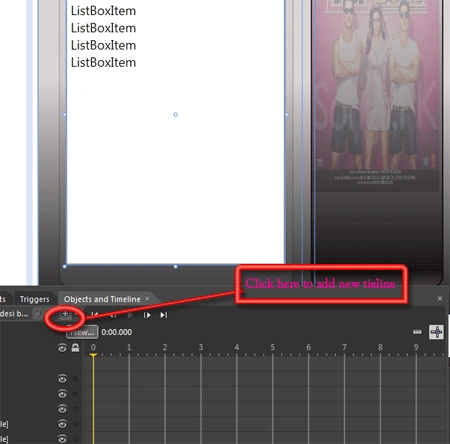
Step 3 : Now goto the Object and Timeline panel and press the "+" sign to add a new timeline to record and add triggers to the events, name the timeline with the name of media file.As soon as the timeline is added, a recording window starts in the design window then turn the record mode off by pressing the red button at the top of the design window and repeat the creation for as many timelines as media files in the project.
Step 4 : Name each listbox item by the name of the media file by right-clicking on the listboxitem and select edit text. Now go to the property window of the listboxitem and at the top part name the listboxitem with the name of media file but remember not to use a space between words.
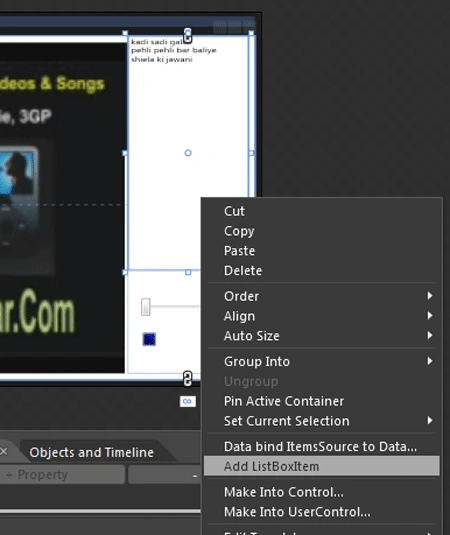
Step 5 : Now the next job is adding triggers to trigger the media file, for this select the listboxitem and click the Trigger button in the Trigger palette
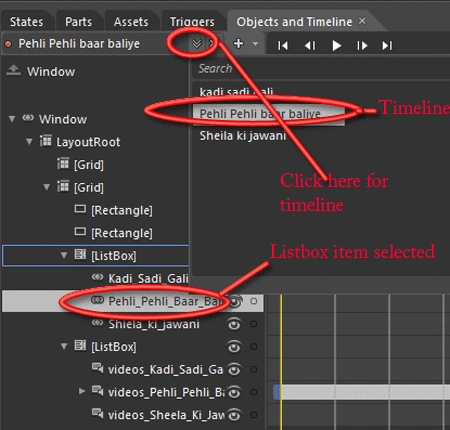
Step 6 : Here we need to Add the functionality that on clicking the listboxitem the respective media file plays on the side panel for this change the default trigger and this is done by clicking the +Event tab and changing the windowloaded trigger such that window is replaced by the name of the "listboxitem" name and loaded is replaced by "Selected" then click the "+" button alongside and choose the name of the timeline that it corresponds and leave it Begin as it is then again press the "+" button and this time select the name of another timeline and set it Stop. Similarly stop all other timelines that do not correspond to the media file.
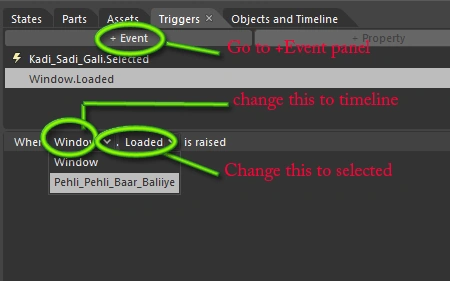
Step 7 : Repeat the steps 6 for all the media files.
Step 8 : You can also test your events and functionality by pressing F5.
Step 9 : Now we need to add volume control to the media player. For this select the slider button from the toolbox and drag it below the listbox either in horizontal orientation or vertical.

Step 10 : Now the slider is to be Data binded with the volume control of media file. For this select the slider and go to common property --> set Maximum = 100.
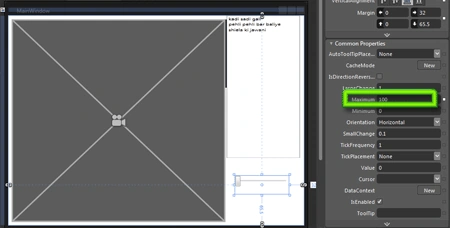
Step 12 : Now select the media file from the Object and Timeline panel and go to property --> Media property --> volume then click the small advance option button --> data binding.
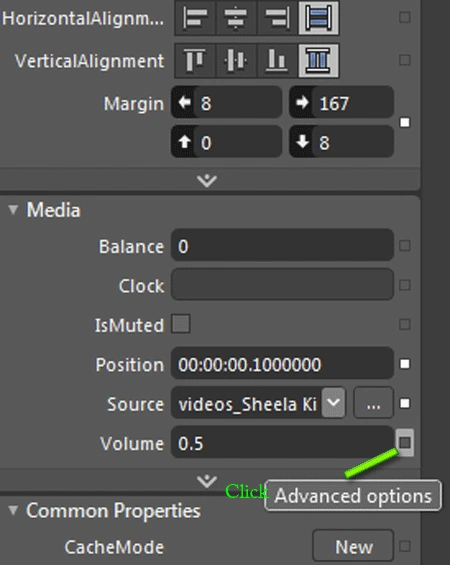
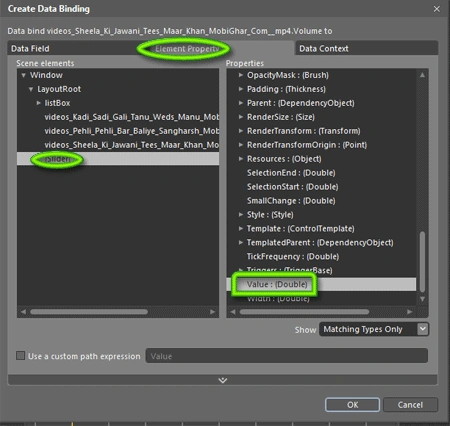
Step 13 : After this a create data binding dialog box opens up. In this select the Elementary property and on the left panel select slider and on the right panel select value.Repeat steps 10 to 12 for all media files.
Step 14 : Now the next task is to add a stop button. For this add a button from the toolbox and resize it to the small size of a stop button. Now to add stop functionality to this button select the button from the Object and Timeline panel --> trigger --> +Event. Now change the window trigger by the name of the button and Loaded trigger by the Click option. Now press the "+" button and select the timelines and set them to stop.do this for all the timelines.
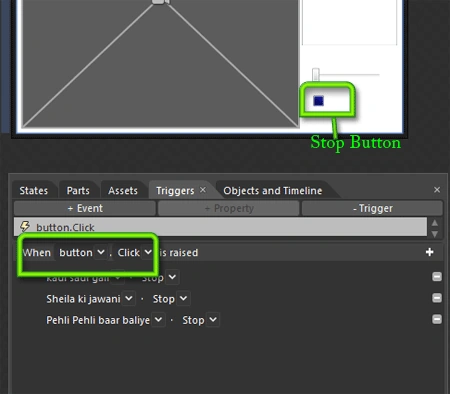
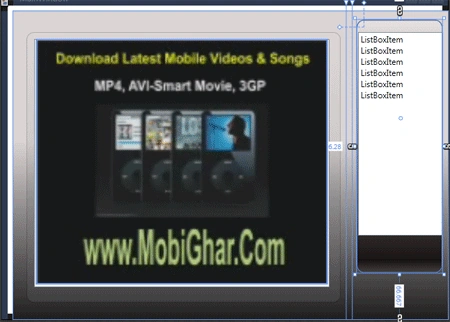
Step 15 : Now the button event is ready to stop the playing of media file and slider can change the volume. Hit F5 and see the Media player working. It's interesting. The output screen looks like this:

Thats all in this article. Hope you found it as interesting in designing as reading this article. Please comment your views.
Join the conversation! Your thoughts help the community grow.