

Many Users are not even aware that they can set up and run some very sophisticated web load tests for an application right from within Visual Studio 2008. I don't know if this is because they don't think testing is important, or just because of a lack of knowledge. Testing is very important; developers need to test the application thoroughly; not just unit tests, but load and performance tests as well before deploying the application into production.
Web Load Testing is very useful in production scenarios. Users can write a web load test and get real-time performance analysis that will enable users to clearly know more about the performance of their application. Web Load Testing can also be used to measure performance and bottlenecks in applications. Users can enlist multiple machines as controllers and multiple machines as agents for load testing.
To set up a web load test project in VS 2008, first we need to set up a load test repository in SQL Server. If you do not have any database, then open up SQL Server Management Studio (SSMS) and use the File/Open/File dialog from the top left of the menu to load the loadtestresultsrepository.sql script from "C:\Program Files\Microsoft Visual Studio 9.0\Common7\IDE". Execute the script and you are done.
Now in Visual Studio 2008, from the top test menu, choose "Manage Test Controllers" and configure your Load Test Results Store to your new database. You are now ready to set up a test.
Step 1: In the existing solution as your C# project, add a new Test Project.
Step 2: Now, Right click the test project node in Solution Explorer and Click on "Add". Now choose a "Web Test" from the displayed list. Now Internet Explorer comes up, this is the Web Test Recorder. User can enter the URL of the initial page that they want to test. The test recorder will record everything that the user does: logging info, navigating to other pages, and so on. When you are done, click the "Stop Recording" link. You've now configured a web test.
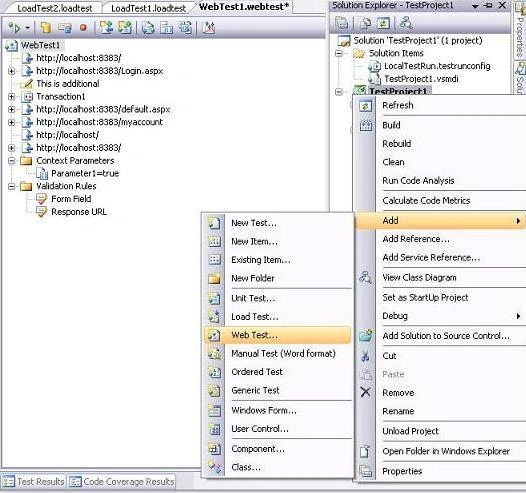
Step 3: Now for adding a load Test. Again from the test project context menu, choose Add and this time select the "Load Test" option from the displayed list. You'll see the following wizard come up. This wizard will walk you through the steps to create a load test.
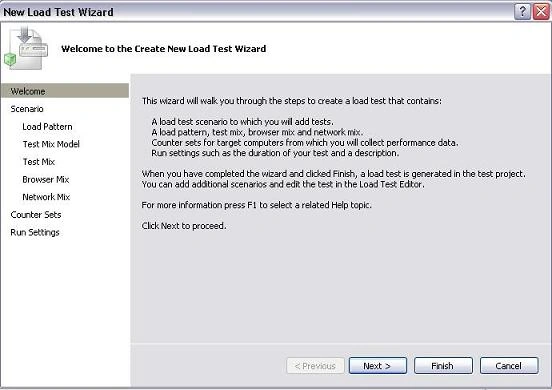
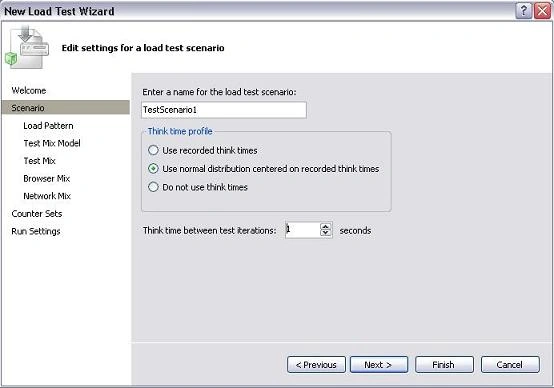
Step 4: This wizard has many options that User will probably want to explore and study. After click on next button a load test scenario wizard appears in which user can edit settings for a load test scenario.
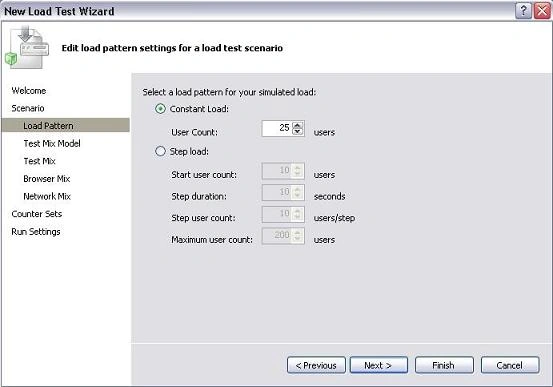
Step 5: Inside load test scenario, a load pattern wizard appears in which user can edit load pattern settings for a load test scenario to simulate load. User can set maximum user count, start user count, step durations etc.
Step 6: After load pattern, Test mix model wizard will appear in which a test mix model can be selected for the load test from the list on the basis of: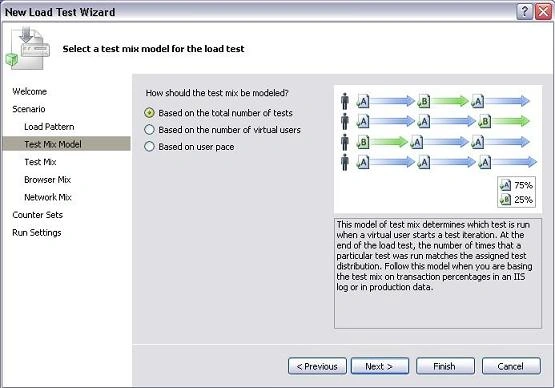
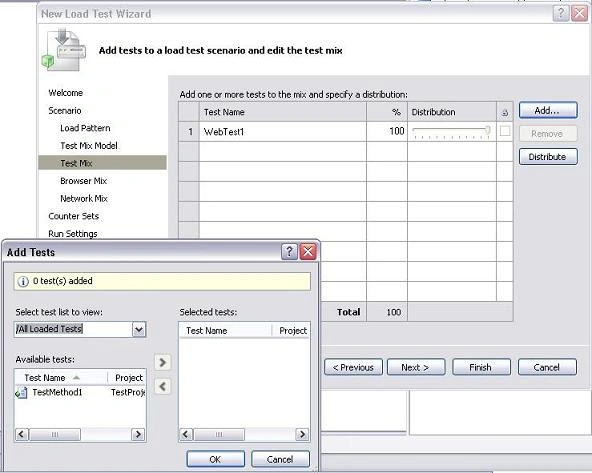
Step 7: After test mix model, test mix wizard will appear in which user can add tests to a load test scenario and can edit the test mix. When you get to the "Test Mix" Wizard page, you must add your "Web Test" that you added in step 2.
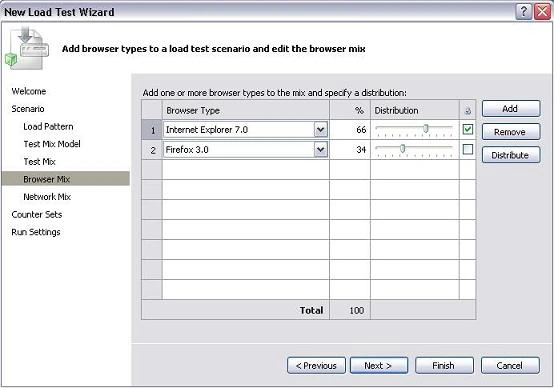
Step 8: After test mix, browser mix wizard will appear in which user can add browser types to a load test scenario and can edit the browser mix.
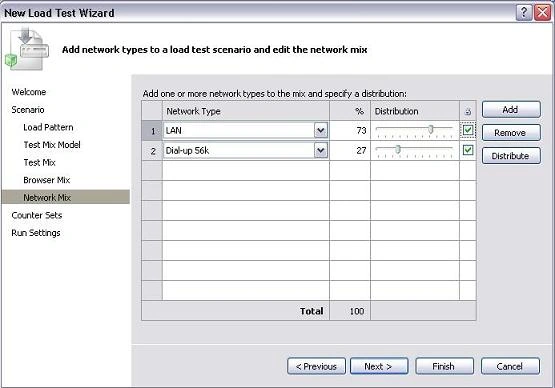
Step 9: After browser mix, network mix wizard will appear in which user can add network types to a load test scenario and can edit the network mix.
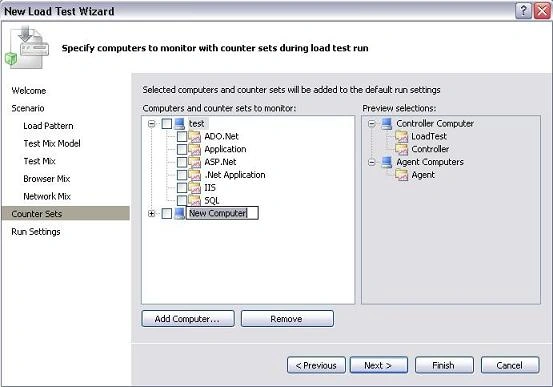
Step 10: After network mix, counter sets wizard will appear in which user can specify computers to monitor with counter sets during load test run and from which user wants to collect the performance data.
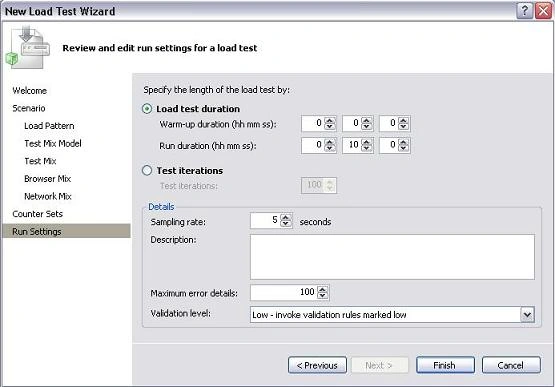
Step 11: After counter sets, run settings wizard will appear in which user can review and edit run settings for a load test such as duration of your test, number of test iterations, sampling rate and its description etc.
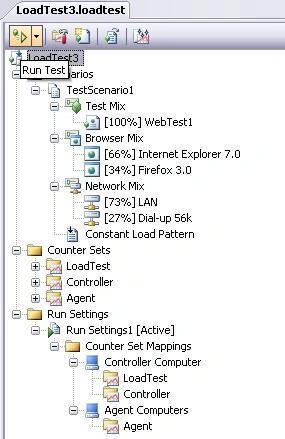
Step 12: After you've completed the Wizard by clicking on finish button, you'll now configure a complete load test, which is ready to run. All the settings done in load test wizard can be verified in test mix, browser mix and network mix on the displayed page. Now to run the load test simply right click on displayed load test name and click on run test or directly click on 'run test' link above the load test name and wait until the load test finished.
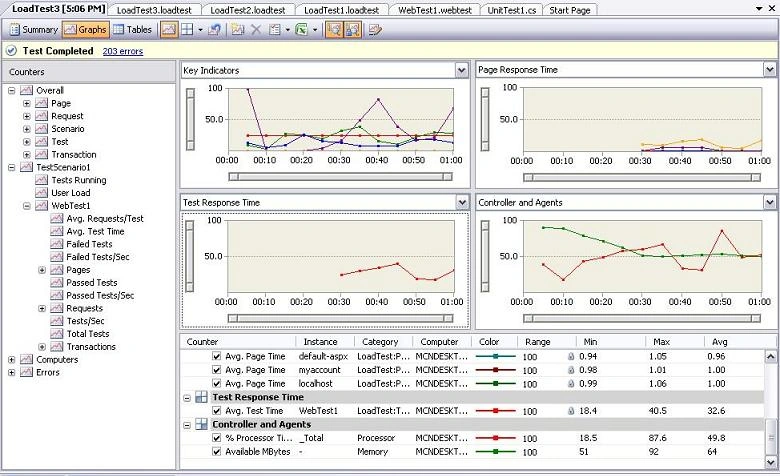
Step 13: After the load test has finished, the result is displayed in the three different ways graph, summary and tables. The result can be easily analyzed by using some performance graphs in real time. Here many types of graphs are displayed like page response time, controllers and agents, test response time and processor time etc. On the basis of these graphs user can analyze and compare at which point system performance is good and at which point the system is heavily loaded.
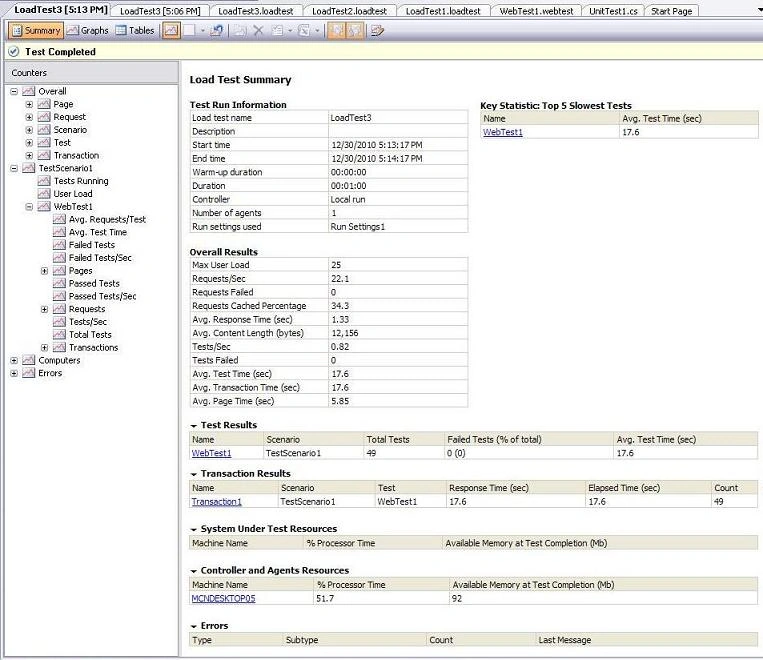
Step 14: On the basis of summary the user can analyze complete load test details about the system and application. The summary contains information about overall results, test run information, top slowest tests and error reports etc. By using the entire details user can know about slow tests and about load when system's performance is not good. Now user can analyze and deliver better system and application by using web load test in VS 2008.
Web Load Testing is very useful in production scenarios. Users can write a web load test and get real-time performance analysis that will enable users to clearly know more about the performance of their application. Web Load Testing can also be used to measure performance and bottlenecks in applications. Users can enlist multiple machines as controllers and multiple machines as agents for load testing.
To set up a web load test project in VS 2008, first we need to set up a load test repository in SQL Server. If you do not have any database, then open up SQL Server Management Studio (SSMS) and use the File/Open/File dialog from the top left of the menu to load the loadtestresultsrepository.sql script from "C:\Program Files\Microsoft Visual Studio 9.0\Common7\IDE". Execute the script and you are done.
Now in Visual Studio 2008, from the top test menu, choose "Manage Test Controllers" and configure your Load Test Results Store to your new database. You are now ready to set up a test.
Step 1: In the existing solution as your C# project, add a new Test Project.
Step 2: Now, Right click the test project node in Solution Explorer and Click on "Add". Now choose a "Web Test" from the displayed list. Now Internet Explorer comes up, this is the Web Test Recorder. User can enter the URL of the initial page that they want to test. The test recorder will record everything that the user does: logging info, navigating to other pages, and so on. When you are done, click the "Stop Recording" link. You've now configured a web test.
Step 3: Now for adding a load Test. Again from the test project context menu, choose Add and this time select the "Load Test" option from the displayed list. You'll see the following wizard come up. This wizard will walk you through the steps to create a load test.
Step 4: This wizard has many options that User will probably want to explore and study. After click on next button a load test scenario wizard appears in which user can edit settings for a load test scenario.
Step 5: Inside load test scenario, a load pattern wizard appears in which user can edit load pattern settings for a load test scenario to simulate load. User can set maximum user count, start user count, step durations etc.
Step 6: After load pattern, Test mix model wizard will appear in which a test mix model can be selected for the load test from the list on the basis of:
- Based on the total number of tests:
This model of test mix determines which test is run when a virtual user starts a test iteration. At the end of the load test, the number of times that a particular test was run matches the assigned test distribution.
- Based on the number of virtual users:
This model of test mix determines the percentage of virtual users who will run a particular test. At any point in the load test, the number of users who are running a particular test matches the assigned distribution.
- Based on user pace:
Over the course of the load test, each test is run the specified number of times per user per hour.
Step 7: After test mix model, test mix wizard will appear in which user can add tests to a load test scenario and can edit the test mix. When you get to the "Test Mix" Wizard page, you must add your "Web Test" that you added in step 2.
Step 8: After test mix, browser mix wizard will appear in which user can add browser types to a load test scenario and can edit the browser mix.
Step 9: After browser mix, network mix wizard will appear in which user can add network types to a load test scenario and can edit the network mix.
Step 10: After network mix, counter sets wizard will appear in which user can specify computers to monitor with counter sets during load test run and from which user wants to collect the performance data.
Step 11: After counter sets, run settings wizard will appear in which user can review and edit run settings for a load test such as duration of your test, number of test iterations, sampling rate and its description etc.
Step 12: After you've completed the Wizard by clicking on finish button, you'll now configure a complete load test, which is ready to run. All the settings done in load test wizard can be verified in test mix, browser mix and network mix on the displayed page. Now to run the load test simply right click on displayed load test name and click on run test or directly click on 'run test' link above the load test name and wait until the load test finished.
Step 13: After the load test has finished, the result is displayed in the three different ways graph, summary and tables. The result can be easily analyzed by using some performance graphs in real time. Here many types of graphs are displayed like page response time, controllers and agents, test response time and processor time etc. On the basis of these graphs user can analyze and compare at which point system performance is good and at which point the system is heavily loaded.
Step 14: On the basis of summary the user can analyze complete load test details about the system and application. The summary contains information about overall results, test run information, top slowest tests and error reports etc. By using the entire details user can know about slow tests and about load when system's performance is not good. Now user can analyze and deliver better system and application by using web load test in VS 2008.
Gowtham RajamanickamPosted Apr 28, 2016, 2:15 AM
good work..
Deepak MalikPosted Mar 6, 2012, 12:22 AM
i run the Load Test for Web test (recorded) for Login window and it works in VS - 2008 Test Edition I want to run Same Load Test for Different Users. How Can i add different Usernames and password in same Load test more than one????
Divya SaxenaeditedPosted Jan 3, 2011, 6:52 AMEdited Jan 3, 2011, 10:41 PM
Really its Helpful...