

Introduction
In this article we will see how we can access a value from App.Config in WPF Application.
Crating WPF Application Project
Fire up Visual Studio 2008 and Create a WPF Application and name the project as ReadWriteConfig.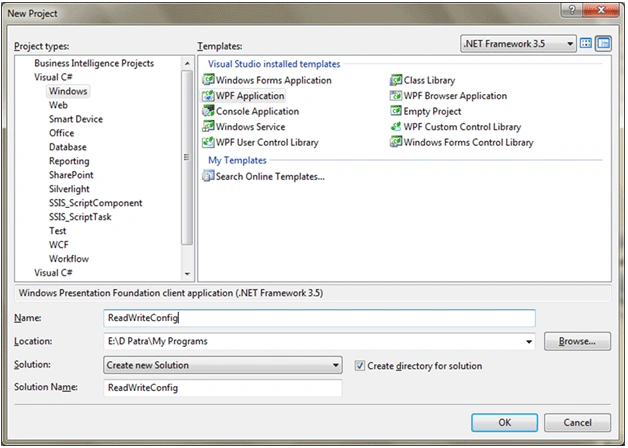
Now add a configuration file and name it as App.config.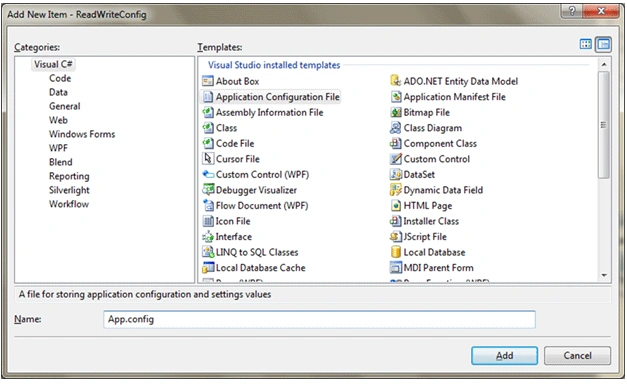
After adding the file you need to add the following xml structure.
<configuration>
<appSettings>
</appSettings>
</configuration>
Now we will add some controls to our Application such as A TextBox for Value and a Button to Add or Update the Value with a key.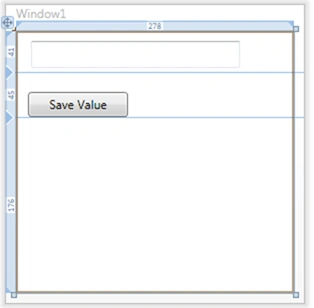
As you see from the above image the TextBox will carry the user typed Value and when user clicks on the Save Value Button the Value will be created if it doesn't exists or Update if exists.
First of All we need to take care of the Assemblies we are going to use in our application.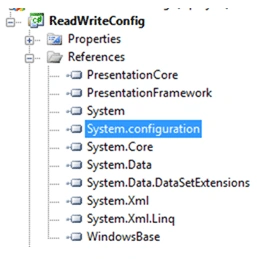
As you see from the above image, we need to add System.configuration Assembly reference. Note that by default it is not added when you create an application.
Now add a Key to appsettings with value="".
<configuration>
<appSettings>
<add key="UserName" value="" />
</appSettings>
</configuration>
We need to add a value to the Key through TextBox value.
So in the Button click event write the following code.
private void btnUpdate_Click(object sender, RoutedEventArgs e)
{
UpdateKey("UserName", txtName.Text);
txtName.Text = string.Empty;
}
public void UpdateKey(string strKey, string newValue)
{
XmlDocument xmlDoc = new XmlDocument();
xmlDoc.Load(AppDomain.CurrentDomain.BaseDirectory + "..\\..\\App.config");
if (!KeyExists(strKey))
{
throw new ArgumentNullException("Key", "<" + strKey + "> does not exist in the configuration. Update failed.");
}
XmlNode appSettingsNode = xmlDoc.SelectSingleNode("configuration/appSettings");
foreach (XmlNode childNode in appSettingsNode)
{
if (childNode.Attributes["key"].Value == strKey)
childNode.Attributes["value"].Value = newValue;
}
xmlDoc.Save(AppDomain.CurrentDomain.BaseDirectory + "..\\..\\App.config");
xmlDoc.Save(AppDomain.CurrentDomain.SetupInformation.ConfigurationFile);
}
public bool KeyExists(string strKey)
{
XmlDocument xmlDoc = new XmlDocument();
xmlDoc.Load(AppDomain.CurrentDomain.BaseDirectory + "..\\..\\App.config");
XmlNode appSettingsNode = xmlDoc.SelectSingleNode("configuration/appSettings");
foreach (XmlNode childNode in appSettingsNode)
{
if (childNode.Attributes["key"].Value == strKey)
return true;
}
return false;
}
But how do we know that the appSetting got modified. So while the window loads the Title will change accordingly to the value stored.
public Window1()
{
InitializeComponent();
if (!string.IsNullOrEmpty(ConfigurationSettings.AppSettings["UserName"]))
{
this.Title = ConfigurationSettings.AppSettings["UserName"];
}
}
Now run the application and look for the Title Bar. If it displays Window1 then the value of the key is empty.
Now update with some value and run the application again.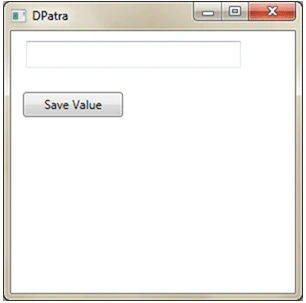
That's it. We got what we are looking for.
Hope this article helps.
Gowtham RajamanickamPosted Apr 18, 2016, 2:10 AM
very nice
Yaduveer SainiPosted Oct 21, 2015, 7:48 AM
Nice One
XAML AuthoreditedPosted Jan 8, 2010, 8:01 AMEdited Jan 8, 2010, 8:03 AM
One of the big problems with what you're doing is that your app.config isn't normally included in your build so when you deploy your application it's not going to be two directories up from your AppDomain.CurrentDomain.BaseDirectory. When you build your project, the app.config is copied to your output directory and renamed to <build_target>.config (i.e. bin\Debug\ReadWriteConfig.exe.config). Also, the System.Configuration.ConfigurationManager API will let you read and update appSettings without having to locate the configuration file and manually parse its XML contents. Take a look at this article for an example: http://www.codeproject.com/KB/cs/SystemConfiguration.aspx